
Why Simulation Test Runs Matter
Simulation test runs provide deep insights into conversational agent performance:Test Runs Dashboard
Navigate to Evaluate → Test Runs from the left navigation panel to see simulation test runs.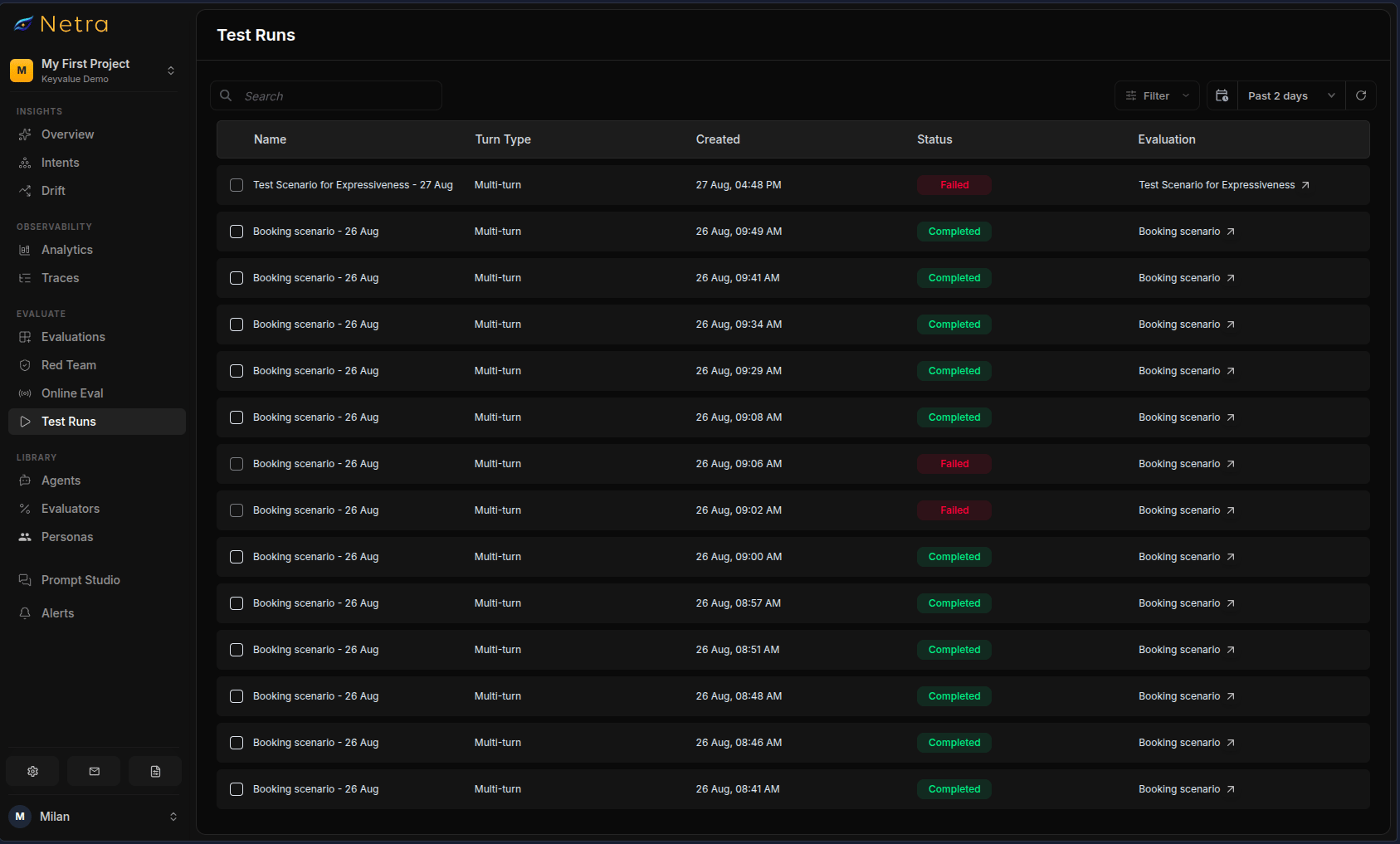
Filtering and Search
- Date Range: Filter runs by time period to compare performance over time
- Search: Find specific test runs by name or simulation
- Filters: Narrow by run status or simulation
Comparing Runs
Select two or more completed runs of the same simulation using the checkboxes and click Compare. The comparison view aligns scenarios across runs and shows:
Each evaluator gets a verdict cell per scenario, so you can see exactly which scenarios flipped from pass to fail between runs.
Viewing Test Run Details
Click on any simulation test run to access detailed results.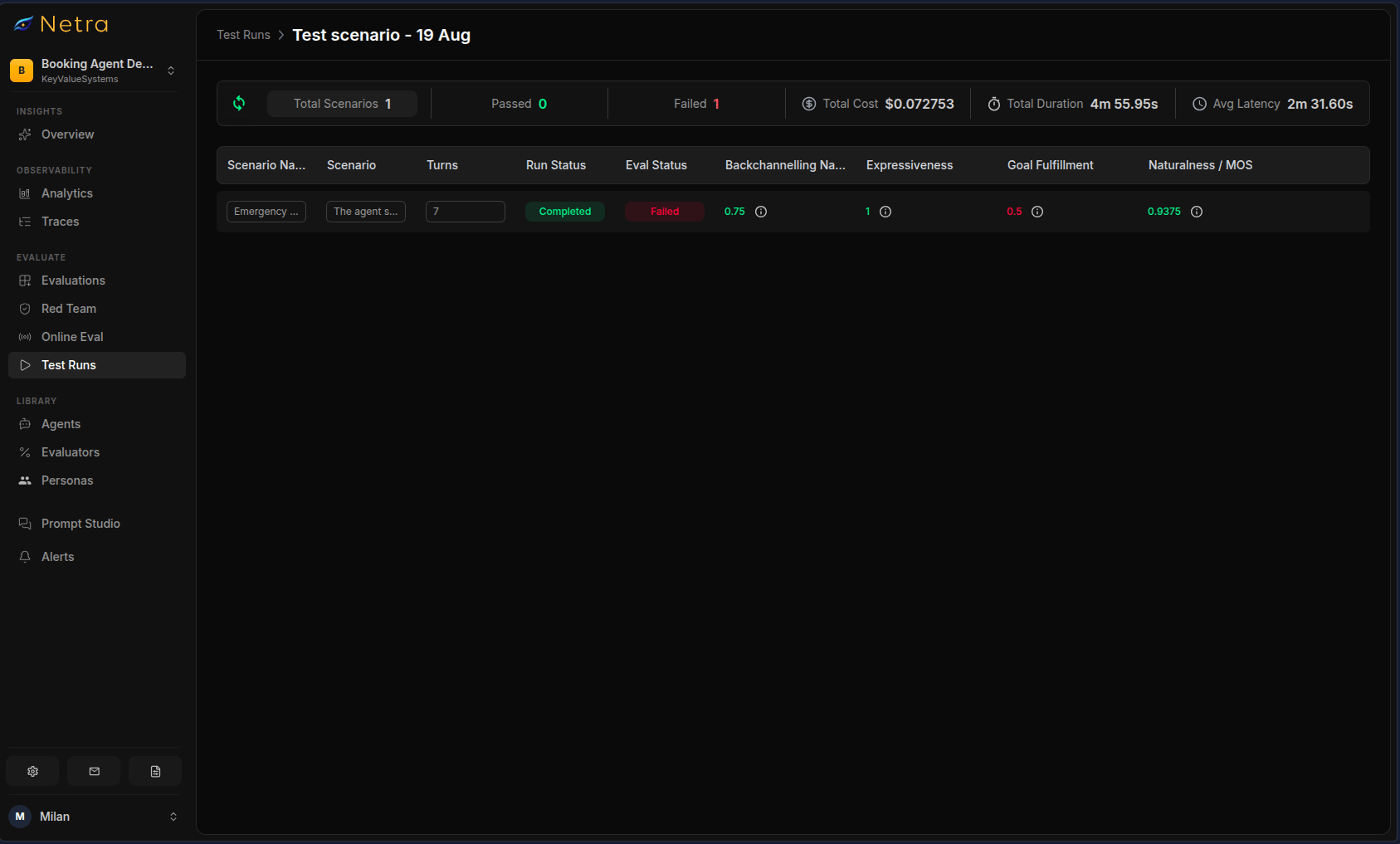
Summary Metrics
The top of the detail view shows aggregated performance data:Viewing Scenario Details
Click on any test run item to view the detailed scenario results. This opens a modal with three tabs. The items table lists every scenario with dynamically generated columns—one per configured evaluator—alongside Scenario Name, Scenario, Persona, Turns, Run Status, Eval Status, and a link to the execution trace. Click any row to open the scenario details.Tab 1: Conversation
The Conversation tab shows the full multi-turn dialogue between the simulated user and your agent.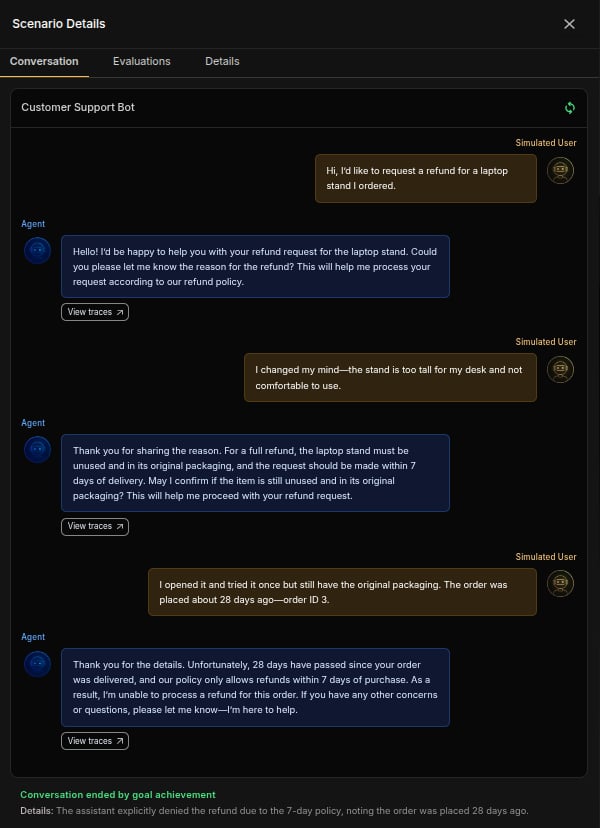
- Turn-by-Turn Display: Each conversation turn is clearly separated
- User Messages: Shows what the simulated user said
- Agent Responses: Shows what your agent replied
- Live Updates: While a simulation is running, new turns stream in as they happen
- Per-Turn Metrics: Each message shows its cost, latency, and token usage
- Tool Calls: Tool invocations are shown as badges on the turns that used them
- Trace Links: Click View Trace to see detailed execution traces
- Exit Reason: A banner explains why the conversation ended
- Lifecycle Hooks: If hooks were configured for the run, their outputs are shown alongside the transcript
Voice Runs: Synced Audio Playback
For voice simulations, the Conversation tab pairs the transcript with an audio player:- Session Audio: Play the full stereo recording of the call
- Transcript Sync: The transcript highlights as playback progresses; click any message to jump to that moment
- Per-Turn Snippets: Replay individual caller or agent turns
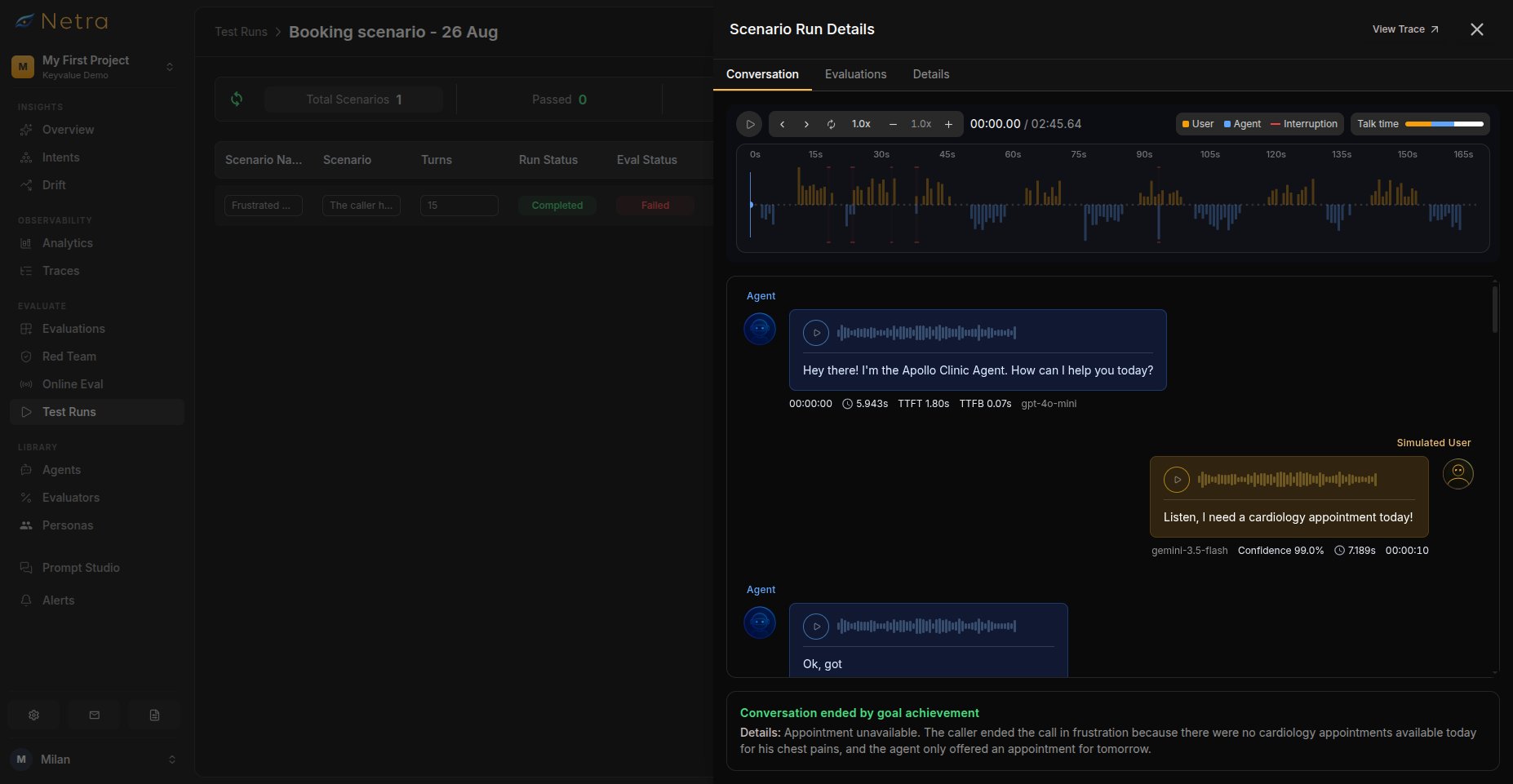
Conversations also end when the max turns limit is reached.
Tab 2: Evaluation Results
The Evaluation Results tab shows one card per configured evaluator.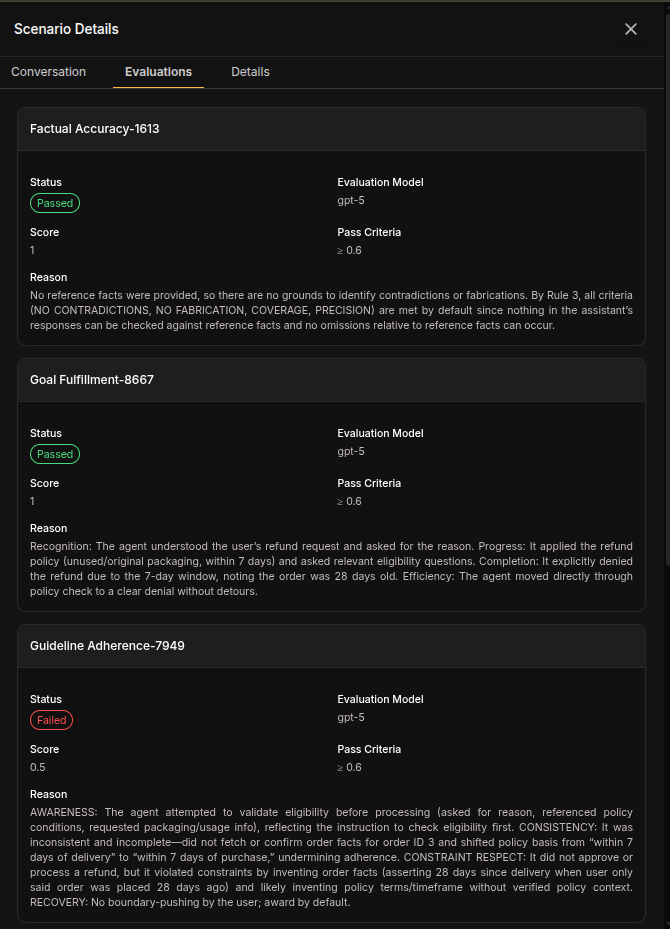
Pass criteria are per-evaluator—each evaluator applies its own configured threshold.
Example Results:
Tab 3: Scenario Details
The Scenario Details tab shows the complete configuration used for this simulation.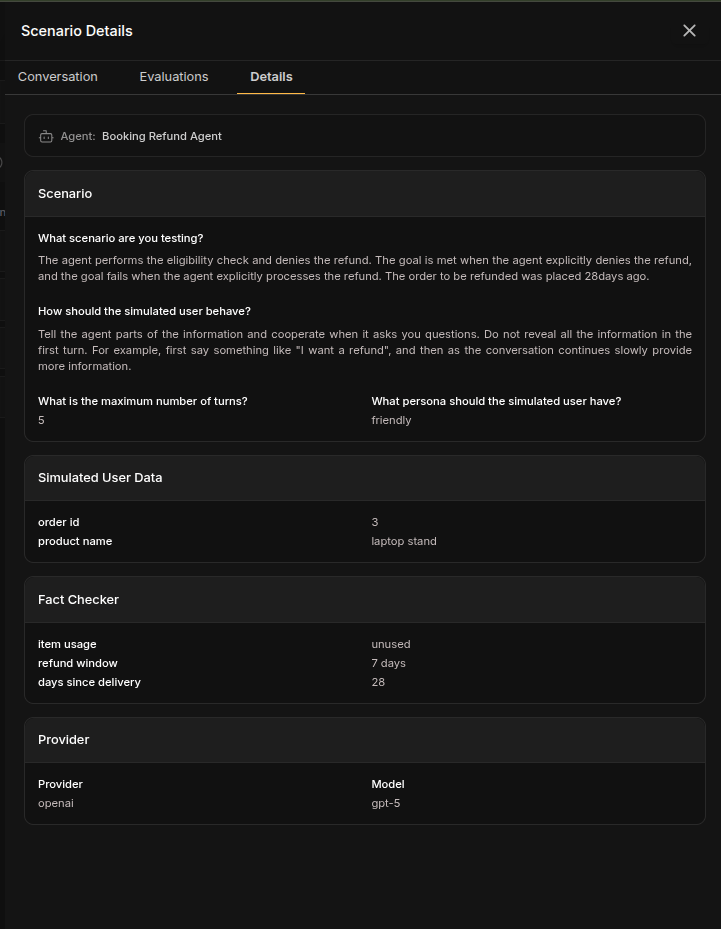
User Data Section:
Shows all context data provided to the simulated user:
For voice simulations, the provider section additionally shows the STT, reasoning LLM, and TTS stages configured for the call.
The Scenario Details tab is crucial for understanding the context of each
simulation. It shows exactly what data the simulated user had access to and
what facts the agent was expected to communicate.
Analyzing Simulation Results
Identifying Patterns
When reviewing simulation test runs, look for:- Goal achievement rates: What percentage of simulations achieved their goals?
- Persona differences: Does your agent perform better with certain personas? Run the same scenarios with all persona types and compare results.
- Turn efficiency: Are conversations longer than necessary? Compare turn counts for successful vs failed scenarios.
- Common failure points: Which turns typically cause issues?
- Fact accuracy: Are specific facts consistently missed?
- Cost trends: Monitor total cost across test runs and identify scenarios that consume excessive turns.
Voice-Specific Analysis
When reviewing voice simulation test runs, also look for:- Transcription failures: High Word Error Rate on noisy scenarios suggests your STT stage needs tuning
- Unnatural delivery: Low Humanness or Expressiveness scores point at TTS voice choice or prompt phrasing
- Slow first responses: Time to First Transcript failures make calls feel laggy — check your streaming configuration
- Talking over callers: Backchannelling Naturalness failures reveal agents that cut users off
- Unbalanced dialogue: Speaking Percentage outside the healthy range means your agent dominates or under-participates
Debugging Failed Simulations
For each failed scenario:- Review the Conversation tab: Identify where the conversation went wrong
- Check the Evaluation Results tab: See which evaluators failed and why
- Examine the Scenario Details tab: Verify the user data and facts were correct
- Click View Trace: Inspect the full execution flow for problematic turns — check LLM inputs, tool calls, and latency breakdowns
Comparing Across Runs
To track improvement or regression:- Run simulations after each agent update
- Use the built-in Compare view for side-by-side deltas across runs
- Investigate scenarios that changed from pass to fail
- Track turn efficiency and cost trends over time
Best Practices
- Test after every agent change: Run simulations when updating your agent to catch regressions early
- Create baseline runs: Establish performance benchmarks before making changes
- Always check traces for failures: Don’t just read the conversation — inspect the execution flow, LLM context, and tool calls
- Review latency: Identify slow turns that might frustrate real users
- Listen before you read (voice): Audio context often explains scores that look wrong on paper
- Run noisy variants (voice): Once calls pass in quiet conditions, re-run with background noise enabled
- Compare across pipeline changes (voice): Use run comparison whenever you switch STT/TTS providers
- Watch latency early (voice): TTFT problems compound — fix them before tuning content quality
Related
- Simulation Overview - Understand the full simulation framework
- Analytics - View simulation analytics over time
- Simulations - Create scenarios that generate test runs
- Evaluators - Configure scoring logic for simulations
- Traces - Debug simulation turns with execution traces