
Quick Start: Alerts
New to alerts? Set up your first alert rule in minutes.
Why Alert Rules Matter
AI systems can fail silently. Costs creep up, latency degrades, and errors accumulate without obvious symptoms:| Risk | How Alerts Help |
|---|---|
| Cost Overruns | Get notified when token spend exceeds thresholds per request or time period |
| Performance Degradation | Alert when latency spikes above acceptable levels |
| Error Rate Spikes | Detect when failures exceed normal baselines |
| SLA Violations | Monitor metrics that matter for your service commitments |
Alert Rules Dashboard
Navigate to Alert Rules from the left navigation panel.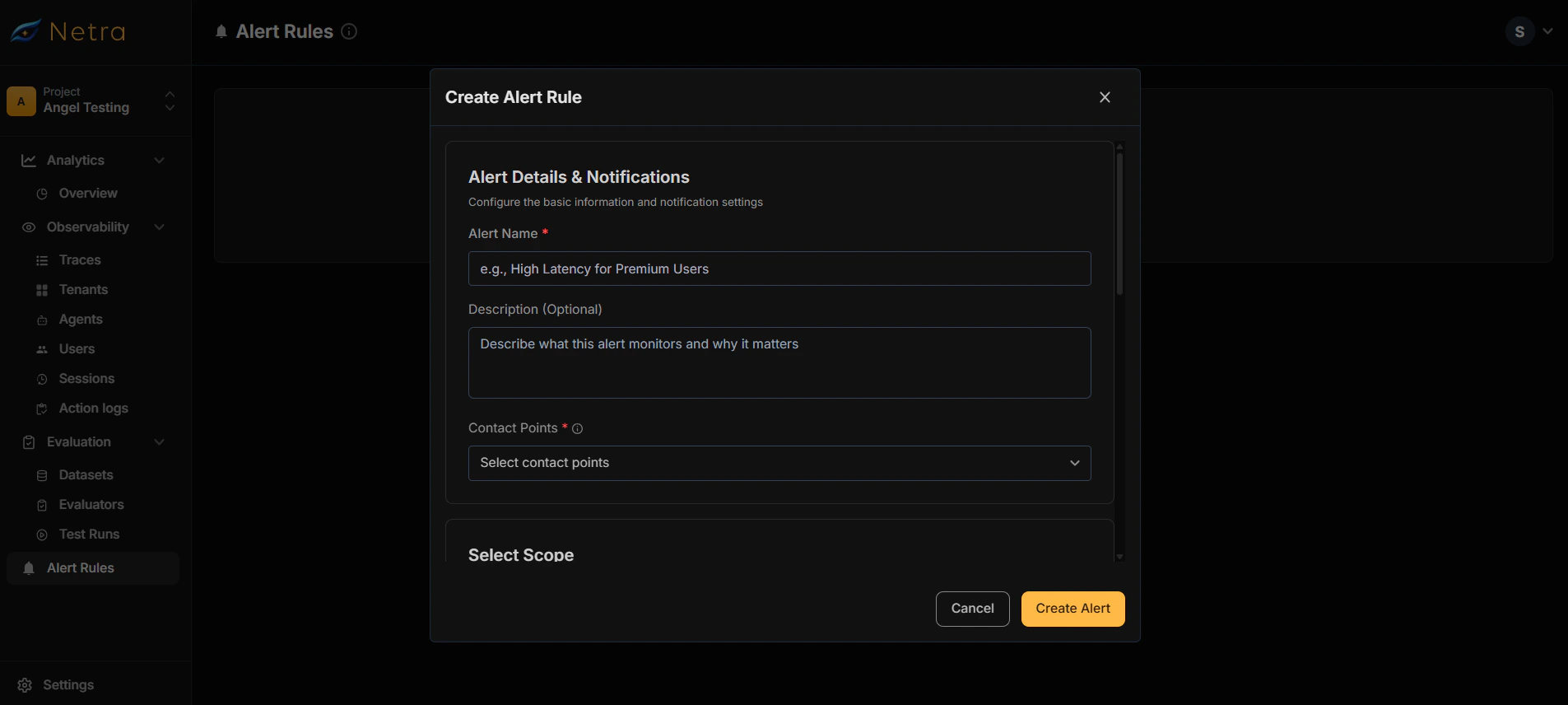
| Column | Description |
|---|---|
| Alert Name | Identifier for the alert rule |
| Status | Active or disabled |
| Last Triggered | When the alert most recently fired |
| Actions | Enable, disable, edit, or delete the rule |
Creating Alert Rules
Basic Information
| Field | Description |
|---|---|
| Alert Name | A descriptive name (e.g., “High Cost Alert - Production”) |
| Description | Optional details about what the alert monitors |
Configure Contact Points
Select where notifications should be sent when the alert triggers.
Contact points must be configured first in Settings → Contact Points. See Configuring Contact Points below.
Define Scope
Choose what level to monitor:
| Scope | Use Case |
|---|---|
| Trace | Monitor entire requests end-to-end |
| Span | Monitor individual operations (LLM calls, tool executions) |
Select Metric
Choose what to measure:
- Cost: Token/API spend in USD
- Latency: Response time in milliseconds
- Error Rate: Percentage of failed requests
- Token Count: Input/output token usage
Apply Filters (Optional)
Narrow down which traces trigger the alert by filtering on:
- Model: Specific AI model (e.g., gpt-4, claude-3)
- Tenant ID: Monitor specific customers or organizations
- Environment: Production, staging, development
- Service: Particular microservice or component
Set Trigger Conditions
Define when the alert should fire:
- Threshold: The value that triggers the alert
- Operator: Greater than, less than, equals
- Time Window: Evaluation period (optional)
How Alerts Work
When trigger conditions are met, Netra:- Evaluates incoming traces against your alert rules
- Triggers the alert when conditions match
- Sends notifications to all configured contact points
- Updates the alert’s status and last triggered timestamp
Configuring Contact Points
Before creating alerts, set up your notification channels.Create Contact Point
Click Create Contact Point and provide:
- Name: A descriptive label (e.g., “Engineering Slack”, “On-Call Email”)
- Integration: Choose Email or Slack
Configure Integration
Email Configuration
Email Configuration
Enter the email address(es) to receive notifications.
- Supports multiple recipients (comma-separated)
- Notifications include alert details, triggered values, and links to relevant traces
Slack Configuration
Slack Configuration
Choose your integration method:Option 1: Slack API
- Provide the recipient channel or user
- Enter your Slack Bot token
- Create an Incoming Webhook in Slack
- Paste the webhook URL
Use Cases
Cost Monitoring
Prevent budget overruns:- Create an alert for Cost > $0.50 per trace
- Set scope to Trace to monitor full request cost
- Route to your finance or engineering Slack channel
Latency SLAs
Ensure performance commitments:- Create an alert for Latency > 3000ms
- Set scope to Trace for end-to-end latency
- Notify your on-call team via email
Error Detection
Catch failures early:- Create an alert for Error Rate > 5%
- Set a time window to avoid false positives from single failures
- Route to your incident management system
Per-Tenant Monitoring
For multi-tenant applications:- Create alerts scoped to specific tenant IDs
- Monitor per-tenant cost or error rates
- Proactively reach out before customers report issues
Managing Alerts
Enable/Disable Alerts
Toggle alerts on or off without deleting them:- Useful for maintenance windows
- Temporarily silence noisy alerts while investigating
Edit Alert Rules
Modify existing alerts to:- Adjust thresholds as your system scales
- Add or remove contact points
- Change scope or metrics
Delete Alerts
Remove alerts that are no longer needed. This action is permanent.Best Practices
Setting Thresholds
- Start conservative: Begin with higher thresholds and tighten over time
- Use baseline data: Review your Dashboard metrics to understand normal ranges
- Account for variance: Set thresholds above typical peaks to avoid alert fatigue
Organizing Contact Points
- Separate by severity: Route critical alerts to on-call, informational alerts to Slack
- Use descriptive names: “Production Critical” vs “Dev Notifications”
- Test before relying: Send a test notification to verify delivery
Avoiding Alert Fatigue
- Be specific: Narrow scope to reduce false positives
- Set appropriate windows: Use time-based aggregation for rate metrics
- Review regularly: Disable or tune alerts that fire too often without action
Related
- Quick Start: Alerts - Get started with alert rules
- Traces - Understand the data alerts monitor
- Tenants - Monitor per-customer metrics
- Dashboard - View metrics to inform threshold settings