
Real-time Insights
Monitor your AI application’s performance with live-updating widgets and configurable refresh intervals.
Flexible Visualization
Choose from 6 chart types to display your data in the most meaningful way for your use case.
Dimensional Analysis
Segment data by environment, user, session, or tenant to uncover patterns and anomalies.
Reusable Widgets
Create widgets once and add them to multiple dashboards for consistent reporting across teams.
Accessing Custom Dashboards
1
Navigate to Organization Analytics
Click the profile icon in the top-right corner and select Organization Analytics
2
Open Custom Section
In the left navigation panel, click on Custom
3
Choose Your View
Select either Custom Dashboards to view dashboards or Widgets to manage individual widgets
Dashboard Management
The Custom Dashboards tab displays all your dashboards with key information: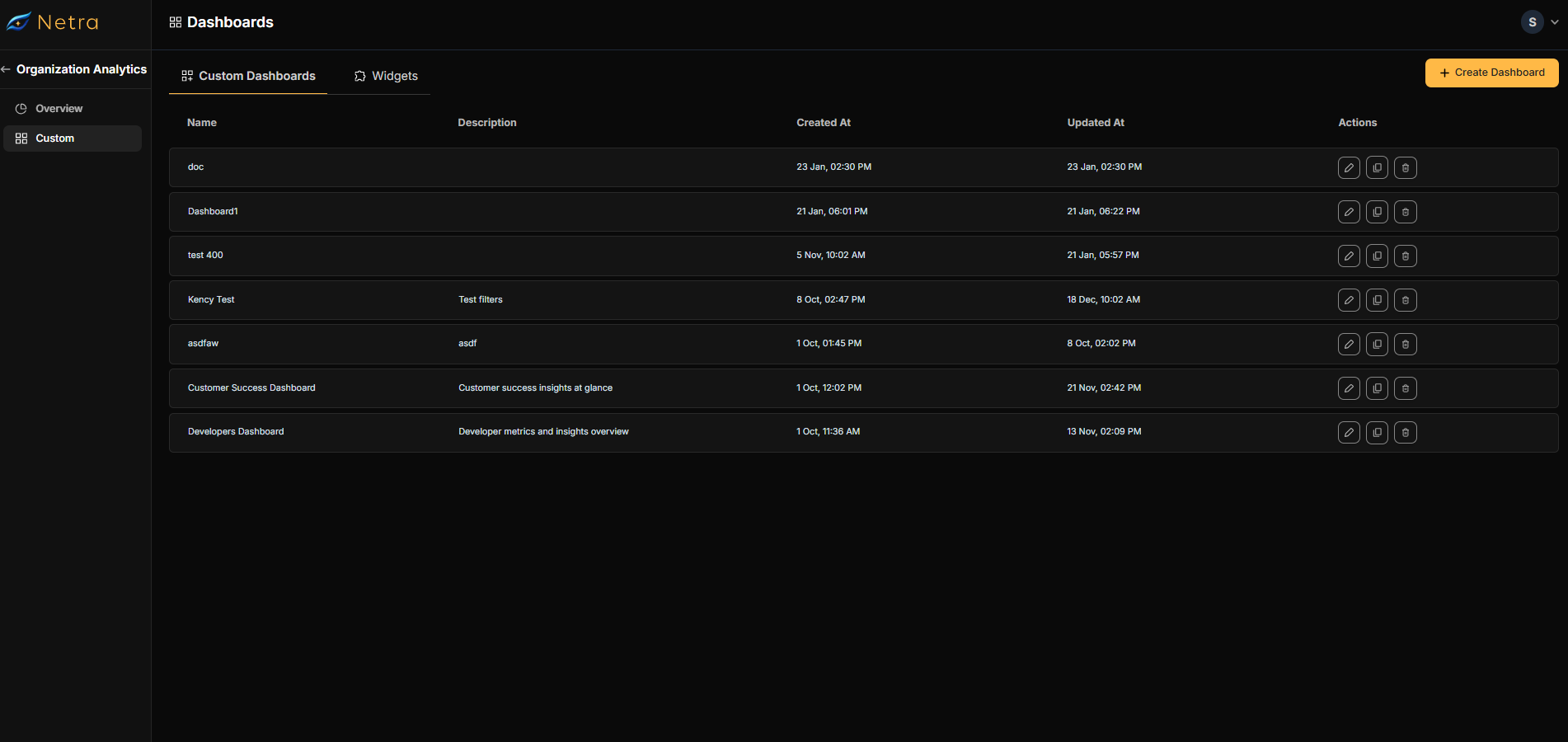
Creating a New Dashboard
1
Initiate Creation
Click Create Dashboard in the top-right corner of the Custom Dashboards tab
2
Configure Details
Enter a descriptive name and description for your dashboard
3
Create Dashboard
Click Create Dashboard to confirm, or Cancel to abort
4
Add Widgets
Click Add Widget to open the widget selector
5
Select Widgets
Check the boxes next to the widgets you want to include
6
Confirm Selection
Click Add Selected Widget to add them to your dashboard
Dashboard Actions
Widget Management
Widgets are the building blocks of your dashboards. Create them once and reuse them across multiple dashboards.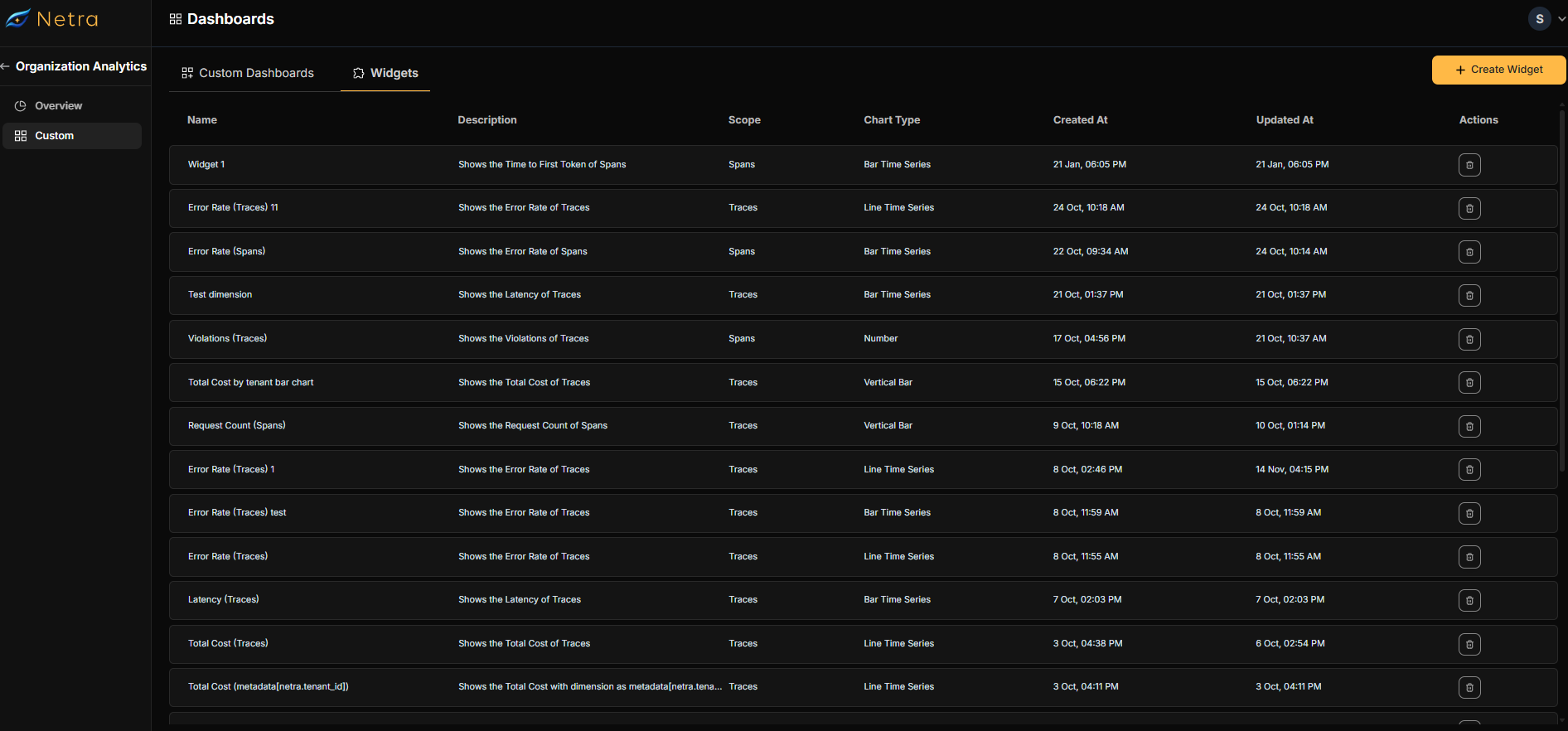
Creating a New Widget
Click Create Widget to open the configuration page with two sections:- Left panel - Configuration options
- Right panel - Live preview
1
Basic Information
2
Data Configuration
Widget Scope - Choose your data source:
Metric - Select what to measure (options vary by scope)
3
Select Metric & Aggregation
Available Metrics
Available Metrics
4
Choose Chart Type
5
Configure Dimensions (Optional)
Segment your data by:
6
Add Filters (Optional)
Narrow down your data with filters:
Boolean Filters
Boolean Filters
Selection Filters
Selection Filters
Text Filters
Text Filters
Numeric Filters
Numeric Filters
7
Preview and Save
Review the live preview on the right, then click Add Widget to save
The Widget Preview section shows a real-time visualization with a date range filter, allowing you to verify your configuration before saving.
Best Practices
Name Widgets Descriptively
Use clear names like “Daily Cost by Model” instead of “Cost Widget 1” for easier discovery.
Start with Key Metrics
Begin with 3-5 essential widgets, then expand based on team feedback.
Use Consistent Time Ranges
Keep related widgets on the same time range for accurate comparisons.
Group Related Dashboards
Create separate dashboards for different concerns (cost, performance, quality).
Common Use Cases
Cost Monitoring Dashboard
Cost Monitoring Dashboard
Track spending across your AI infrastructure:
- Total Cost by Model - Pie chart showing cost distribution across different models
- Daily Cost Trend - Line time series tracking cost over time
- Cost by Tenant - Horizontal bar comparing costs across customers
- High-Cost Sessions - Filter for sessions exceeding cost thresholds
Performance Monitoring Dashboard
Performance Monitoring Dashboard
Monitor latency and throughput metrics:
- P95 Latency Trend - Line chart tracking latency percentiles over time
- Request Count by Environment - Bar chart comparing prod vs staging traffic
- Time to First Token - Track streaming response performance
- Latency by Model - Compare response times across different models
Quality & Compliance Dashboard
Quality & Compliance Dashboard
Track errors, violations, and PII detection:
- Error Rate Trend - Line chart showing error percentage over time
- Violation Count - Big number widget for policy violations
- PII Detection by Service - Bar chart showing PII occurrences
- Error Rate by Environment - Compare error rates across deployments
Tenant Analytics Dashboard
Tenant Analytics Dashboard
Multi-tenant usage analysis:
- Usage by Tenant - Horizontal bar showing request distribution
- Cost per Tenant - Track spending by customer
- Token Usage Trend - Monitor token consumption over time
- Active Sessions by Tenant - Compare engagement across customers
Next Steps
- Dashboard Query API - Query dashboard data programmatically
- Usage, Traces & Spans - Query usage data
- Sessions - Understand session management
- Tenants - Multi-tenant analytics