
General
Set up the basics for your project:- Project Name: Edit your project’s display name
- Project ID: View and copy your unique project identifier (read-only)
Want to switch projects? Head to the Analytics Dashboard and click your current Project Name at the top of the left nav panel. A dropdown will reveal all your available projects — just pick one to switch instantly.
Members
See who has access to your project at a glance. This section shows Project Members and Project Admins — the people actively collaborating within this project. For each member, you can view:Looking for Organization Owners? They won’t appear here. Head over to Organization Settings — Members to view and manage them.
Adding Members
Click “Add Members” to bring new collaborators into the project — search by name or email, select the members you need, and hit save. They’ll be notified right away.API Keys
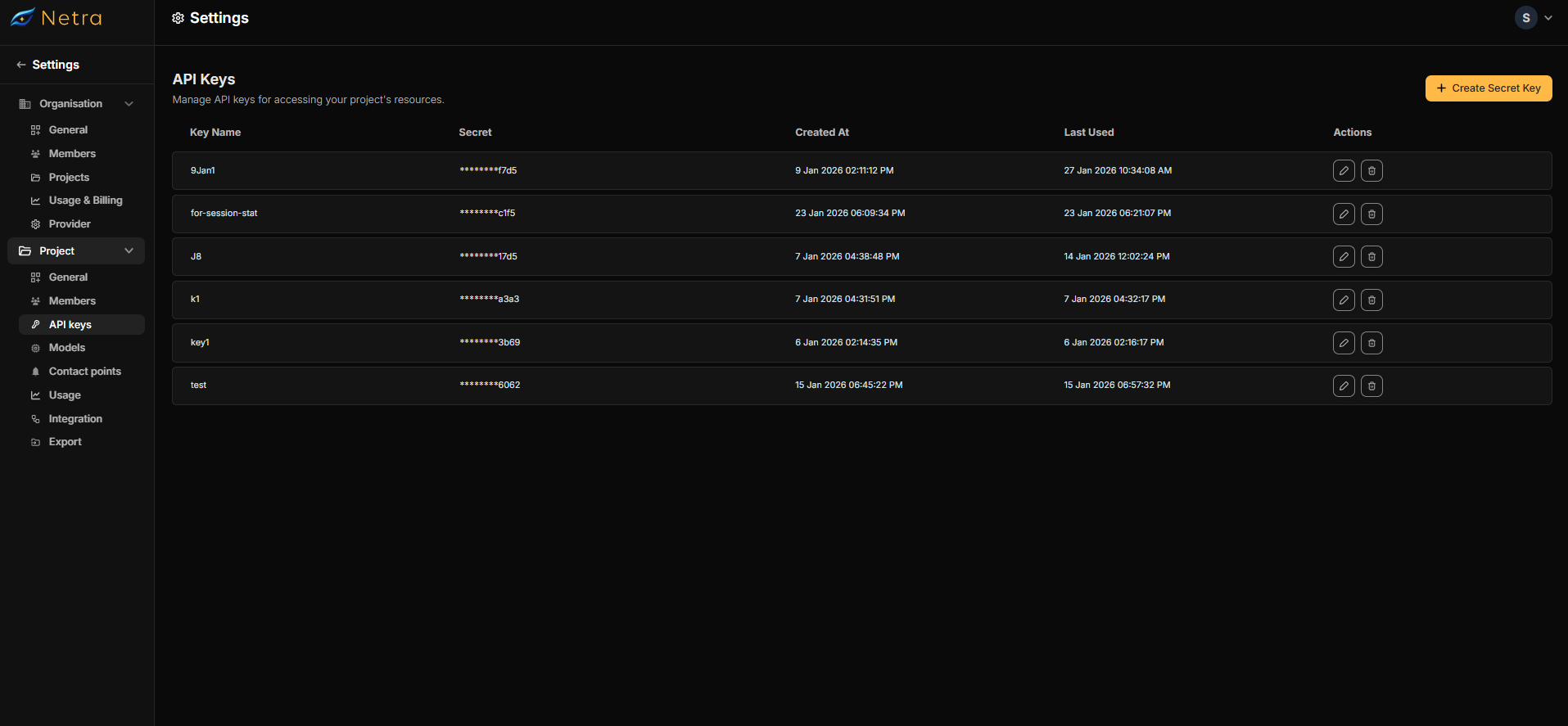
Creating a New API Key
1
Open Key Creation
Click “Create Secret Key” in the API Keys section.
2
Name Your Key
Give it a descriptive name so you can easily identify its purpose later.
3
Secure Your Key
Copy the generated key immediately and store it somewhere safe — the full key won’t be shown again.
Managing Existing Keys
- Edit: Rename a key for better identification
- Delete: Revoke access by removing keys you no longer need
Models
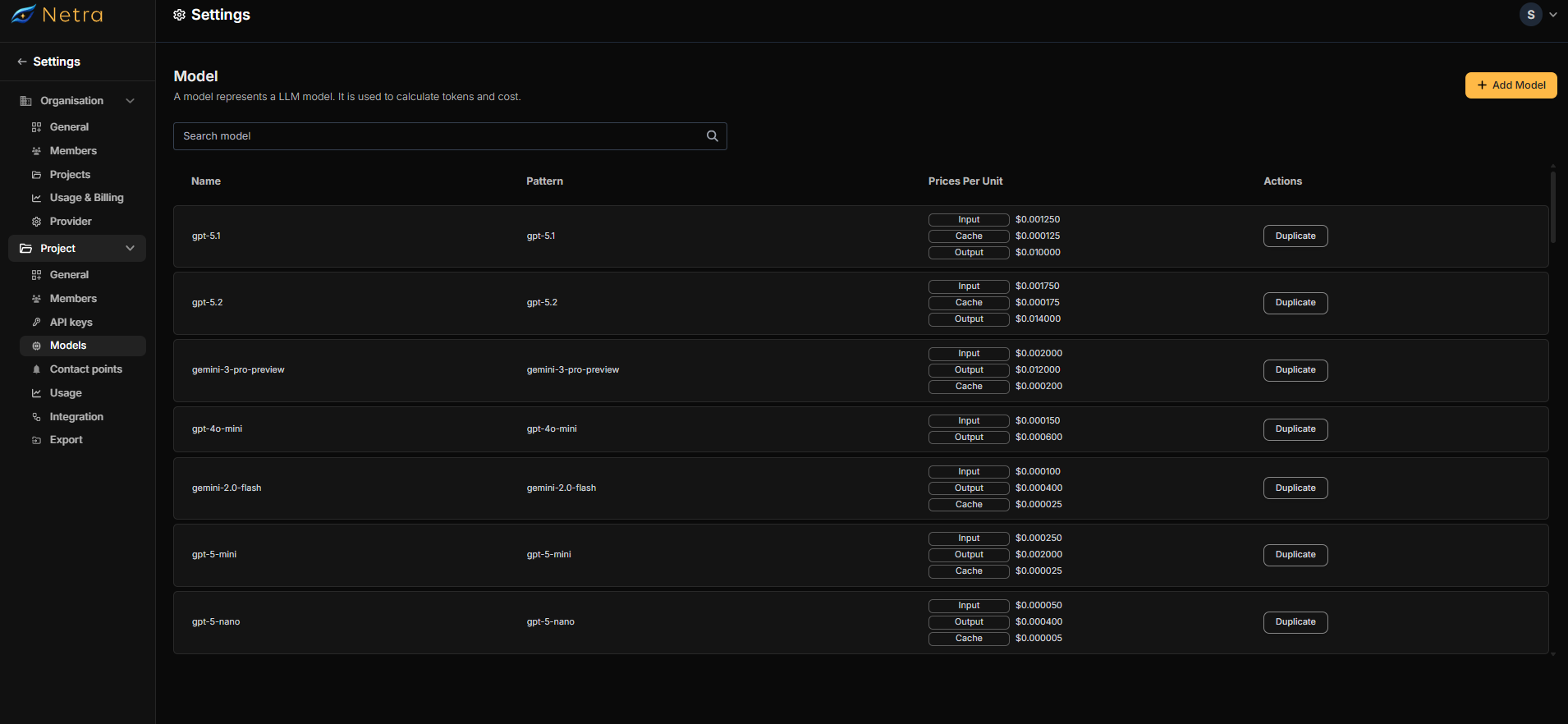
Adding a New Model
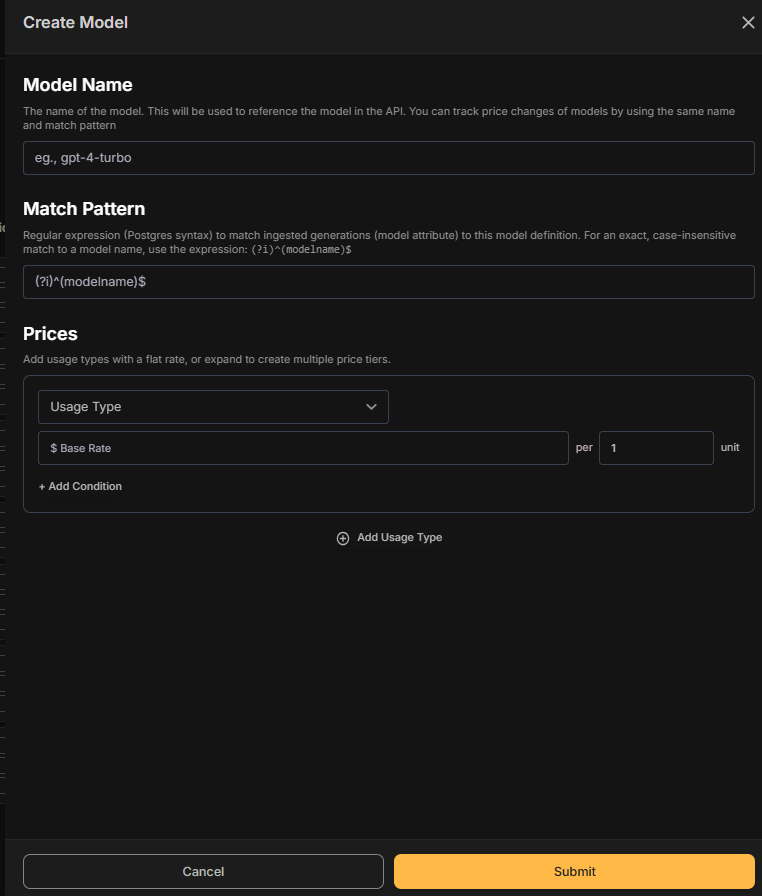
1
Start
Click “Add Model” to begin.
2
Basic Information
- Model Name: The name used in API calls and for tracking price changes.
- Match Pattern: Define how this model matches incoming data using Postgres regex syntax.
- Example:
(?i)^(modelname)$for exact case-insensitive matching.
- Example:
3
Configure Pricing
Add rate cards for the usage types that apply — input tokens, output tokens, caching, audio duration, or character count.
Managing Existing Models
- Duplicate: Need a similar model? Duplicate an existing one and tweak the parameters and pricing to fit.
Contact Points
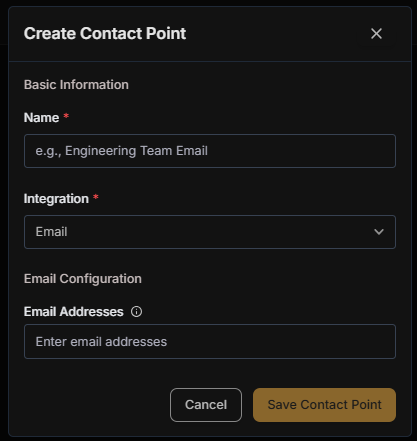
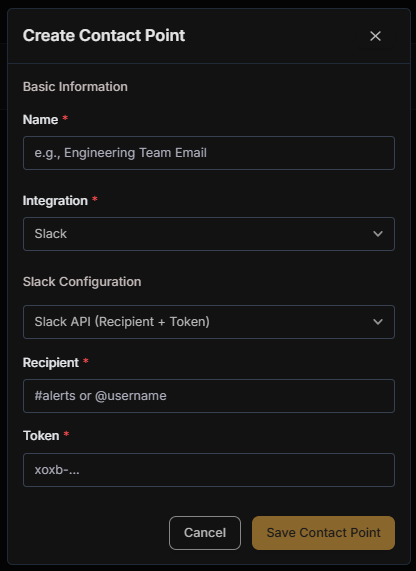
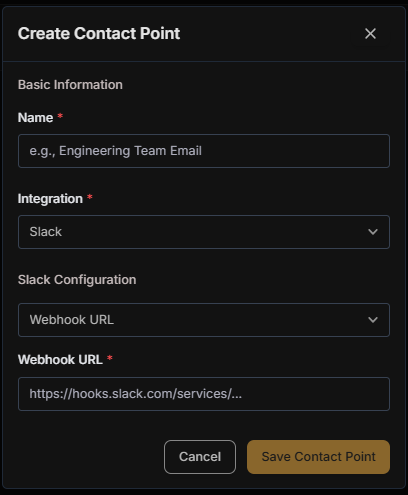
Setting Up a Contact Point
1
Create
Click “Create Contact Point” to get started.
2
Pick a Channel
Choose how you want to be notified:
- Email — alerts sent directly to specified addresses
- Slack — notifications posted to your team’s workspace
3
Configure
- For Email: Enter the recipient addresses
- For Slack: Connect your workspace and pick a channel
4
Test & Save
Fire off a test notification to make sure everything works, then save your configuration.
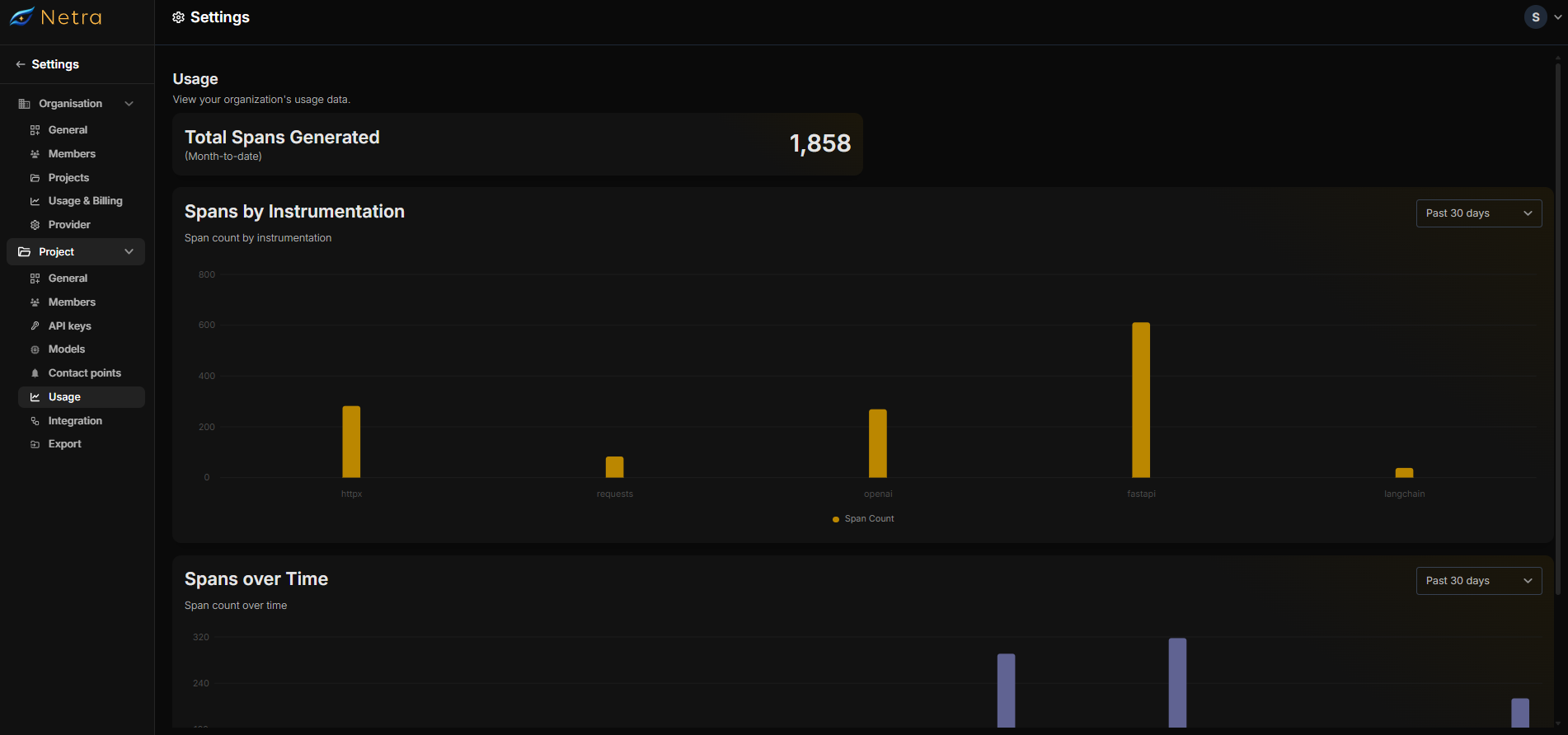
Usage
Integration
Integrations allow you to connect external services to your project for exporting and storing observability data generated by Netra. Once configured, these integrations can be used as destinations for scheduled exports, enabling long-term storage, external analysis, or compliance workflows outside the Netra platform.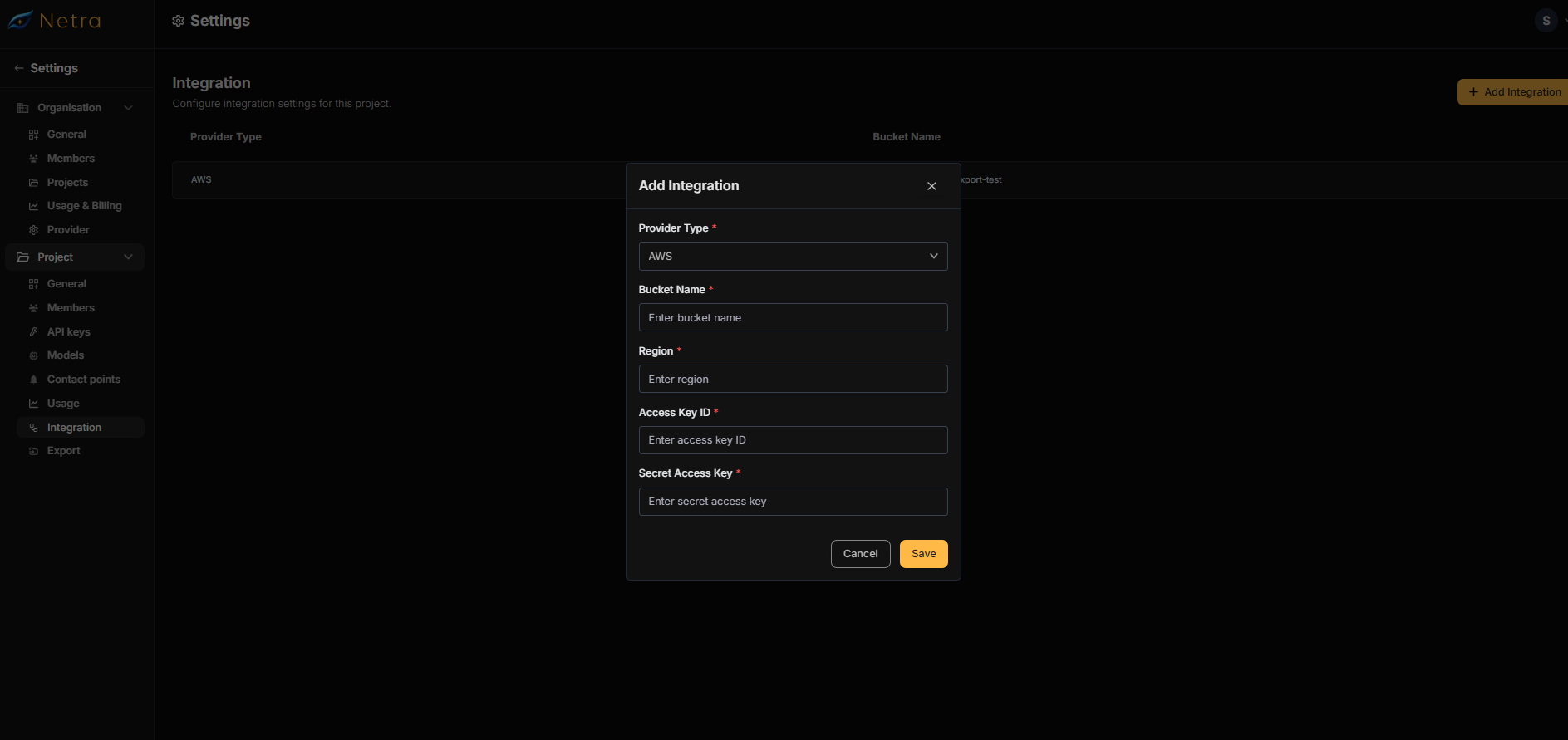
Supported Providers
Amazon Web Services (AWS)
Export data to Amazon S3 buckets with IAM-based authentication.
Google Cloud Platform (GCP)
Export data to Google Cloud Storage buckets with service account authentication.
Adding an Integration
1
Start Integration
Navigate to Project Settings → Integration and click Add Integration.
2
Select Provider Type
Choose your cloud provider:
3
Configure Bucket Details
Enter your storage bucket information:
4
Provide Authentication Credentials
Enter your access credentials based on the selected provider:
Your credentials are secure. All access keys and secrets are encrypted using industry-standard encryption and stored securely. We never expose or log your credentials in plain text.
AWS Credentials
AWS Credentials
Minimum Permissions Required:
GCP Credentials
GCP Credentials
Minimum Permissions Required:
5
Save & Verify
Click Save Integration to store your configuration. Netra will verify the connection by testing bucket access.
Integration Listing
The Integration page displays all configured cloud storage connections:Export
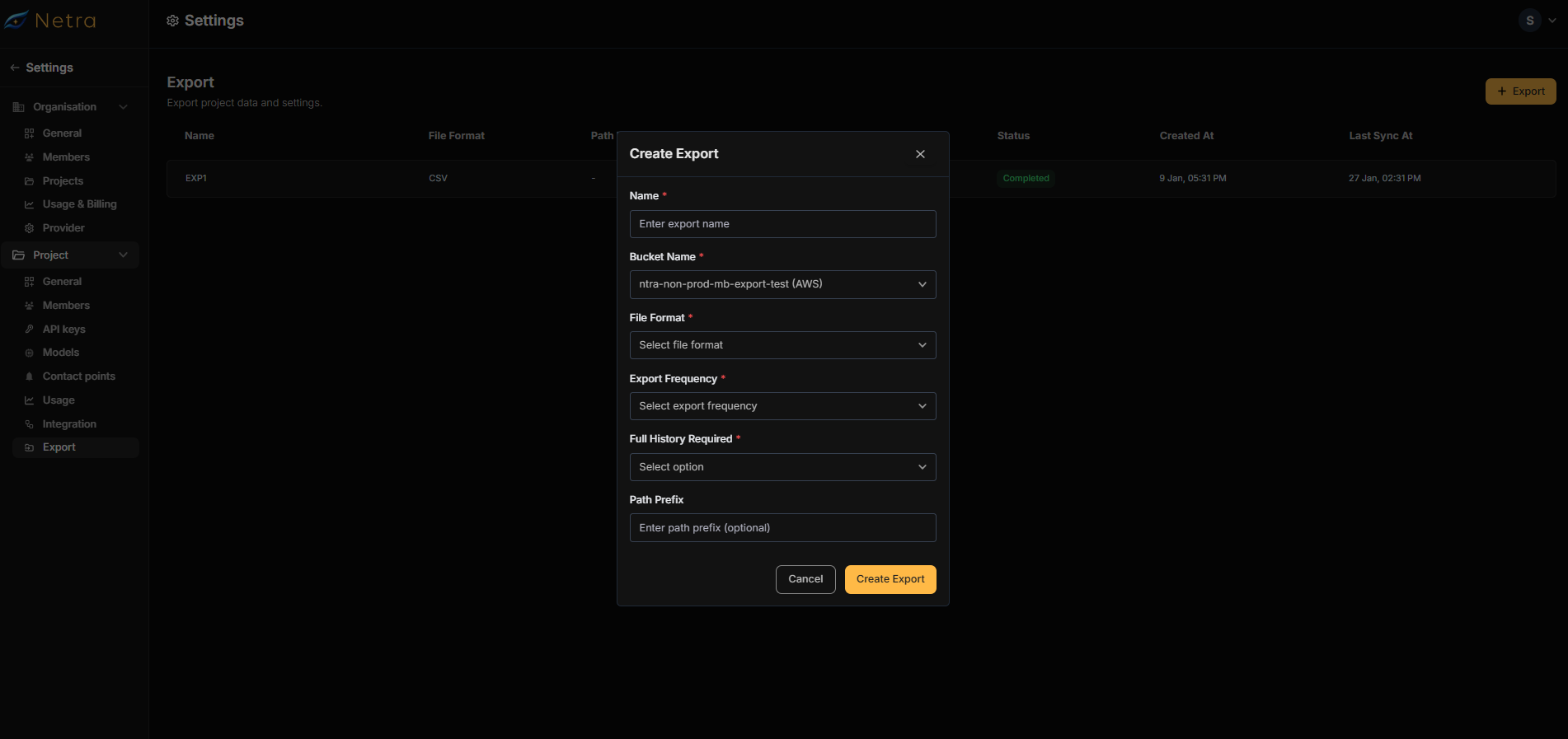
Flexible Scheduling
Export hourly or daily based on your needs.
Multiple Formats
Choose JSON or CSV format for compatibility with your tools.
Historical Data
Optionally export your complete historical data on first run.
Creating an Export
1
Initiate Export
Navigate to Project Settings → Export and click Create Export.
2
Basic Configuration
Configure the fundamental export settings:
3
Select File Format
Choose the output format for your exported data:
4
Configure Export Frequency
Set how often data should be exported:
5
Historical Data Option
Choose whether to include historical data:
Exporting full history may result in a large initial export depending on your project’s data volume. Subsequent exports will only include incremental data.
6
Set Path Prefix
Configure the folder structure for exported files:
Resulting file path:
s3://your-bucket/netra/exports/production/2026-01-29/traces_001.json7
Review & Create
Review all settings and click Create Export to activate the export schedule.