
Why Simulations Matter
Simulations transform simple Q&A testing into realistic conversation testing:Simulation Dashboard
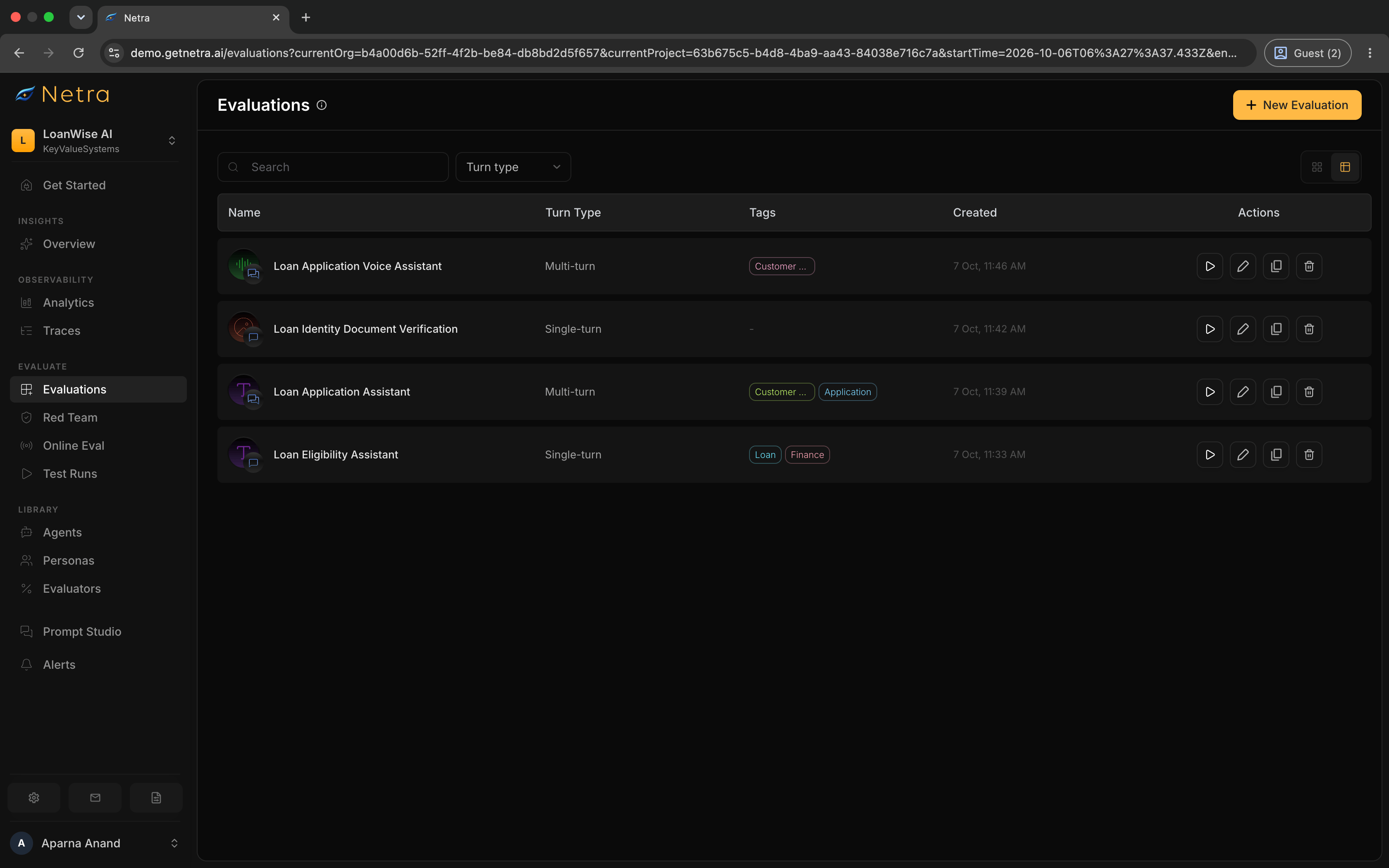
Navigate to Evaluate → Evaluations from the left navigation panel to access your evaluations. Filter by Multi turn type to focus on simulations, and switch between card and list views from the page toolbar. Each text simulation shows a text type icon with a Multi-turn badge at the bottom-right. Text simulations always use Multi Turn Simulation.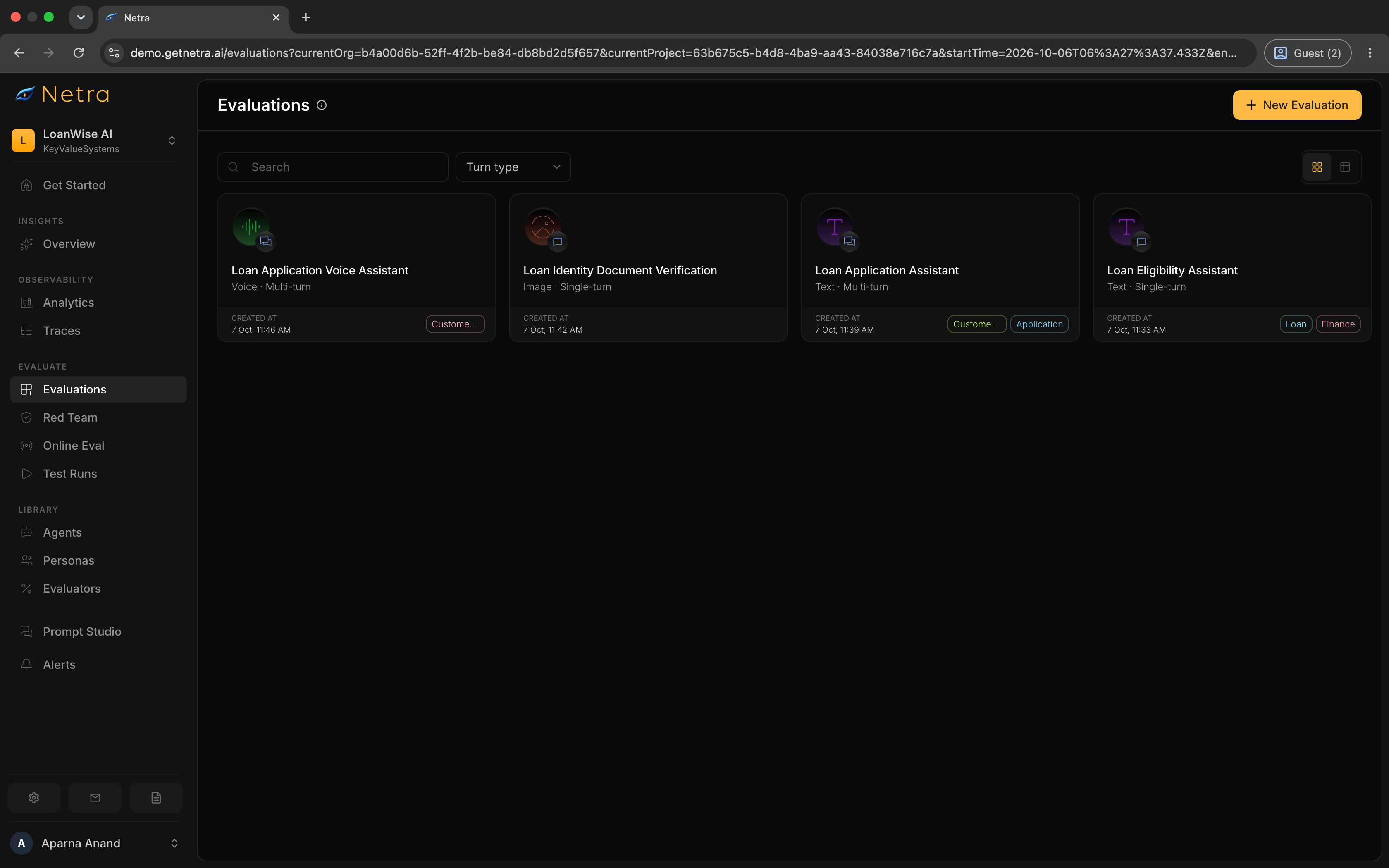
Text · Multi-turn), tags, created date, a Run action, and a menu with Duplicate, Edit, and Delete.
Creating a Multi-Turn Simulation
Click New Evaluation in the top right corner of the Evaluations page.Add Manually
Build simulation scenarios from scratch, one scenario at a time
Generate with AI
Draft scenarios from a prompt or an existing agent
1
Setup
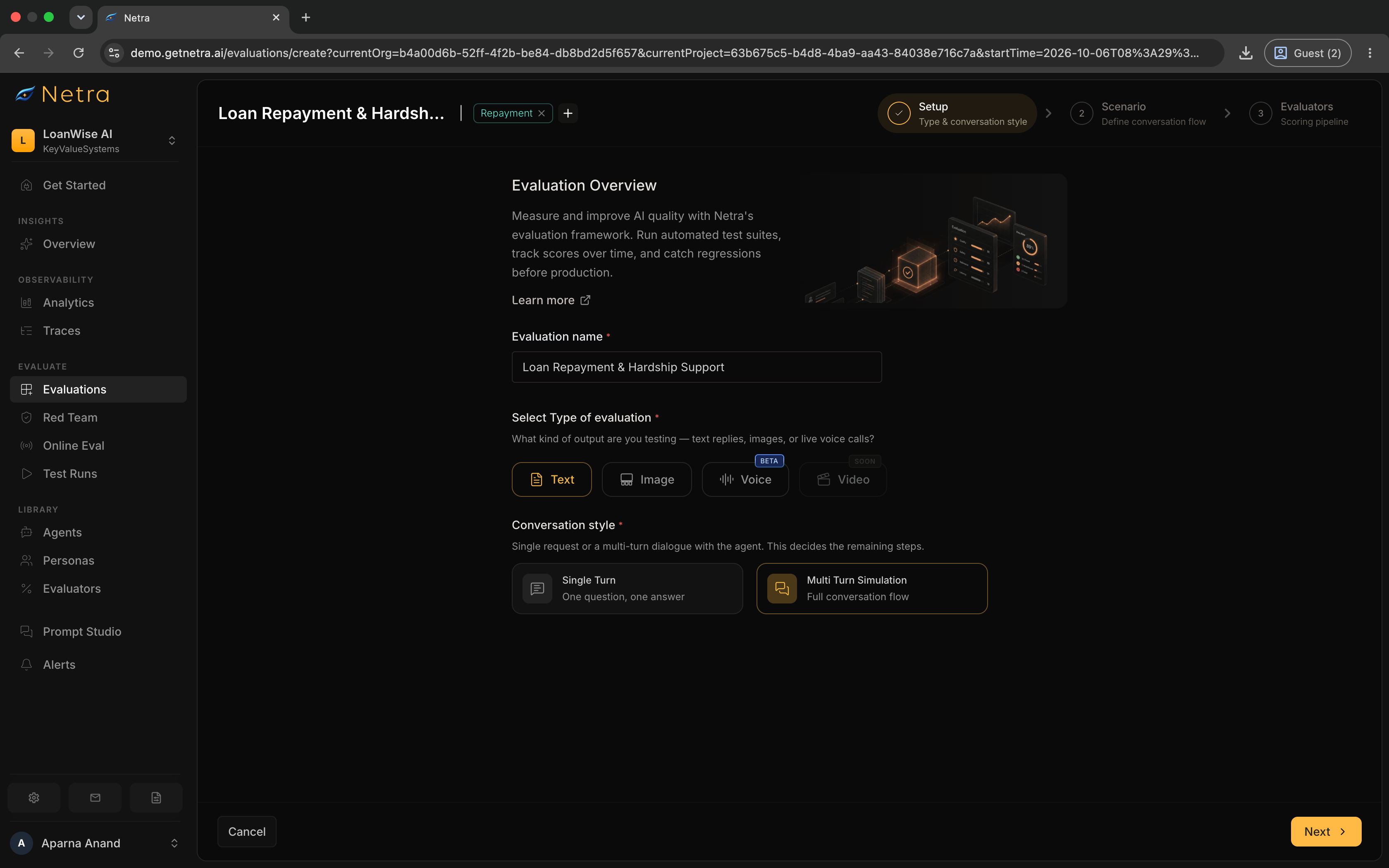
Tags can be added at any point via the header bar at the top of the wizard.
To simulate phone or voice calls instead, select the Voice type. See Voice Simulations.
2
Set Up Scenario
On the Scenario step, add scenarios in either way:03 The simulated userBehaviour instructions — Describe how the simulated user should behave during the conversation.Persona — Choose how the simulated user behaves emotionally:File Attachments — Attach up to five files per scenario for the simulated user to reference. Supported formats are PDF, DOCX, PNG, JPG/JPEG, and CSV, with a maximum size of 5 MB per file. Each attachment requires a short description.Simulation provider and model — Select the provider and model that will play the simulated user (e.g., OpenAI / GPT-4o). This is required for each scenario. AI-generated drafts leave this blank — you must set it before creating.Click + Add Scenario to add more scenarios to the same evaluation.
- Type them in — fill each scenario card yourself
- Generate with AI — click Generate scenarios with AI under the cards (see Generate Scenarios with AI)
- Lower (1-10): Quick interactions and single-question support
- Medium (11-25): Standard support conversations
- Higher (26-50): Complex, multi-step problem resolution
Information available to the simulated user — Provide the context data the simulated user can reference during the conversation. Enter it as a Table, as JSON, or as Plain Text.Example (Table):
Example (JSON):
3
Configure Evaluators
Click Next to reach the Evaluators step. This is a split view with the evaluator library on the left and your Scoring Pipeline on the right.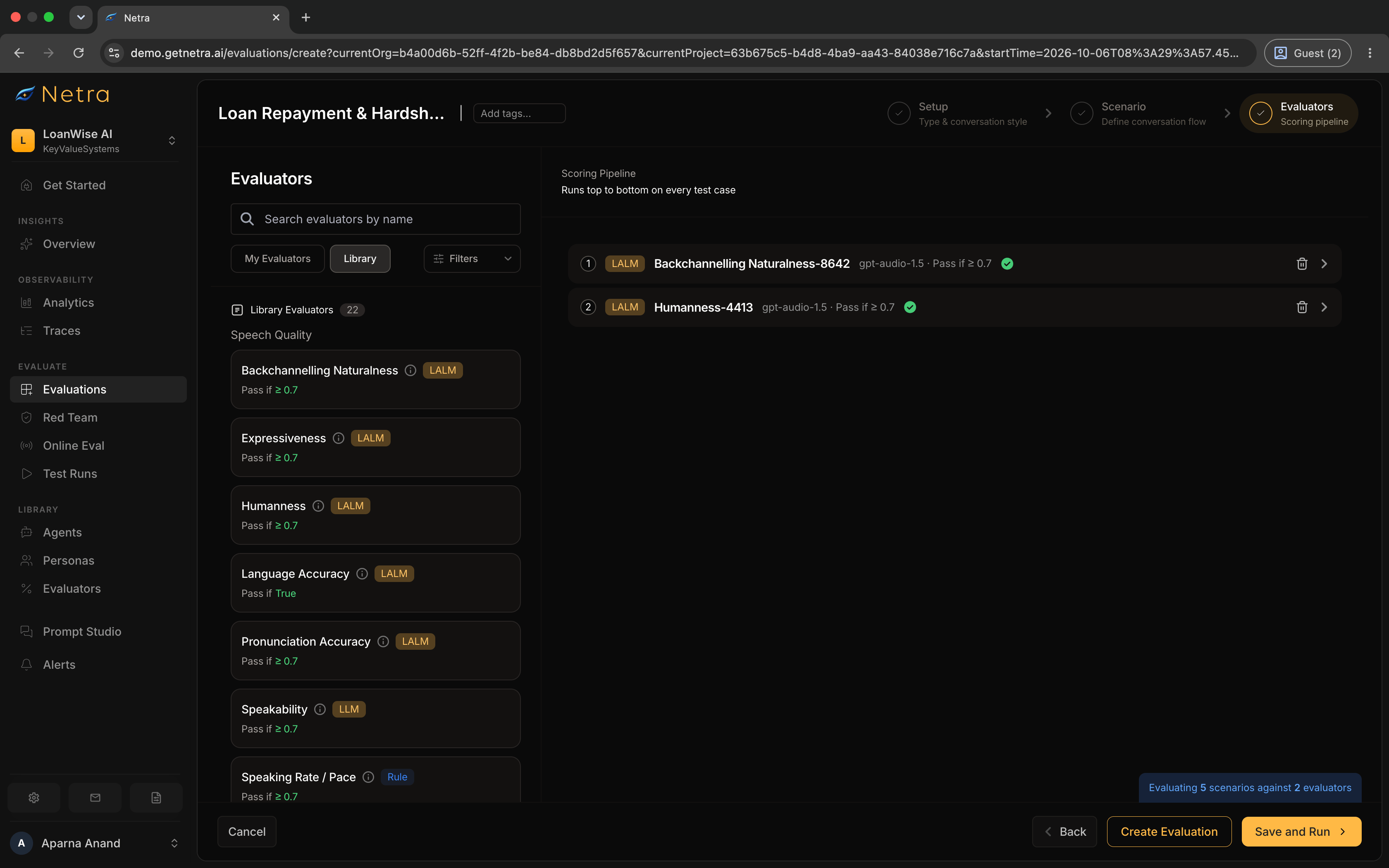
- Click on any evaluator card in the library, or drag it into the pipeline, to add it
- Expand an evaluator in the pipeline to configure its judge model, pass criteria, and any configurable variables
- Conversational Flow — Evaluates the natural flow of conversation
- Conversation Completeness — Checks if the conversation reaches a complete resolution
- Conversation Memory — Tests if the agent remembers context across turns
- Factual Accuracy — Verifies the agent communicates correct information
- Guideline Adherence — Checks if the agent follows specified guidelines
- Speakability — Evaluates how natural the agent’s responses sound
- Backchannelling Naturalness — Tests natural backchanneling responses
- Expressiveness — Evaluates emotional expressiveness in responses
- Guideline Adherence: your agent’s instructions and constraints
- Factual Accuracy: the reference facts your agent must communicate correctly
4
Create Evaluation
Two buttons appear in the footer:
- Create Evaluation — saves the evaluation and opens the detail page
- Save and Run — saves the evaluation and immediately opens agent selection to trigger a test run
Generate Scenarios with AI
Use AI to draft scenarios from a free-text description or an existing agent. Drafts appear as scenario cards for review — nothing is saved until you create the evaluation.1
Open the generate panel
On the Scenario step, click Generate scenarios with AI below the scenario cards.
2
Choose context
Pick one context mode:
3
Set count and Auto evaluation
Choose 1–10 scenarios. Leave Auto evaluation on to suggest evaluators
for the generated batch, or turn it off if you only want scenarios.
4
Generate and review
From the success toast you can:
- Retry — run the same request again
- Add more with AI — open the panel to generate additional scenarios
- Dismiss — return to the dock
5
Confirm evaluators and create
If you left Auto evaluation on, the evaluators step arrives with suggested evaluators already selected — review and adjust as needed.Click Create Evaluation to save or Save and Run to immediately trigger a test run.
Running a Simulation
Once your simulation is configured, you can run simulations from the dashboard or the SDK.From the Dashboard
1
Open Run Test Suite
Open your simulation, go to the Test Runs tab, and click Run Test Suite.
2
Select an Agent and Name the Run
Pick a registered agent to converse
with the simulated users, give the run a name, and start it. Netra runs every
scenario and evaluates each conversation.
3
View Results
Monitor progress and results in Test Runs.
From the SDK
Use the SDK’s simulation methods with your Simulation ID to trigger simulations from your own code. See the SDK reference for Python and TypeScript.Managing a Simulation
Open any simulation to manage it:
You can also clone scenarios or the entire simulation to create variants.
Best Practices
Crafting Effective Scenarios
- Be specific: “Get a refund for a damaged product” is better than “Ask about returns”
- Include context: Provide enough detail for realistic simulation (order details, timeline, issue description)
- Include edge cases: Create scenarios that challenge your agent’s boundaries
- Use AI as a draft, then edit: Generate with AI to bootstrap coverage, then refine goals, personas, and provider settings before saving
Choosing User Personas
- Neutral: Best for baseline performance testing
- Friendly: Tests whether your agent maintains professionalism even when not challenged
- Frustrated: Critical for customer support agents—tests patience and de-escalation
- Confused: Tests clarity and explanation quality
- Custom: Use for industry-specific personas (technical users, non-native speakers, etc.)
Defining User Data
- Provide realistic data: Use representative order numbers, dates, and values
- Include edge cases: Test with missing fields, unusual values, or conflicting data
- Keep it relevant: Only include data that matters for the scenario
- Use consistent formats: Standardize date formats, currency, and naming
Verifying Facts
To check that your agent communicates critical information correctly:- Attach the Factual Accuracy evaluator and provide the must-communicate facts as its Reference Facts variable
- Focus on critical facts: What MUST the agent get right?
- Be precise: “5-7 business days” is better than “about a week”
Related
- Simulation Overview - Understand the full simulation framework
- Evaluators - Configure scoring logic for simulations
- Test Runs - View simulation results and conversation transcripts
- Traces - Debug simulation turns with execution traces