
Why Test Runs Matter
Test Runs transform raw evaluation data into actionable insights:Triggering a Test Run
Test runs are triggered via the SDK. You provide a dataset, a task function that processes each input, and a name for the run.input field from each dataset item. The output is compared against expectedOutput by the evaluators attached to the dataset. See the SDK reference for Python and TypeScript for the full API.
Test Runs Dashboard
Navigate to Evaluation → Test Runs from the left navigation panel.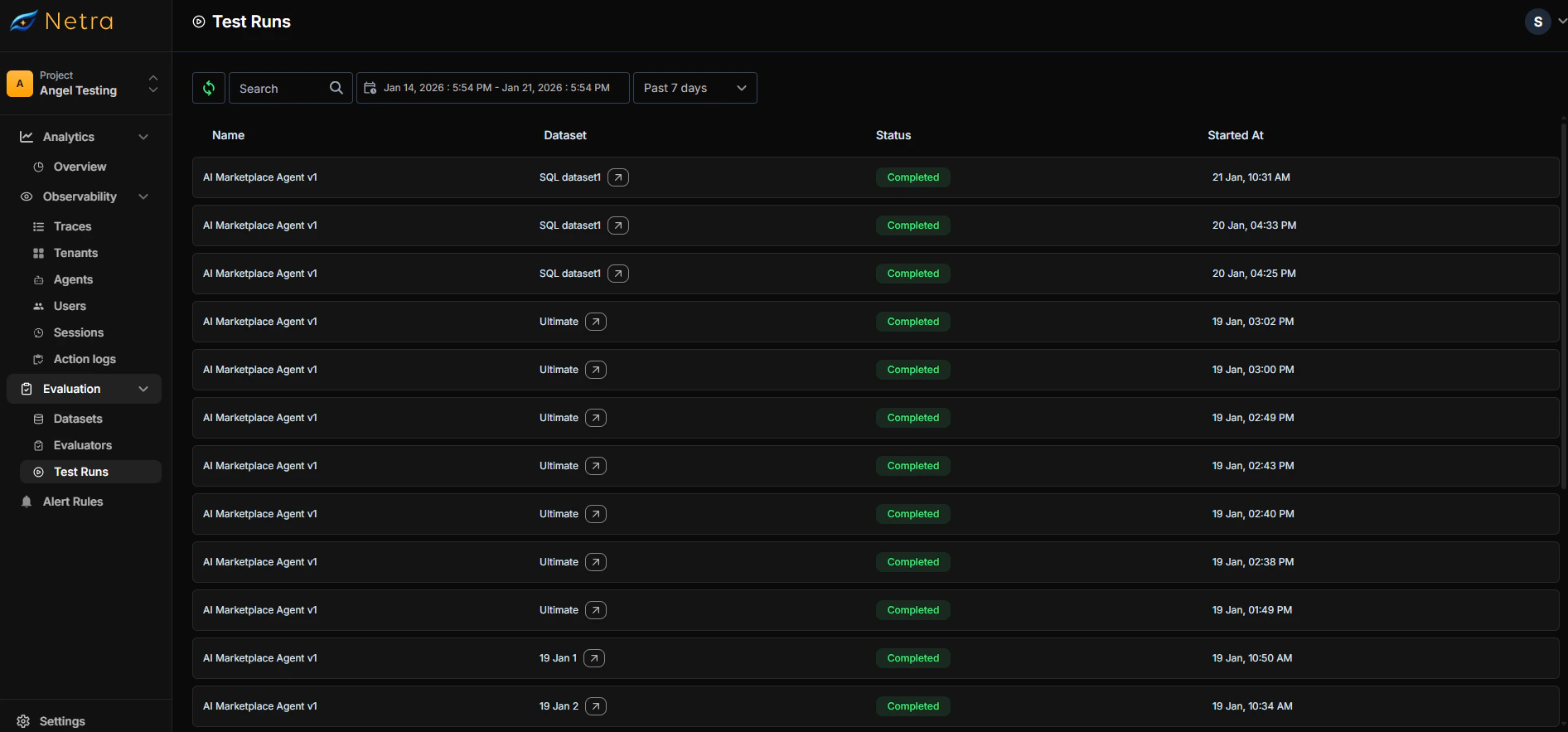
Filtering and Search
- Date Range: Filter runs by time period to compare performance over time
- Search: Find specific test runs by agent or dataset name
- Sort: Order by date, status, or dataset to find what you need quickly
Viewing Test Run Details
Click on any test run to access detailed results and diagnostics.Summary Metrics
The top of the detail view shows aggregated performance data:Per-Test-Case Results
Each test case displays:Managing Datasets from Test Runs
Test Run details provide direct access to the underlying dataset configuration.Items Tab
View and manage test cases in the dataset:Evaluators Tab
View and modify evaluators attached to the dataset:- See all active evaluators and their configurations
- Edit variable mappings
- Adjust pass/fail thresholds
Adding to Existing Datasets
Enhance your datasets directly from the Test Run view:Add New Test Cases
1
Click Add Item
Opens the test case creation form.
2
Provide Test Data
- Enter the input prompt - Define the expected output - Add optional metadata and tags
3
Save
The new item is added to the dataset and included in future runs.
Add New Evaluators
1
Click Add Evaluator
Opens the evaluator selection modal.
2
Select or Create
Choose from the Library, My Evaluators,
or create a new one.
3
Configure Mappings
Map evaluator variables to dataset fields, agent responses, or trace data.
4
Save
The evaluator is added and will score all test cases in future runs.
Analyzing Results
Identifying Patterns
When reviewing test runs, look for:- Consistent failures: Same test cases failing across multiple runs may indicate a systematic issue
- New failures: Test cases that previously passed but now fail signal a regression
- Score trends: Declining evaluator scores over time suggest gradual quality degradation
Debugging Failures
For each failed test case:- Compare Expected Output vs Task Output to understand the discrepancy
- Check Evaluator Scores to see which criteria failed
- Click View Trace to inspect the full execution flow
- Review LLM inputs, tool calls, and intermediate steps in the trace view
Comparing Across Runs
To track regression or improvement:- Run evaluations after each significant change (model update, prompt revision, code release)
- Compare pass rates and evaluator scores across runs
- Investigate any test cases that changed from pass to fail
Use Cases
CI/CD Integration
Run evaluations as part of your deployment pipeline:- Trigger evaluation when code is pushed
- Block deployment if pass rate drops below threshold
- Review failed cases before merging
Model Comparison
Evaluate different models objectively:- Run the same dataset with different model configurations
- Compare test runs side-by-side
- Make data-driven decisions about which model to deploy
Prompt Iteration
Measure the impact of prompt changes:- Create a baseline test run with your current prompt
- Update your prompt and run again
- Compare results to validate improvement
Related
- Evaluation Overview - Understand the full evaluation framework
- Datasets - Create and manage test case collections
- Evaluators - Configure scoring logic and criteria
- Traces - Debug failed test cases with execution traces
- Quick Start: Evaluation - Get started with evaluations