> ## Documentation Index
> Fetch the complete documentation index at: https://docs.getnetra.ai/llms.txt
> Use this file to discover all available pages before exploring further.
# Stress Testing
> Validate prompt reliability at scale by running automated multi-model tests with configurable evaluators and AI-powered analysis before publishing.
Prompts don't fail in obvious ways — they drift, produce inconsistent outputs, and degrade quietly across different models and edge cases. Netra's Stress Testing framework makes that invisible unreliability visible, giving you a structured, repeatable way to measure prompt performance across models, runs, and evaluators before every publish.
Stress Testing lives inside Prompt Studio. Learn how to build, test, and version prompts.
***
## Why Stress Testing Matters
Without systematic reliability testing, a prompt that works once might fail unpredictably in production. Netra helps you answer critical questions with confidence:
| Question | What Netra Measures |
| ------------------------------------------------------------ | ------------------------------------------------------------------------------- |
| Will my prompt produce consistent outputs at scale? | Pass rates across 1–100 repeated executions per model |
| Which model delivers the best reliability for my use case? | Side-by-side scoring of up to 5 models on identical inputs |
| Does my prompt meet latency, cost, and quality requirements? | Per-run evaluations against configurable thresholds |
| Did my latest prompt edit introduce a regression? | Version-over-version reliability trends with score history |
| Is my prompt production-ready? | AI-generated health assessment (Healthy / Needs Optimization / Critical Issues) |
***
## Core Building Blocks
The Stress Testing framework is built on three interconnected pillars:
### Models & Runs
Configure which models to test and how many executions to perform. Netra runs your prompt repeatedly against each selected model to surface inconsistencies that single runs miss.
| Feature | Description |
| ------------------------- | ------------------------------------------------------------------------------------------------- |
| **Multi-model selection** | Test up to 5 models simultaneously in a single stress test |
| **Run presets** | Quick-select 1 (spot check), 25 (early signal), 50 (reliable), or 100 (conclusive) runs per model |
| **Custom runs** | Set any value from 1 to 100 runs per model |
| **Model parameters** | Override temperature, top P, max tokens, and penalties per model |
| **Execution summary** | See total executions before starting (models × runs per model) |
Your currently configured model in Prompt Studio is pre-selected as the first model. Add additional models to compare performance across providers like OpenAI, Anthropic, and Google.
### Evaluators
Evaluators score every individual run against your quality and performance criteria. Netra provides 6 evaluator types:
| Evaluator | What It Measures | Configuration Required |
| ------------------- | ------------------------------------------ | --------------------------------------------- |
| **LLM-as-Judge** | Subjective quality assessed by another LLM | Provider, model, optional reference answer |
| **Latency** | Response time in milliseconds | Expected latency threshold (ms) |
| **Cost** | Per-run execution cost | Expected cost threshold |
| **Token Count** | Total tokens consumed | Expected token count threshold |
| **JSON Validation** | Output matches expected JSON structure | Expected JSON object, optional keys to ignore |
| **Regex Match** | Output matches a regular expression | Regex pattern with optional flags |
Each evaluator supports **pass criteria** — numerical thresholds (e.g., latency \< 2000ms) or boolean conditions (pass/fail) — so you define exactly what "good" means for your use case.
### Results & Analysis
After all runs complete, Netra aggregates scores and generates actionable insights:
| Feature | Description |
| ----------------------------- | ---------------------------------------------------------------------------------------- |
| **AI Analysis** | LLM-generated summary with health badge (Healthy / Needs Optimization / Critical Issues) |
| **Per-model metrics** | Average latency, cost, tokens, and evaluator score for each model |
| **Pass rate breakdown** | Visual distribution of all-pass, all-fail, partial, and error outcomes |
| **Radar chart** | Multi-axis comparison of models across all evaluators |
| **Evaluator breakdown table** | Detailed pass/fail/score per evaluator per model |
| **Run logs** | Paginated, filterable list of every individual execution with expandable output |
| **Reliability trends** | Score history chart across versions (available after 2+ completed tests) |
***
## Step-by-Step Guide
### Prerequisites
* A prompt with at least one message in Prompt Studio
* All prompt variables filled with representative values
* At least one model provider configured in your workspace
### Run Your First Stress Test
In Prompt Studio, ensure your prompt variables are filled with values that represent real usage. Click the **Stress Test** button next to the **Run** button in the actions panel.
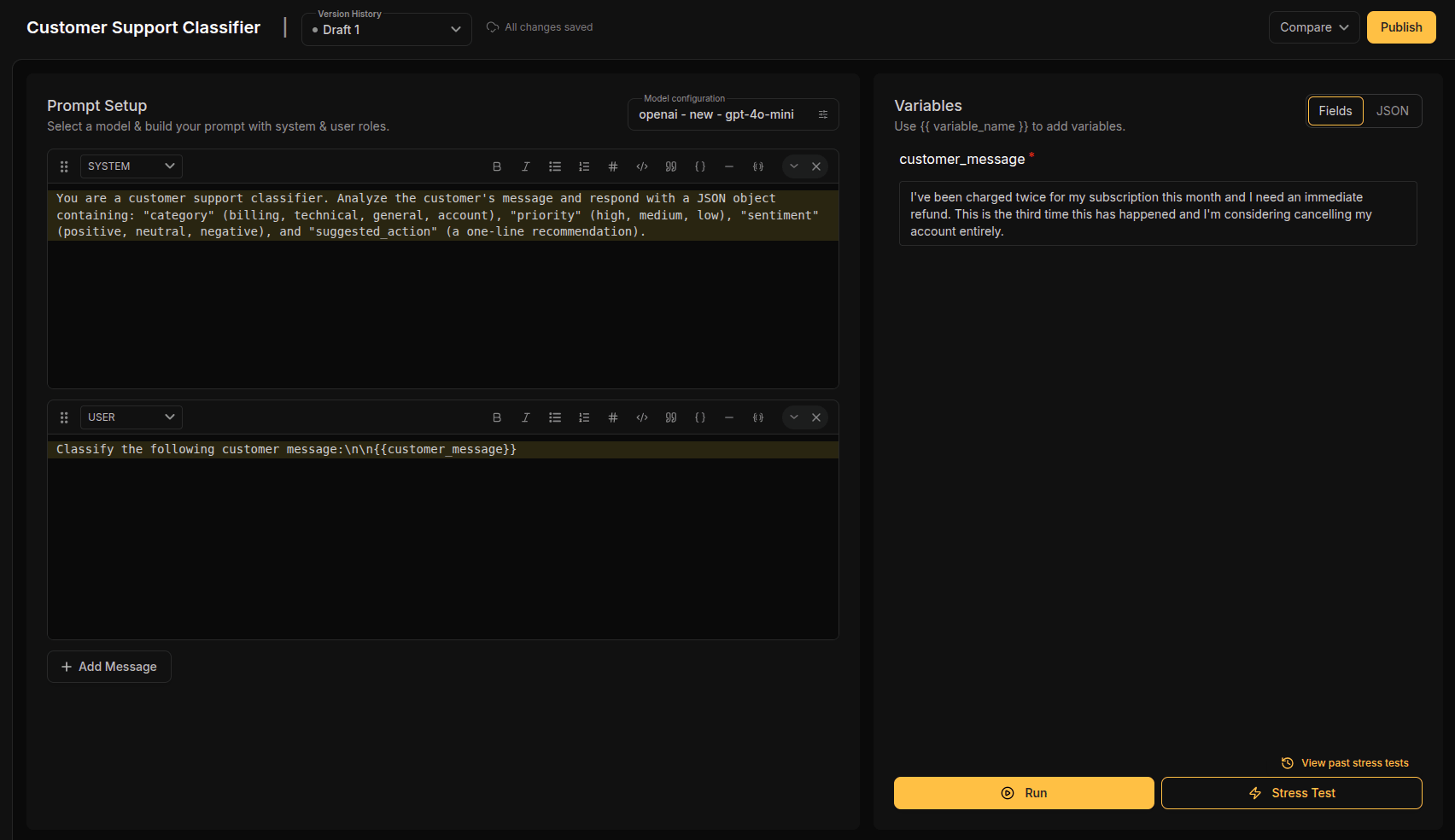 All prompt variables must be filled before starting a stress test. If any variables are empty, the button will trigger a validation error.
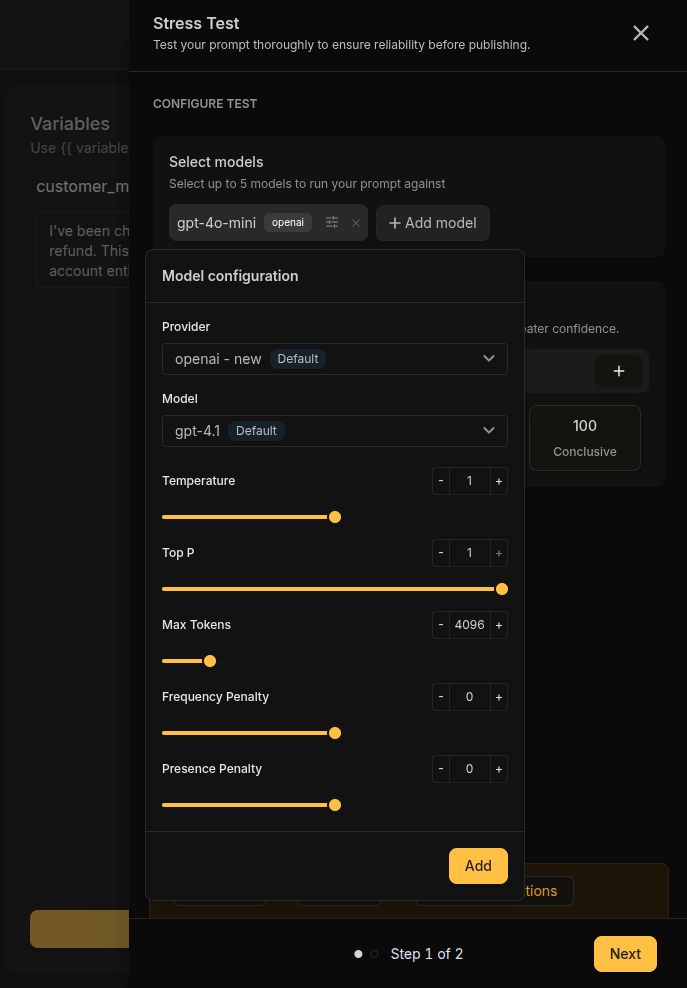
The configuration modal opens on **Step 1: Configure**. Your current model is pre-selected. Add more models to compare:
* Click **Add Model** to open the model picker
* Select a provider and model from the dropdown
* Add up to **5 models** total
* Remove models by clicking the × on each model chip
All prompt variables must be filled before starting a stress test. If any variables are empty, the button will trigger a validation error.
The configuration modal opens on **Step 1: Configure**. Your current model is pre-selected. Add more models to compare:
* Click **Add Model** to open the model picker
* Select a provider and model from the dropdown
* Add up to **5 models** total
* Remove models by clicking the × on each model chip
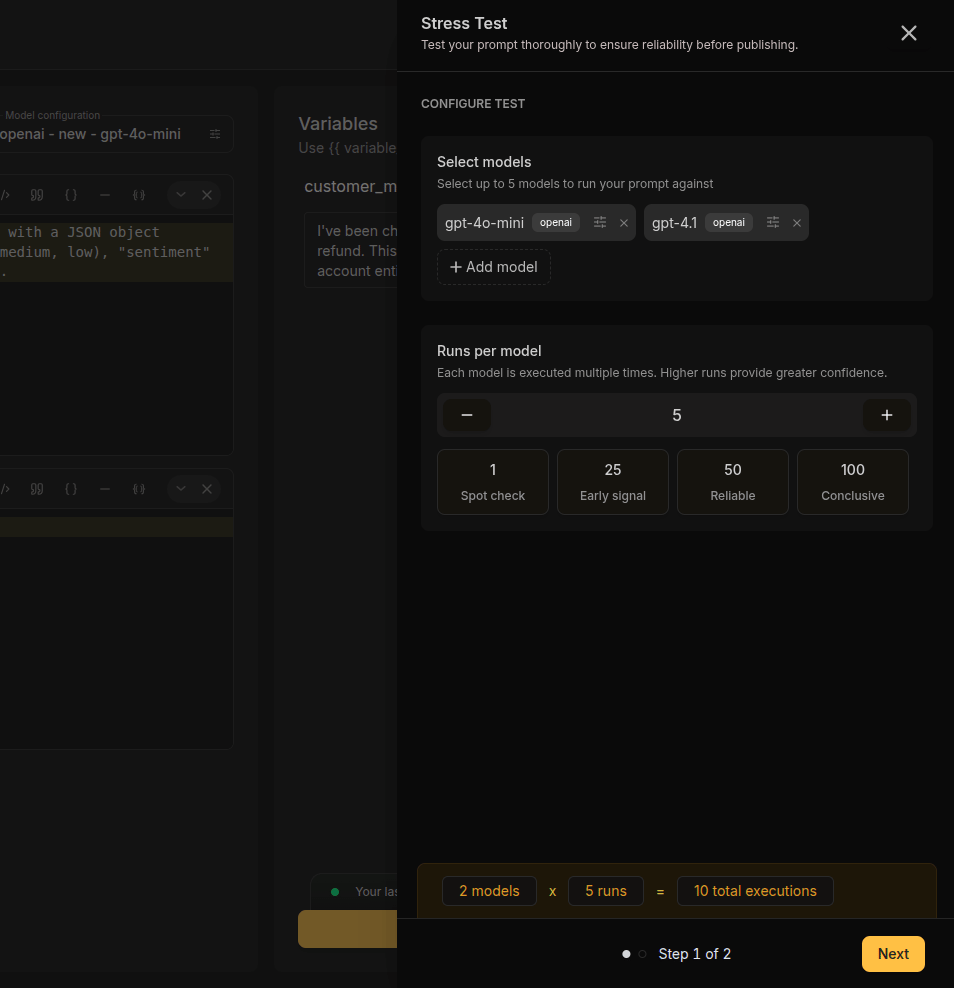
 Choose how many times each model should execute the prompt. More runs produce more statistically reliable results.
| Preset | Runs | Label | Best For |
| ------ | ---- | ------------ | ------------------------------ |
| 1 | 1 | Spot check | Quick sanity check |
| 25 | 25 | Early signal | Initial quality assessment |
| 50 | 50 | Reliable | Production readiness (default) |
| 100 | 100 | Conclusive | High-confidence decisions |
You can also enter a custom value (1–100). The footer shows total executions:
> **3 models × 50 runs = 150 total executions**
Choose how many times each model should execute the prompt. More runs produce more statistically reliable results.
| Preset | Runs | Label | Best For |
| ------ | ---- | ------------ | ------------------------------ |
| 1 | 1 | Spot check | Quick sanity check |
| 25 | 25 | Early signal | Initial quality assessment |
| 50 | 50 | Reliable | Production readiness (default) |
| 100 | 100 | Conclusive | High-confidence decisions |
You can also enter a custom value (1–100). The footer shows total executions:
> **3 models × 50 runs = 150 total executions**
 Click **Next** to move to **Step 2: Evaluators**. Select which evaluators to use and configure each one:
1. Toggle evaluators on/off using the checkbox on each card
2. Expand a card to configure its settings
3. Set **pass criteria** — either a numerical threshold with an operator or a boolean condition (is\_true / is\_false)
4. For **LLM-as-Judge**, select the provider and model that will act as the judge
Click **Next** to move to **Step 2: Evaluators**. Select which evaluators to use and configure each one:
1. Toggle evaluators on/off using the checkbox on each card
2. Expand a card to configure its settings
3. Set **pass criteria** — either a numerical threshold with an operator or a boolean condition (is\_true / is\_false)
4. For **LLM-as-Judge**, select the provider and model that will act as the judge
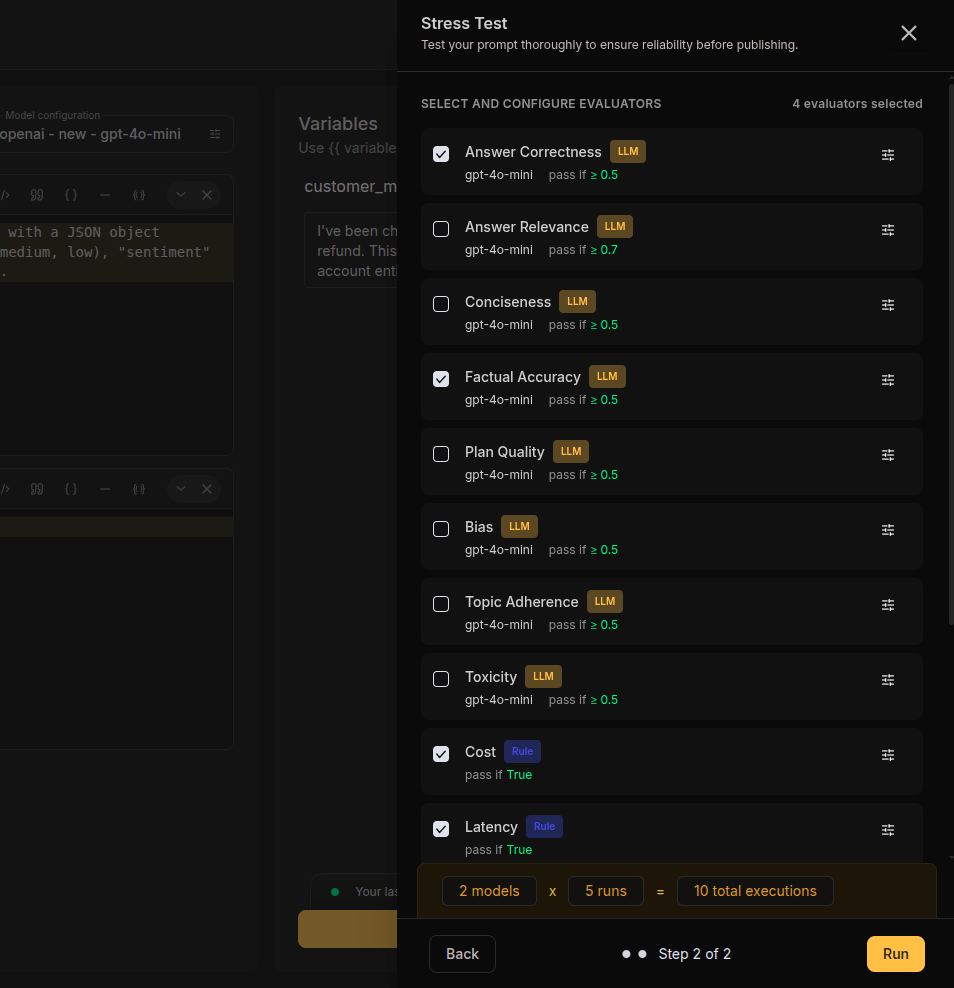 You must select at least one evaluator. The counter at the top shows how many evaluators are currently selected.
Click **Run** at the bottom of the modal. The test starts immediately in the background:
* A **progress banner** appears above the action buttons showing real-time status
* Executions are processed asynchronously — you can continue editing your prompt
* Status polls automatically every 4 seconds
You must select at least one evaluator. The counter at the top shows how many evaluators are currently selected.
Click **Run** at the bottom of the modal. The test starts immediately in the background:
* A **progress banner** appears above the action buttons showing real-time status
* Executions are processed asynchronously — you can continue editing your prompt
* Status polls automatically every 4 seconds
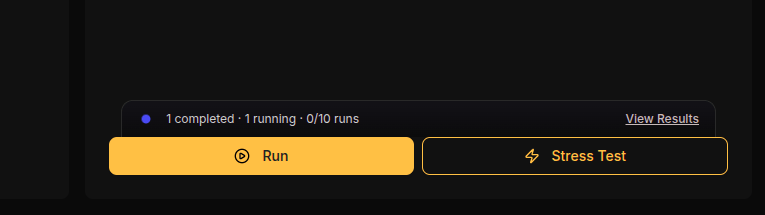 Also, you can click View Results button to open Results modal and can stop any running Stress Test
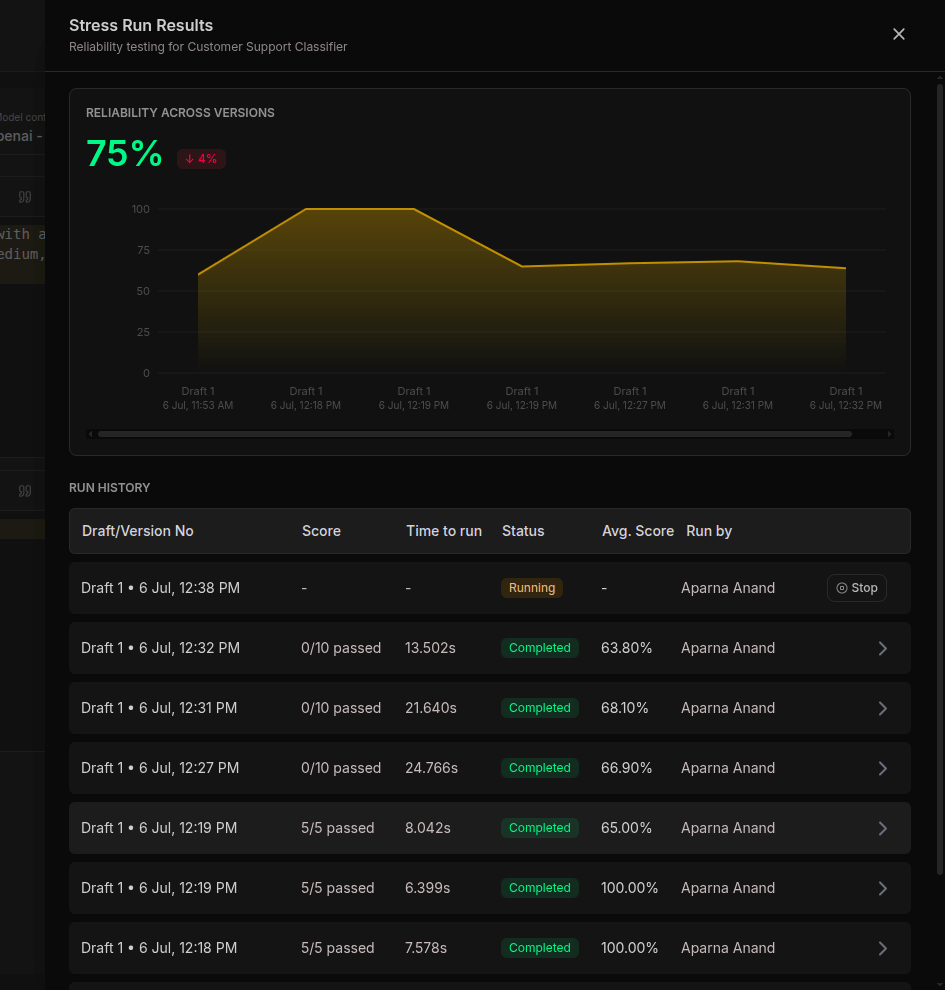 The banner updates in real-time:
* **Running** — Shows `Running · X/Y runs` with an animated indicator
* **Multiple tests** — Shows `N tests running · X/Y runs` when concurrent tests are active
* **Completion** — A success toast appears with the overall score and a link to results
The banner updates in real-time:
* **Running** — Shows `Running · X/Y runs` with an animated indicator
* **Multiple tests** — Shows `N tests running · X/Y runs` when concurrent tests are active
* **Completion** — A success toast appears with the overall score and a link to results
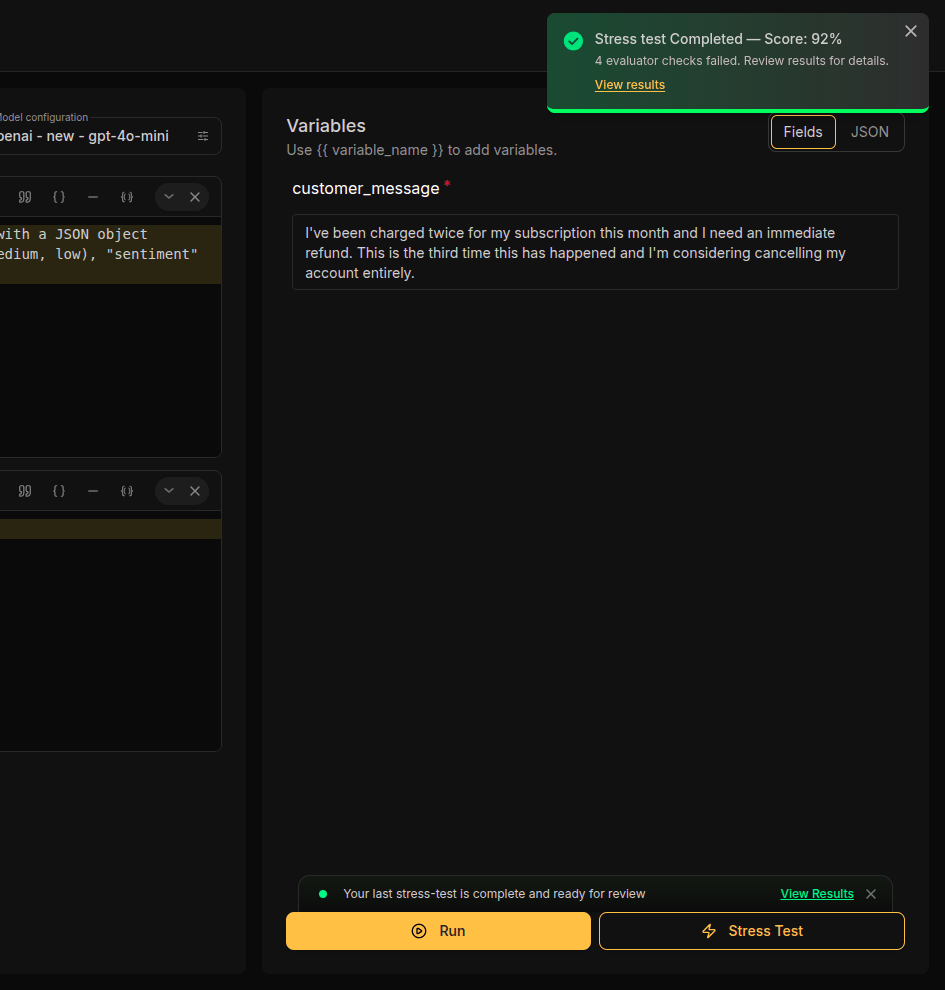 You can also access past and running tests anytime via the **View past stress tests** link.
Access **Run History** via the banner link or "View past stress tests." The history modal shows:
* A table of all past stress tests with version/draft, score, duration, status, and who ran it
* A **Reliability Chart** (appears after 2+ completed tests) showing average score trends over time
* Filter by version to compare performance across prompt iterations
* Stop any running test directly from the history
You can also access past and running tests anytime via the **View past stress tests** link.
Access **Run History** via the banner link or "View past stress tests." The history modal shows:
* A table of all past stress tests with version/draft, score, duration, status, and who ran it
* A **Reliability Chart** (appears after 2+ completed tests) showing average score trends over time
* Filter by version to compare performance across prompt iterations
* Stop any running test directly from the history
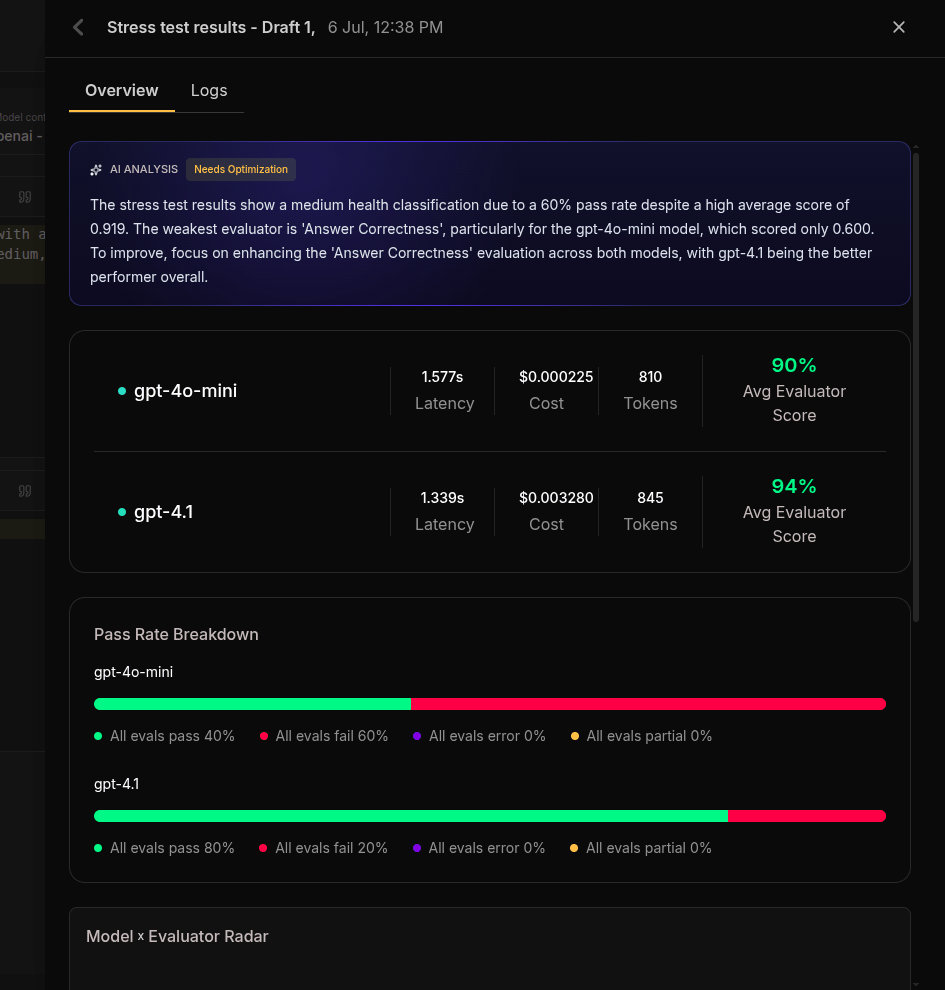
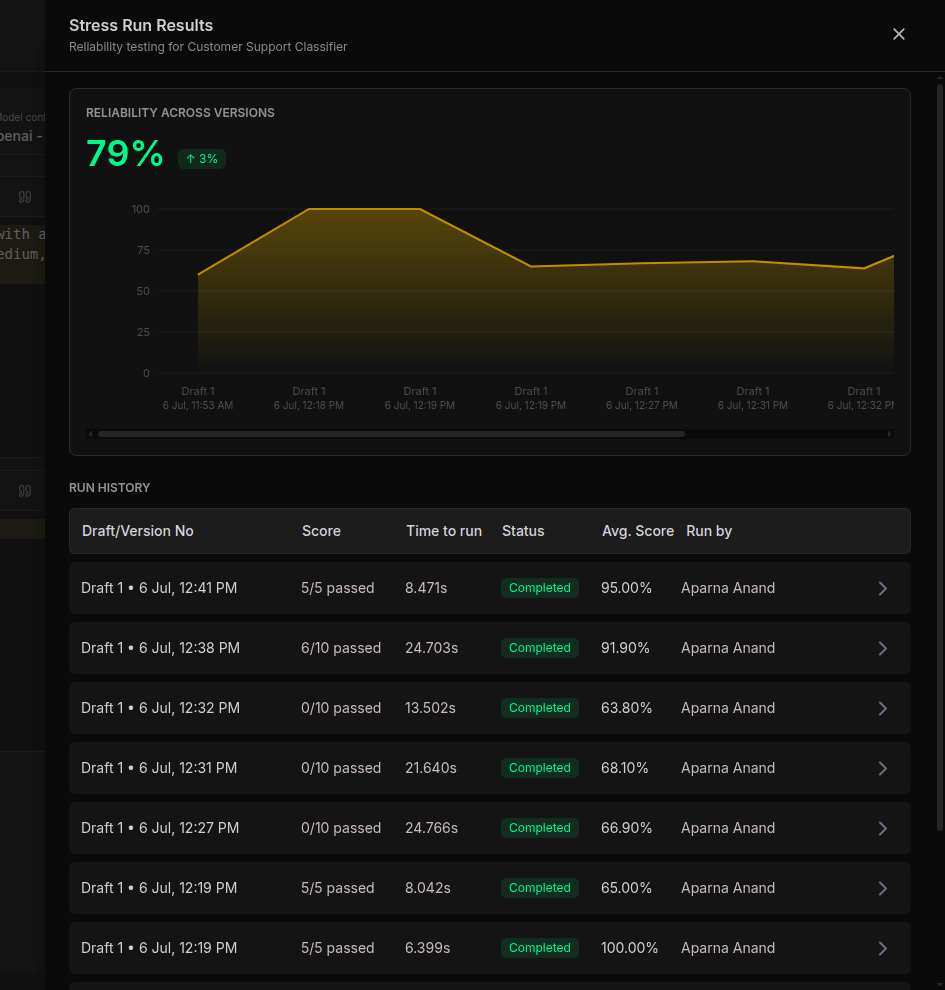 On clicking each row in Run History table, a new modal with two tabs will open. The **Overview** tab shows:
**AI Analysis** — A generated summary with a health badge:
* 🟢 **Healthy** — Prompt is reliable and production-ready
* 🟡 **Needs Optimization** — Some issues detected; review recommendations
* 🔴 **Critical Issues** — Significant reliability problems; do not publish
**Per-Model Metrics** — A grid showing each model's average latency, total cost, total tokens, and average evaluator score.
**Pass Rate Breakdown** — A stacked bar per model showing the distribution of all-pass, all-fail, error, and partial outcomes.
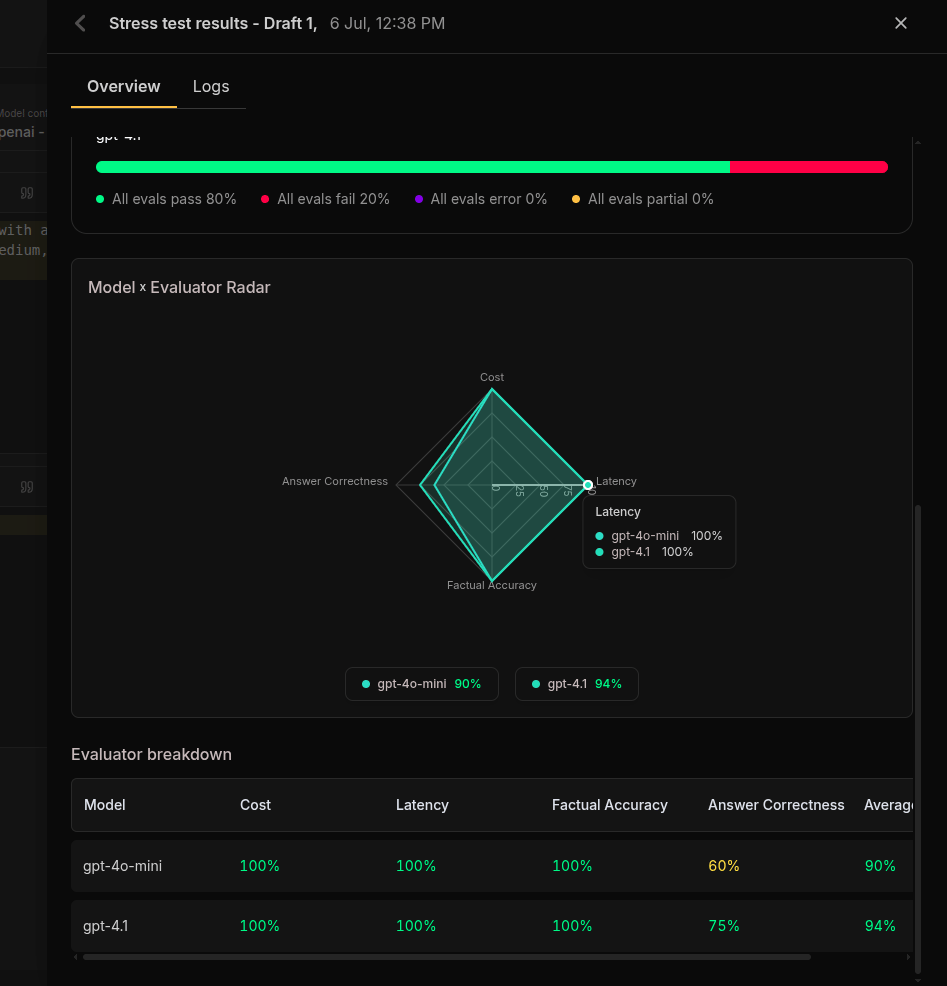
**Radar Chart** — A visual comparison of all models across every evaluator axis.
**Evaluator Breakdown Table** — Tabular view of exact scores per model per evaluator.
On clicking each row in Run History table, a new modal with two tabs will open. The **Overview** tab shows:
**AI Analysis** — A generated summary with a health badge:
* 🟢 **Healthy** — Prompt is reliable and production-ready
* 🟡 **Needs Optimization** — Some issues detected; review recommendations
* 🔴 **Critical Issues** — Significant reliability problems; do not publish
**Per-Model Metrics** — A grid showing each model's average latency, total cost, total tokens, and average evaluator score.
**Pass Rate Breakdown** — A stacked bar per model showing the distribution of all-pass, all-fail, error, and partial outcomes.
**Radar Chart** — A visual comparison of all models across every evaluator axis.
**Evaluator Breakdown Table** — Tabular view of exact scores per model per evaluator.
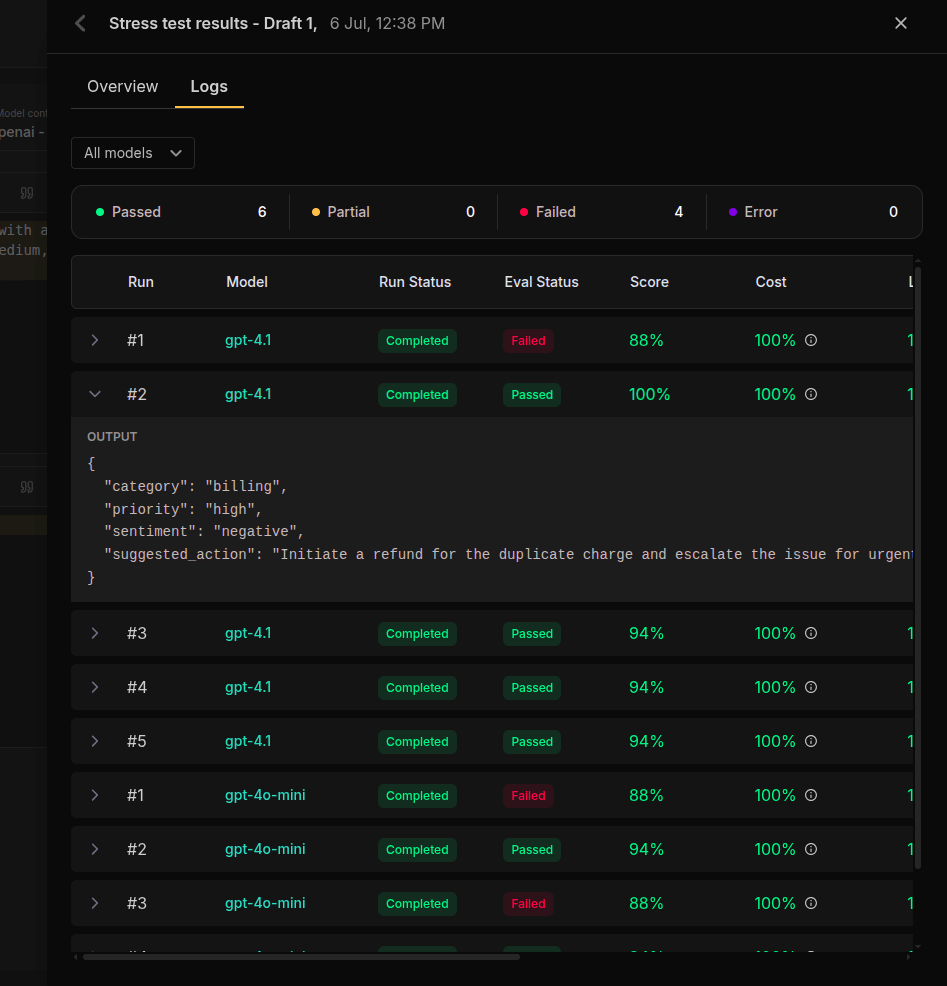
 Switch to the **Logs** tab for granular inspection of every individual run:
* **Filter by model** — Focus on a specific model's runs
* **Filter by eval status** — Show only Passed, Partial, Failed, or Error runs
* **Expand any row** — See the full model output and per-evaluator scores with pass/fail reasons
Switch to the **Logs** tab for granular inspection of every individual run:
* **Filter by model** — Focus on a specific model's runs
* **Filter by eval status** — Show only Passed, Partial, Failed, or Error runs
* **Expand any row** — See the full model output and per-evaluator scores with pass/fail reasons
 ***
## Evaluators in Detail
### LLM-as-Judge
Uses a separate LLM to evaluate the quality of each run's output. The judge model reads the prompt, the output, and (optionally) a reference answer, then produces a score.
| Setting | Description |
| -------------------- | ------------------------------------------------------------ |
| **Provider** | The model provider for the judge (e.g., OpenAI) |
| **Model** | The specific judge model (e.g., gpt-4o-mini) |
| **Reference Answer** | Optional ground truth for more consistent scoring |
| **Pass Criteria** | Numerical score threshold (default: `>= 0.5` on a 0–1 scale) |
### Latency
Measures response time in milliseconds and checks against your expected threshold.
| Setting | Description |
| -------------------- | --------------------------------------------- |
| **Expected Latency** | Maximum acceptable response time (ms) |
| **Pass Criteria** | Boolean — passes if actual is within expected |
### Cost
Measures per-run execution cost and checks against your budget threshold.
| Setting | Description |
| ----------------- | --------------------------------------------- |
| **Expected Cost** | Maximum acceptable cost per run |
| **Pass Criteria** | Boolean — passes if actual is within expected |
### Token Count
Measures total tokens consumed (prompt + completion) and checks against your limit.
| Setting | Description |
| ------------------- | --------------------------------------------- |
| **Expected Tokens** | Maximum acceptable token count |
| **Pass Criteria** | Boolean — passes if actual is within expected |
### JSON Validation
Deep-compares the model output against an expected JSON structure to validate structured outputs.
| Setting | Description |
| ------------------ | -------------------------------------------------- |
| **Expected JSON** | The JSON object the output should match (required) |
| **Keys to Ignore** | Optional list of keys to exclude from comparison |
| **Pass Criteria** | Boolean — passes if structure matches |
### Regex Match
Tests the model output against a regular expression pattern.
| Setting | Description |
| ----------------- | ----------------------------------------------------- |
| **Pattern** | The regex pattern to match against the output |
| **Flags** | Optional regex flags (e.g., `i` for case-insensitive) |
| **Pass Criteria** | Boolean — passes if pattern matches output |
***
## Understanding Pass Criteria
Every evaluator uses pass criteria to determine if a run passes or fails:
### Numerical Pass Criteria
For evaluators that produce a numeric score (like LLM-as-Judge):
| Operator | Meaning | Example |
| -------- | ------------------------ | -------------- |
| `>=` | Greater than or equal to | `Score >= 0.8` |
| `<=` | Less than or equal to | `Score <= 0.3` |
| `>` | Greater than | `Score > 0.5` |
| `<` | Less than | `Score < 0.5` |
| `=` | Equal to | `Score = 1.0` |
### Boolean Pass Criteria
For evaluators that produce a true/false result (latency, cost, token, JSON, regex):
| Condition | Meaning |
| ---------- | ----------------------------------------- |
| `is_true` | Run passes if the evaluator returns true |
| `is_false` | Run passes if the evaluator returns false |
***
## Test Statuses
| Status | Meaning | Actions Available |
| ------------- | ---------------------------------------------------- | ---------------------- |
| **Running** | Executions in progress; banner shows live count | Stop (cancel) |
| **Completed** | All runs finished; results and AI analysis available | View results |
| **Failed** | One or more runs could not complete execution | View results |
| **Partial** | Some models completed, others failed | View results |
| **Cancelled** | Manually stopped by the user | View completed results |
***
## Use Cases
### Pre-Publish Validation
Ensure your prompt meets quality bars before releasing to production:
1. Finish editing your prompt in Prompt Studio
2. Run a stress test with 50+ runs across your target production model
3. Configure evaluators matching your quality criteria (e.g., LLM-as-Judge `>= 0.8`, latency `< 3000ms`)
4. Review the AI health analysis — check if status is "Healthy"
### Model Selection & Comparison
Choose the best model for your use case with data, not guesses:
1. Add all candidate models (up to 5) to a single stress test
2. Set runs to 50+ for statistically meaningful results
3. Compare the radar chart and per-model scores across evaluators
4. Select the model with the best balance of quality, speed, and cost
### Regression Detection
Catch quality degradation when iterating on prompts:
1. Run a stress test on your current published version as a baseline
2. Create a draft with your proposed changes
3. Run the same stress test configuration on the draft
4. Compare scores in Run History — the reliability chart shows trends across versions
***
## Best Practices
| Practice | Why It Matters |
| ------------------------------------------------------- | ------------------------------------------------------------ |
| Run stress tests before every publish | Catches regressions before they reach production |
| Use at least 50 runs for production decisions | Small sample sizes produce misleading results |
| Test with multiple models | Reveals model-specific weaknesses you wouldn't see otherwise |
| Configure evaluators relevant to your specific use case | Generic tests miss domain-specific failure modes |
| Track reliability across versions | Spots degradation trends before production impact |
| Provide reference answers for LLM-as-Judge when needed | Improves scoring consistency with a ground truth |
| Keep temperature low for deterministic tasks | Reduces output variance and produces cleaner test results |
***
## FAQ
Yes. Stress tests work on both published versions and drafts. This lets you validate changes before publishing a new version.
Up to 5 models in a single stress test. Each model runs independently with its own parameter configuration (temperature, top P, max tokens, etc.).
You can run up to 100 executions per model. The UI provides quick presets (1, 25, 50, 100), but you can enter any custom value within the range.
Yes. Open the Run History modal and click the **Stop** button on the running test.
After all runs finish, an AI model analyzes the aggregated scores, pass rates, and per-model performance. It produces a natural-language summary explaining what went well and what needs attention, along with a health rating (Healthy, Needs Optimization, or Critical Issues).
Yes. The progress banner tracks multiple concurrent tests and shows aggregated progress. Each test runs independently in the background.
The reliability trend chart appears in Run History after you have 2 or more completed stress tests on the same prompt. It shows average score progression over time.
Each run's score is the average of all evaluator scores for that run (boolean results become 1 for pass, 0 for fail). The overall stress test score is the average across all runs and all models.
If a model call fails, that run is marked as failed. The system retries up to 3 times with exponential backoff. If all retries fail, the run is recorded as failed and counted in the failure metrics. Other runs continue unaffected.
***
## Related
* [Prompt Studio](/prompt-management/prompt-studio) — Build, test, and version prompts in a centralized workspace
* [Evaluation Overview](/Evaluation/Evaluation-overview) — Broader evaluation framework for datasets and test runs
* [Simulation Overview](/Simulation/Simulation-overview) — Test AI agents with multi-turn conversations
* [Traces](/Observability/Traces/overview) — Debug individual executions with full trace visibility
***
## Evaluators in Detail
### LLM-as-Judge
Uses a separate LLM to evaluate the quality of each run's output. The judge model reads the prompt, the output, and (optionally) a reference answer, then produces a score.
| Setting | Description |
| -------------------- | ------------------------------------------------------------ |
| **Provider** | The model provider for the judge (e.g., OpenAI) |
| **Model** | The specific judge model (e.g., gpt-4o-mini) |
| **Reference Answer** | Optional ground truth for more consistent scoring |
| **Pass Criteria** | Numerical score threshold (default: `>= 0.5` on a 0–1 scale) |
### Latency
Measures response time in milliseconds and checks against your expected threshold.
| Setting | Description |
| -------------------- | --------------------------------------------- |
| **Expected Latency** | Maximum acceptable response time (ms) |
| **Pass Criteria** | Boolean — passes if actual is within expected |
### Cost
Measures per-run execution cost and checks against your budget threshold.
| Setting | Description |
| ----------------- | --------------------------------------------- |
| **Expected Cost** | Maximum acceptable cost per run |
| **Pass Criteria** | Boolean — passes if actual is within expected |
### Token Count
Measures total tokens consumed (prompt + completion) and checks against your limit.
| Setting | Description |
| ------------------- | --------------------------------------------- |
| **Expected Tokens** | Maximum acceptable token count |
| **Pass Criteria** | Boolean — passes if actual is within expected |
### JSON Validation
Deep-compares the model output against an expected JSON structure to validate structured outputs.
| Setting | Description |
| ------------------ | -------------------------------------------------- |
| **Expected JSON** | The JSON object the output should match (required) |
| **Keys to Ignore** | Optional list of keys to exclude from comparison |
| **Pass Criteria** | Boolean — passes if structure matches |
### Regex Match
Tests the model output against a regular expression pattern.
| Setting | Description |
| ----------------- | ----------------------------------------------------- |
| **Pattern** | The regex pattern to match against the output |
| **Flags** | Optional regex flags (e.g., `i` for case-insensitive) |
| **Pass Criteria** | Boolean — passes if pattern matches output |
***
## Understanding Pass Criteria
Every evaluator uses pass criteria to determine if a run passes or fails:
### Numerical Pass Criteria
For evaluators that produce a numeric score (like LLM-as-Judge):
| Operator | Meaning | Example |
| -------- | ------------------------ | -------------- |
| `>=` | Greater than or equal to | `Score >= 0.8` |
| `<=` | Less than or equal to | `Score <= 0.3` |
| `>` | Greater than | `Score > 0.5` |
| `<` | Less than | `Score < 0.5` |
| `=` | Equal to | `Score = 1.0` |
### Boolean Pass Criteria
For evaluators that produce a true/false result (latency, cost, token, JSON, regex):
| Condition | Meaning |
| ---------- | ----------------------------------------- |
| `is_true` | Run passes if the evaluator returns true |
| `is_false` | Run passes if the evaluator returns false |
***
## Test Statuses
| Status | Meaning | Actions Available |
| ------------- | ---------------------------------------------------- | ---------------------- |
| **Running** | Executions in progress; banner shows live count | Stop (cancel) |
| **Completed** | All runs finished; results and AI analysis available | View results |
| **Failed** | One or more runs could not complete execution | View results |
| **Partial** | Some models completed, others failed | View results |
| **Cancelled** | Manually stopped by the user | View completed results |
***
## Use Cases
### Pre-Publish Validation
Ensure your prompt meets quality bars before releasing to production:
1. Finish editing your prompt in Prompt Studio
2. Run a stress test with 50+ runs across your target production model
3. Configure evaluators matching your quality criteria (e.g., LLM-as-Judge `>= 0.8`, latency `< 3000ms`)
4. Review the AI health analysis — check if status is "Healthy"
### Model Selection & Comparison
Choose the best model for your use case with data, not guesses:
1. Add all candidate models (up to 5) to a single stress test
2. Set runs to 50+ for statistically meaningful results
3. Compare the radar chart and per-model scores across evaluators
4. Select the model with the best balance of quality, speed, and cost
### Regression Detection
Catch quality degradation when iterating on prompts:
1. Run a stress test on your current published version as a baseline
2. Create a draft with your proposed changes
3. Run the same stress test configuration on the draft
4. Compare scores in Run History — the reliability chart shows trends across versions
***
## Best Practices
| Practice | Why It Matters |
| ------------------------------------------------------- | ------------------------------------------------------------ |
| Run stress tests before every publish | Catches regressions before they reach production |
| Use at least 50 runs for production decisions | Small sample sizes produce misleading results |
| Test with multiple models | Reveals model-specific weaknesses you wouldn't see otherwise |
| Configure evaluators relevant to your specific use case | Generic tests miss domain-specific failure modes |
| Track reliability across versions | Spots degradation trends before production impact |
| Provide reference answers for LLM-as-Judge when needed | Improves scoring consistency with a ground truth |
| Keep temperature low for deterministic tasks | Reduces output variance and produces cleaner test results |
***
## FAQ
Yes. Stress tests work on both published versions and drafts. This lets you validate changes before publishing a new version.
Up to 5 models in a single stress test. Each model runs independently with its own parameter configuration (temperature, top P, max tokens, etc.).
You can run up to 100 executions per model. The UI provides quick presets (1, 25, 50, 100), but you can enter any custom value within the range.
Yes. Open the Run History modal and click the **Stop** button on the running test.
After all runs finish, an AI model analyzes the aggregated scores, pass rates, and per-model performance. It produces a natural-language summary explaining what went well and what needs attention, along with a health rating (Healthy, Needs Optimization, or Critical Issues).
Yes. The progress banner tracks multiple concurrent tests and shows aggregated progress. Each test runs independently in the background.
The reliability trend chart appears in Run History after you have 2 or more completed stress tests on the same prompt. It shows average score progression over time.
Each run's score is the average of all evaluator scores for that run (boolean results become 1 for pass, 0 for fail). The overall stress test score is the average across all runs and all models.
If a model call fails, that run is marked as failed. The system retries up to 3 times with exponential backoff. If all retries fail, the run is recorded as failed and counted in the failure metrics. Other runs continue unaffected.
***
## Related
* [Prompt Studio](/prompt-management/prompt-studio) — Build, test, and version prompts in a centralized workspace
* [Evaluation Overview](/Evaluation/Evaluation-overview) — Broader evaluation framework for datasets and test runs
* [Simulation Overview](/Simulation/Simulation-overview) — Test AI agents with multi-turn conversations
* [Traces](/Observability/Traces/overview) — Debug individual executions with full trace visibility