> ## Documentation Index
> Fetch the complete documentation index at: https://docs.getnetra.ai/llms.txt
> Use this file to discover all available pages before exploring further.
# Agents
> Connect voice agents to Netra via LiveKit or Vapi and run voice simulations from the UI. Configure endpoints and trigger runs without code.
Agents in Netra represent your external voice applications: phone bots, voice assistants, or any LiveKit/Vapi-connected endpoint. Connect them once, then trigger automated runs against your [Evaluations](/Simulations/voice-simulations/Simulations) directly from the UI. No SDK integration required—Netra places simulated calls to your agent, records the conversation, and runs [Evaluators](/Evaluators/voice-evaluators) to score every interaction.
## Why Agents Matter
Testing voice agents manually doesn't scale. Connecting your agent to Netra unlocks automated, repeatable evaluation:
| Challenge | How Agents Help |
| -------------------------- | ------------------------------------------------------------------------- |
| Manual calling is slow | Run entire evaluations against your agent with a single click |
| Inconsistent test coverage | Every evaluation item is tested systematically with the same evaluators |
| No audio evaluation | Netra records, transcribes, and evaluates voice conversations end-to-end |
| Disconnected tracing | Agent responses are automatically traced and linked to evaluation results |
| Environment-specific bugs | Test against staging, production, or any registered endpoint |
## How It Works
Netra provides a way to interact with your connected voice agent:
Trigger a full evaluation against your agent. Netra places simulated calls for every scenario, records the conversation, runs evaluators, and reports results.
## Agents Dashboard
Navigate to **Library → Agents** from the left navigation panel. The dashboard displays all configured agents for the current project.
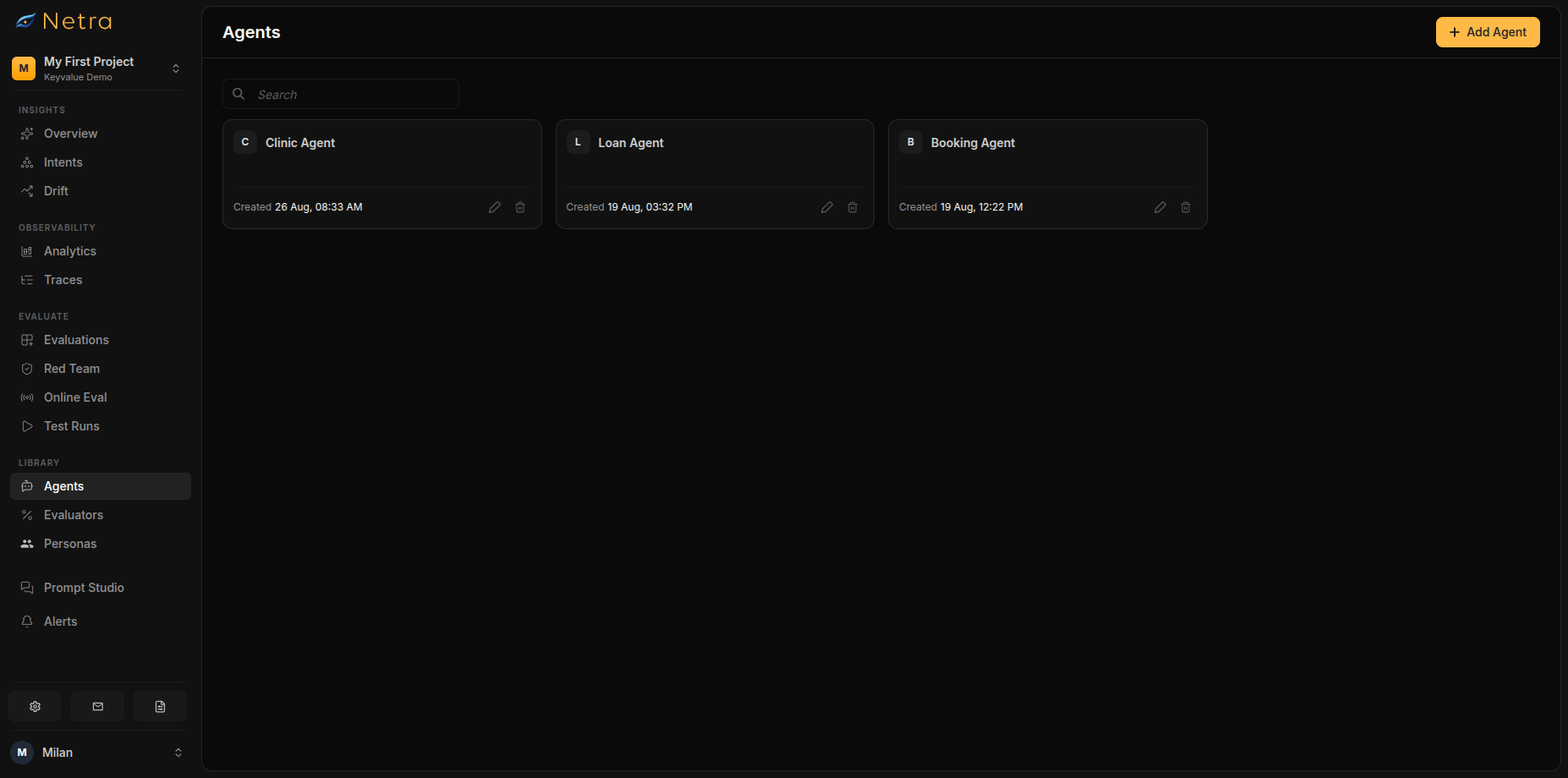 Each agent card shows:
| Field | Description |
| ------------ | ----------------------------- |
| **Name** | Agent display name |
| **Platform** | LiveKit or Vapi |
| **Endpoint** | Server URL or API reference |
| **Created** | When the agent was configured |
## Configuring an Agent
Click **Add Agent** in the top right corner to configure a new voice agent connection.
Enter a descriptive name (e.g., "Customer Support Voice Bot - Staging"). This name identifies the agent when selecting it for runs.
Choose the platform your voice agent runs on:
| Platform | Description |
| ----------- | ------------------------------------------------------------------------------------- |
| **LiveKit** | Open-source real-time communication. Provide your LiveKit server URL and credentials. |
| **Vapi** | Voice AI platform. Provide your Vapi API key and assistant reference. |
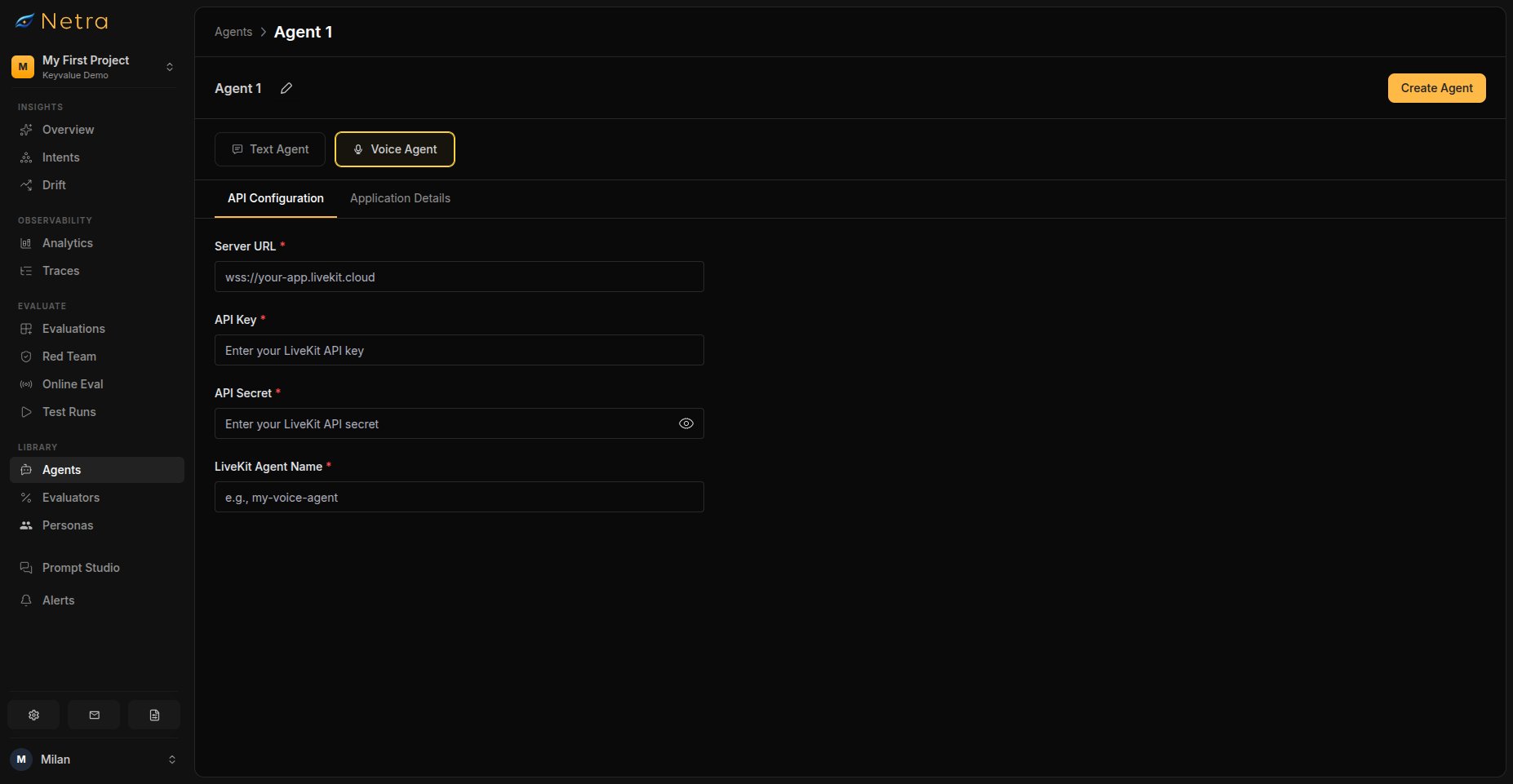
The configuration fields depend on your selected platform:
**LiveKit Configuration:**
| Field | Required | Description |
| ------------------- | -------- | ----------------------------------------------- |
| **Server URL** | Yes | WebSocket URL (wss\://) for your LiveKit server |
| **API Key** | Yes | LiveKit API key for authentication |
| **API Secret** | Yes | LiveKit API secret for token generation |
| **Agent Reference** | Yes | The agent or room name to connect to |
**Vapi Configuration:**
| Field | Required | Description |
| ---------------- | -------- | --------------------------------------------- |
| **API Key** | Yes | Vapi API key for authentication |
| **Assistant ID** | Yes | The Vapi assistant to use for calls |
| **Phone Number** | No | Phone number to call (for phone-based agents) |
Describe what your agent does. This context helps Netra simulate realistic callers when running tests:
| Field | Description |
| --------------------- | ------------------------------------------------------------ |
| **Main purpose** | What the application is for |
| **User types** | Who interacts with the agent |
| **Sensitive data** | Information the agent must handle carefully or never request |
| **Dangerous actions** | Actions that should always be refused or escalated |
| **Forbidden topics** | Subjects the agent must not discuss |
| **System prompt** | The agent's instructions, if you want them on record |
Click **Create Agent** to save the configuration. The agent becomes available for runs and appears on the Agents dashboard.
Each agent card shows:
| Field | Description |
| ------------ | ----------------------------- |
| **Name** | Agent display name |
| **Platform** | LiveKit or Vapi |
| **Endpoint** | Server URL or API reference |
| **Created** | When the agent was configured |
## Configuring an Agent
Click **Add Agent** in the top right corner to configure a new voice agent connection.
Enter a descriptive name (e.g., "Customer Support Voice Bot - Staging"). This name identifies the agent when selecting it for runs.
Choose the platform your voice agent runs on:
| Platform | Description |
| ----------- | ------------------------------------------------------------------------------------- |
| **LiveKit** | Open-source real-time communication. Provide your LiveKit server URL and credentials. |
| **Vapi** | Voice AI platform. Provide your Vapi API key and assistant reference. |
The configuration fields depend on your selected platform:
**LiveKit Configuration:**
| Field | Required | Description |
| ------------------- | -------- | ----------------------------------------------- |
| **Server URL** | Yes | WebSocket URL (wss\://) for your LiveKit server |
| **API Key** | Yes | LiveKit API key for authentication |
| **API Secret** | Yes | LiveKit API secret for token generation |
| **Agent Reference** | Yes | The agent or room name to connect to |
**Vapi Configuration:**
| Field | Required | Description |
| ---------------- | -------- | --------------------------------------------- |
| **API Key** | Yes | Vapi API key for authentication |
| **Assistant ID** | Yes | The Vapi assistant to use for calls |
| **Phone Number** | No | Phone number to call (for phone-based agents) |
Describe what your agent does. This context helps Netra simulate realistic callers when running tests:
| Field | Description |
| --------------------- | ------------------------------------------------------------ |
| **Main purpose** | What the application is for |
| **User types** | Who interacts with the agent |
| **Sensitive data** | Information the agent must handle carefully or never request |
| **Dangerous actions** | Actions that should always be refused or escalated |
| **Forbidden topics** | Subjects the agent must not discuss |
| **System prompt** | The agent's instructions, if you want them on record |
Click **Create Agent** to save the configuration. The agent becomes available for runs and appears on the Agents dashboard.
 ## Triggering a Run
This is the primary workflow for running an entire [Evaluation](/Simulations/voice-simulations/Simulations) against a configured voice agent from the UI.
### Prerequisites
Before triggering a run, ensure you have:
* At least one [Agent](#configuring-an-agent) configured in the current project
* An [Evaluation](/Simulations/voice-simulations/Simulations) with voice scenarios
* [Evaluators](/Evaluators/voice-evaluators) attached to the evaluation for scoring
### Starting a Run
Navigate to **Evaluate → Evaluations** and open the voice evaluation you want to run.
In the evaluation detail page toolbar, click the **Run** button.
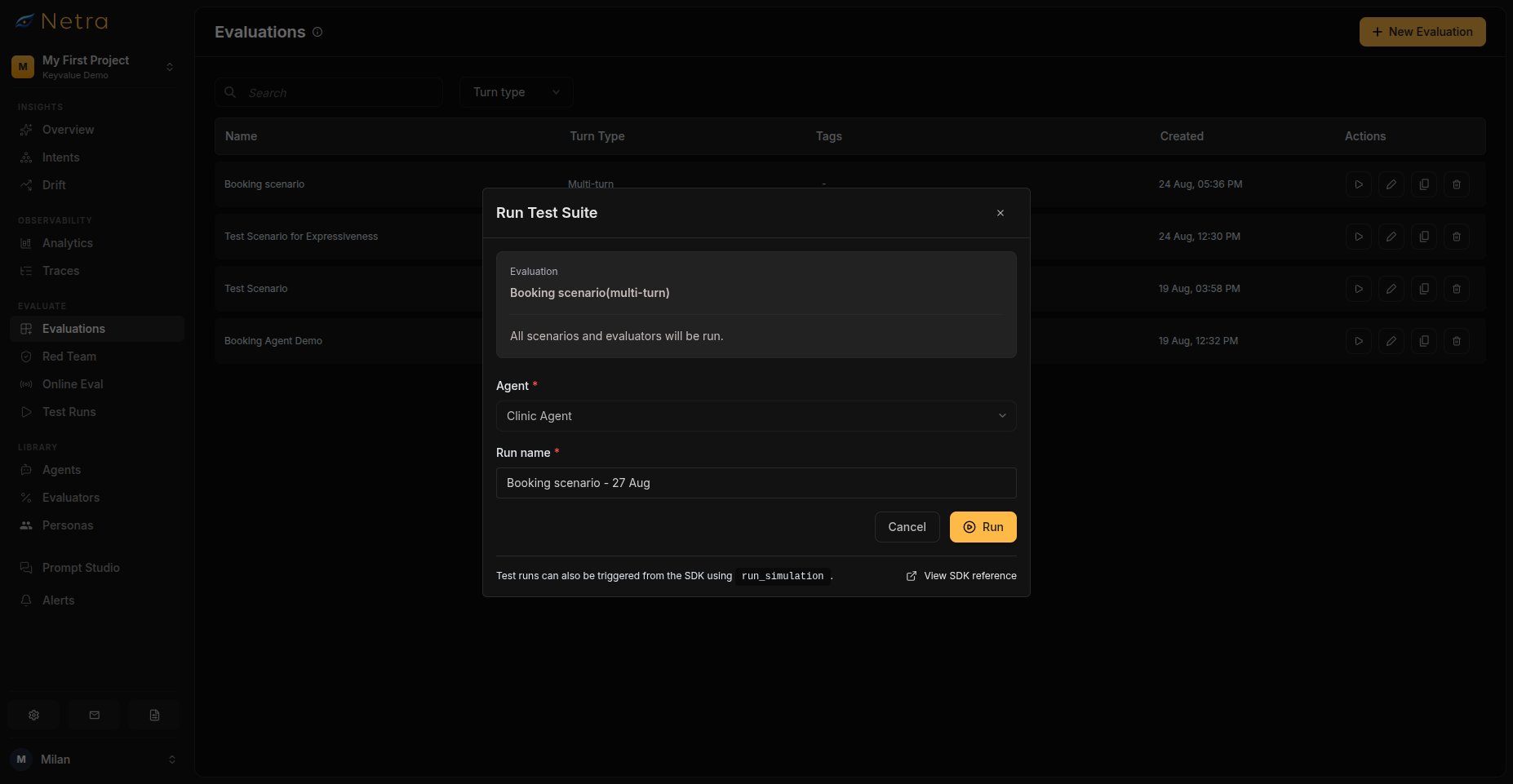
The Run modal appears with the following fields:
| Field | Required | Description |
| ------------ | -------- | -------------------------------------------------------- |
| **Agent** | Yes | Select a configured voice agent from the dropdown |
| **Run Name** | Yes | Auto-generated as `{Evaluation Name} - {Date}`, editable |
The modal also displays read-only context: evaluation name, scenario count, and evaluator count.
Click **Run** to start the simulation. On success, you are redirected to the [Test Run](/Simulations/TestRuns) detail page to monitor progress.
## Triggering a Run
This is the primary workflow for running an entire [Evaluation](/Simulations/voice-simulations/Simulations) against a configured voice agent from the UI.
### Prerequisites
Before triggering a run, ensure you have:
* At least one [Agent](#configuring-an-agent) configured in the current project
* An [Evaluation](/Simulations/voice-simulations/Simulations) with voice scenarios
* [Evaluators](/Evaluators/voice-evaluators) attached to the evaluation for scoring
### Starting a Run
Navigate to **Evaluate → Evaluations** and open the voice evaluation you want to run.
In the evaluation detail page toolbar, click the **Run** button.
The Run modal appears with the following fields:
| Field | Required | Description |
| ------------ | -------- | -------------------------------------------------------- |
| **Agent** | Yes | Select a configured voice agent from the dropdown |
| **Run Name** | Yes | Auto-generated as `{Evaluation Name} - {Date}`, editable |
The modal also displays read-only context: evaluation name, scenario count, and evaluator count.
Click **Run** to start the simulation. On success, you are redirected to the [Test Run](/Simulations/TestRuns) detail page to monitor progress.
 ## Monitoring Results
After triggering a run, you land on the [Test Run](/Simulations/TestRuns) detail page. The page updates as calls complete.
## Monitoring Results
After triggering a run, you land on the [Test Run](/Simulations/TestRuns) detail page. The page updates as calls complete.
 ### Status Summary
The summary card at the top shows aggregate metrics:
| Metric | Description |
| ------------------- | ---------------------------------------------------- |
| **Passed / Failed** | Number of scenarios that passed or failed evaluation |
| **Not Available** | Scenarios where evaluation could not complete |
| **Total Cost** | Aggregate cost across all calls |
| **Average Latency** | Mean response time from your agent |
| **Duration** | Total wall-clock time for the run |
Use the refresh button to update the summary while the run is in progress.
### Run Statuses
| Status | Meaning |
| ------------- | -------------------------------------------------------------------- |
| **Running** | Calls are still being placed and evaluated |
| **Completed** | All calls have finished and evaluations are scored |
| **Failed** | All calls failed—check agent configuration and endpoint availability |
| **Cancelled** | The run was manually stopped |
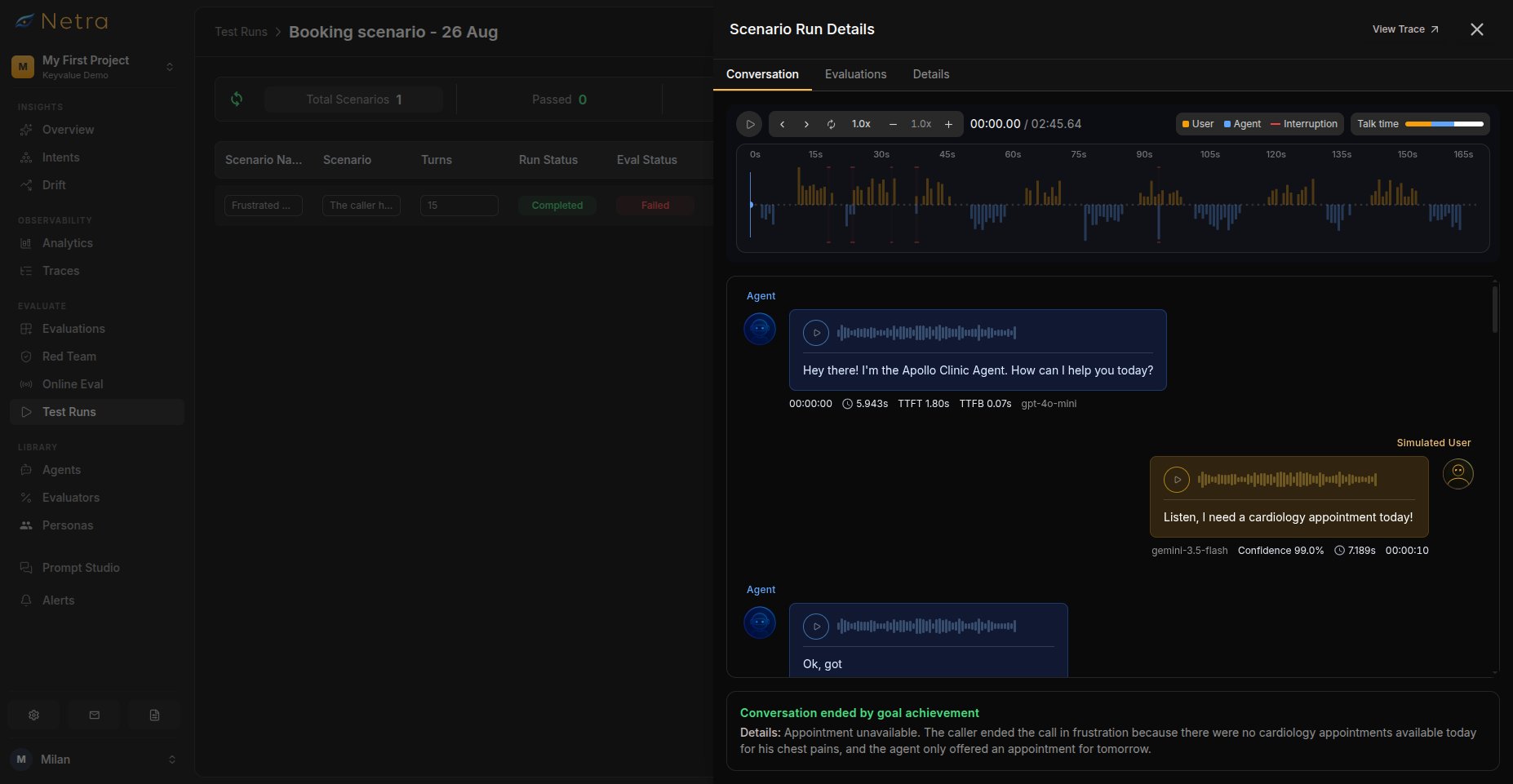
### Per-Item Results
Each scenario in the results table shows:
| Column | Description |
| ------------------- | -------------------------------------------------- |
| **Input** | The original scenario goal and caller instructions |
| **Expected Output** | The ground truth from the evaluation (if provided) |
| **Agent Output** | The transcribed conversation from the call |
| **Run Status** | Whether the call succeeded or failed |
| **Eval Status** | Whether the scenario passed or failed evaluations |
| **Trace** | Link to the execution trace for debugging |
Click any row to view detailed evaluation results, the full conversation transcript with synced audio playback, or the complete execution trace.
## Related
* [Simulation Overview](/Simulations/Simulation-overview) — Understand the full simulation framework
* [Evaluations](/Simulations/voice-simulations/Simulations) — Create voice test scenarios for your agents
* [Personas](/Simulations/voice-simulations/Personas) — Create reusable caller personas with voice traits
* [Evaluators](/Evaluators/voice-evaluators) — Configure audio and conversation scoring logic
* [Test Runs](/Simulations/TestRuns) — View transcripts and synced call audio
* [Quick Start: Simulation](/quick-start/QuickStart_Simulation) — Get your first simulation running in minutes
### Status Summary
The summary card at the top shows aggregate metrics:
| Metric | Description |
| ------------------- | ---------------------------------------------------- |
| **Passed / Failed** | Number of scenarios that passed or failed evaluation |
| **Not Available** | Scenarios where evaluation could not complete |
| **Total Cost** | Aggregate cost across all calls |
| **Average Latency** | Mean response time from your agent |
| **Duration** | Total wall-clock time for the run |
Use the refresh button to update the summary while the run is in progress.
### Run Statuses
| Status | Meaning |
| ------------- | -------------------------------------------------------------------- |
| **Running** | Calls are still being placed and evaluated |
| **Completed** | All calls have finished and evaluations are scored |
| **Failed** | All calls failed—check agent configuration and endpoint availability |
| **Cancelled** | The run was manually stopped |
### Per-Item Results
Each scenario in the results table shows:
| Column | Description |
| ------------------- | -------------------------------------------------- |
| **Input** | The original scenario goal and caller instructions |
| **Expected Output** | The ground truth from the evaluation (if provided) |
| **Agent Output** | The transcribed conversation from the call |
| **Run Status** | Whether the call succeeded or failed |
| **Eval Status** | Whether the scenario passed or failed evaluations |
| **Trace** | Link to the execution trace for debugging |
Click any row to view detailed evaluation results, the full conversation transcript with synced audio playback, or the complete execution trace.
## Related
* [Simulation Overview](/Simulations/Simulation-overview) — Understand the full simulation framework
* [Evaluations](/Simulations/voice-simulations/Simulations) — Create voice test scenarios for your agents
* [Personas](/Simulations/voice-simulations/Personas) — Create reusable caller personas with voice traits
* [Evaluators](/Evaluators/voice-evaluators) — Configure audio and conversation scoring logic
* [Test Runs](/Simulations/TestRuns) — View transcripts and synced call audio
* [Quick Start: Simulation](/quick-start/QuickStart_Simulation) — Get your first simulation running in minutes