> ## Documentation Index
> Fetch the complete documentation index at: https://docs.getnetra.ai/llms.txt
> Use this file to discover all available pages before exploring further.
# Agents
> Connect text agents to Netra via HTTP and run multi-turn simulations from the UI. Configure endpoints, test in the playground, and trigger runs without code.
Agents in Netra represent your external text applications: chatbots, copilots, or any HTTP-accessible endpoint. Connect them once, then trigger automated [Simulation runs](/Simulations/text-simulations/Simulations) against your agent directly from the UI. No SDK integration required — Netra sends messages to your agent, collects responses, and runs [Evaluators](/Evaluators/text-evaluators) to score every interaction.
## Why Agents Matter
Testing text agents manually doesn't scale. Connecting your agent to Netra unlocks automated, repeatable evaluation:
| Challenge | How Agents Help |
| -------------------------- | ------------------------------------------------------------------------- |
| Manual testing is slow | Run entire simulations against your agent with a single click |
| Inconsistent test coverage | Every scenario is tested systematically with the same evaluators |
| No multi-turn testing | Netra simulates realistic users for multi-turn conversation testing |
| Disconnected tracing | Agent responses are automatically traced and linked to simulation results |
| Environment-specific bugs | Test against staging, production, or any HTTP endpoint |
## How It Works
Netra provides two ways to interact with your connected agent:
Send individual messages to your agent in an interactive chat. Ideal for quick validation while configuring endpoints and response mappings.
Trigger a full simulation against your agent. Netra fans out every scenario, collects responses, runs evaluators, and reports results.
## Agents Dashboard
Navigate to **Simulations → Agents** from the left navigation panel. The dashboard displays all configured agents for the current project.
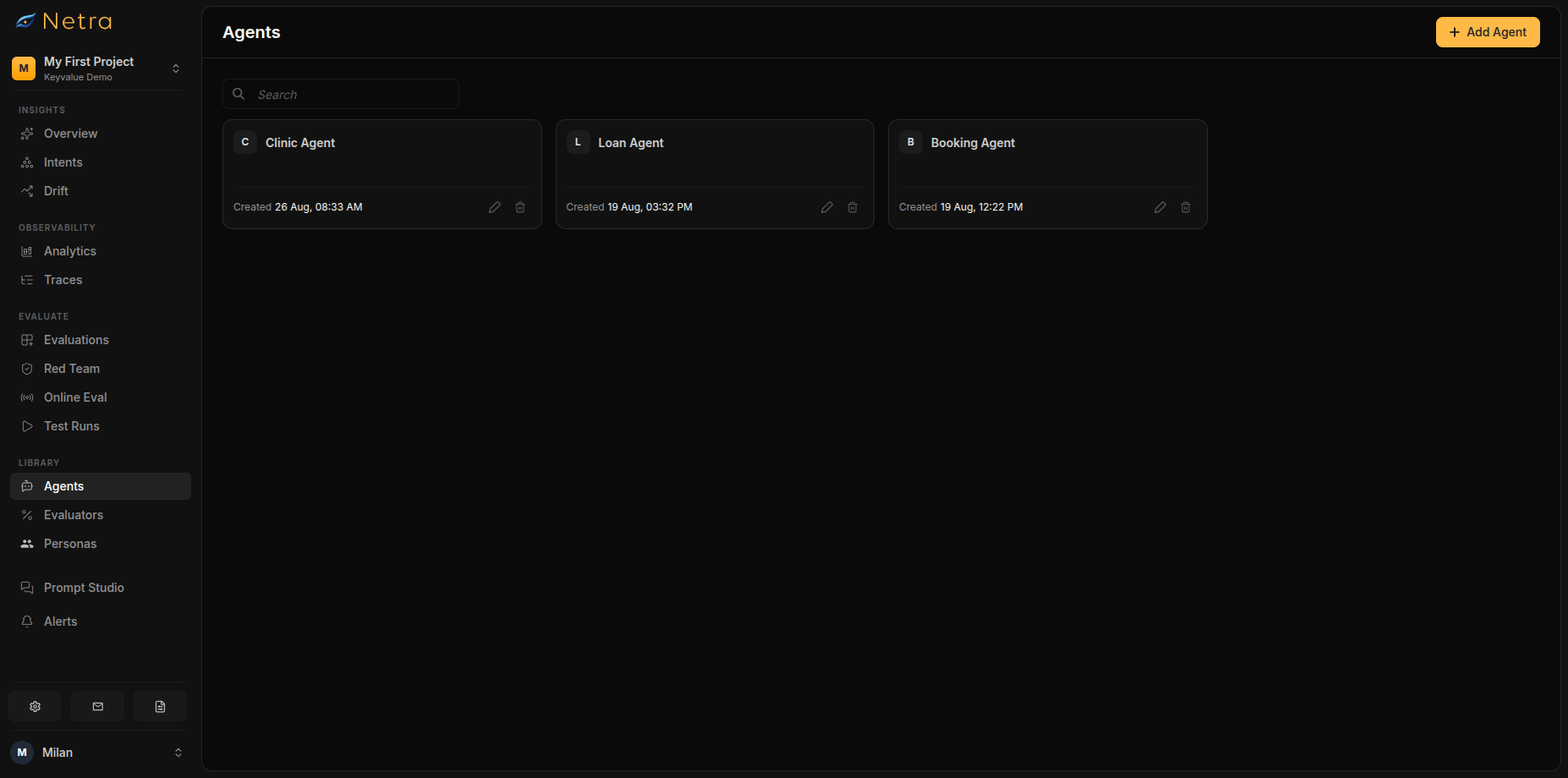 Each agent card shows:
| Field | Description |
| ------------ | ----------------------------- |
| **Name** | Agent display name |
| **Endpoint** | Server URL or API reference |
| **Created** | When the agent was configured |
## Configuring an Agent
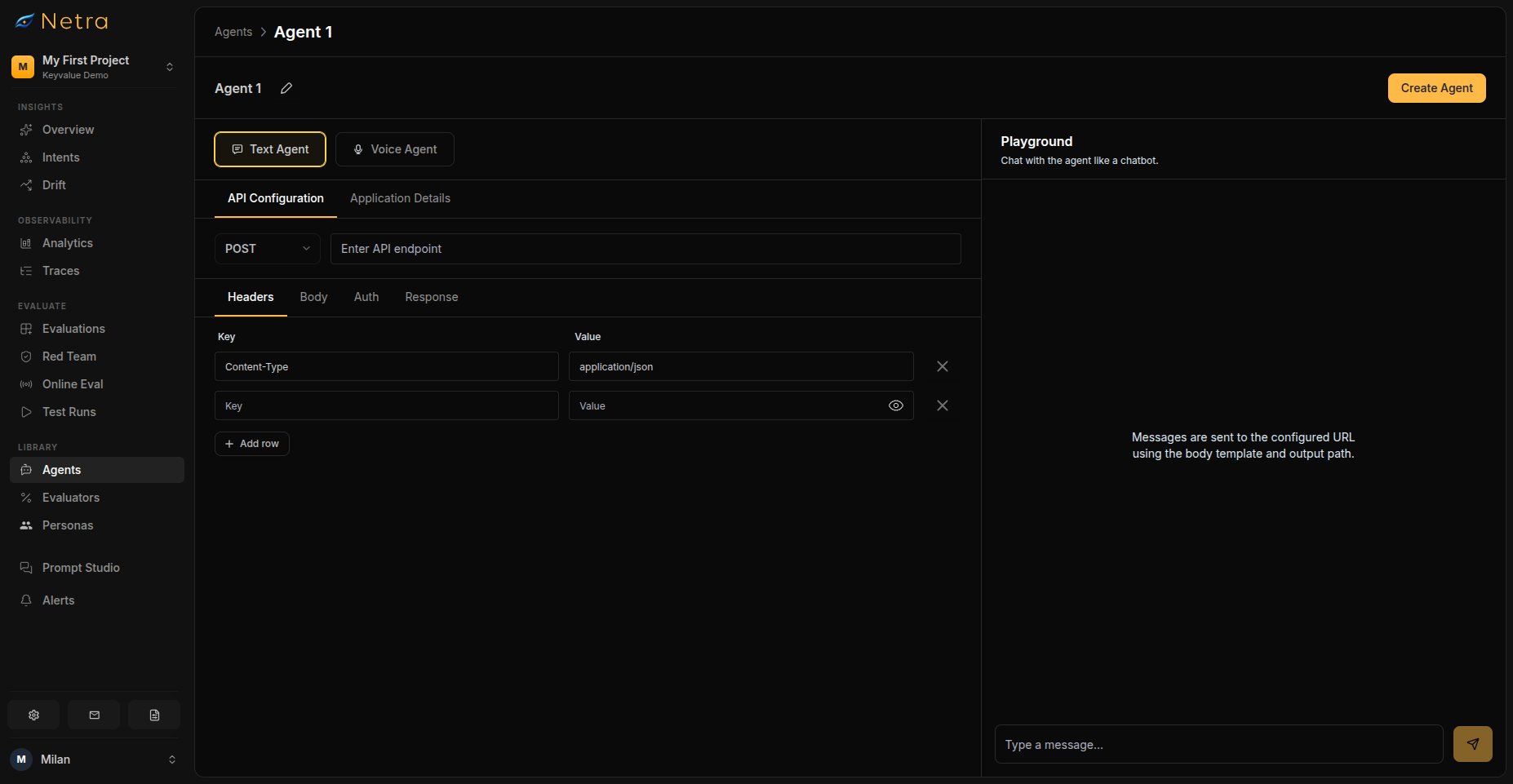
Click **Add Agent** in the top right corner to configure a new agent connection.
Enter a descriptive name (e.g., "Customer Support Bot - Staging"). This name identifies the agent when selecting it for runs.
Provide the HTTP endpoint Netra will call to reach your agent:
| Field | Required | Description |
| ---------------- | -------- | ------------------------------------------------------------------------------------------------- |
| **Endpoint URL** | Yes | The HTTP URL your agent listens on |
| **Headers** | No | Any custom headers required for authentication or routing (e.g., `Authorization: Bearer `) |
Use environment-specific endpoints to test against staging before promoting to production.
Map how Netra sends messages to your agent and reads responses back:
| Field | Required | Description |
| ------------------------- | -------- | --------------------------------------------------------------------------------------------------------------------------- |
| **Request Body Template** | No | JSON template for the request body. Use `{{message}}` as a placeholder for the user message |
| **Response JSON Path** | No | JMESPath expression to extract the agent's response from the JSON body (e.g., `data.reply` or `choices[0].message.content`) |
The default configuration sends `{"message": "{{message}}"}` and reads the response from the top-level `response` field.
Describe what your agent does. This context helps Netra simulate realistic users when running tests:
| Field | Description |
| --------------------- | ------------------------------------------------------------ |
| **Main purpose** | What the application is for |
| **User types** | Who interacts with the agent |
| **Sensitive data** | Information the agent must handle carefully or never request |
| **Dangerous actions** | Actions that should always be refused or escalated |
| **Forbidden topics** | Subjects the agent must not discuss |
| **System prompt** | The agent's instructions, if you want them on record |
Click **Create Agent** to save the configuration. The agent becomes available for simulation runs and appears on the Agents dashboard.
Each agent card shows:
| Field | Description |
| ------------ | ----------------------------- |
| **Name** | Agent display name |
| **Endpoint** | Server URL or API reference |
| **Created** | When the agent was configured |
## Configuring an Agent
Click **Add Agent** in the top right corner to configure a new agent connection.
Enter a descriptive name (e.g., "Customer Support Bot - Staging"). This name identifies the agent when selecting it for runs.
Provide the HTTP endpoint Netra will call to reach your agent:
| Field | Required | Description |
| ---------------- | -------- | ------------------------------------------------------------------------------------------------- |
| **Endpoint URL** | Yes | The HTTP URL your agent listens on |
| **Headers** | No | Any custom headers required for authentication or routing (e.g., `Authorization: Bearer `) |
Use environment-specific endpoints to test against staging before promoting to production.
Map how Netra sends messages to your agent and reads responses back:
| Field | Required | Description |
| ------------------------- | -------- | --------------------------------------------------------------------------------------------------------------------------- |
| **Request Body Template** | No | JSON template for the request body. Use `{{message}}` as a placeholder for the user message |
| **Response JSON Path** | No | JMESPath expression to extract the agent's response from the JSON body (e.g., `data.reply` or `choices[0].message.content`) |
The default configuration sends `{"message": "{{message}}"}` and reads the response from the top-level `response` field.
Describe what your agent does. This context helps Netra simulate realistic users when running tests:
| Field | Description |
| --------------------- | ------------------------------------------------------------ |
| **Main purpose** | What the application is for |
| **User types** | Who interacts with the agent |
| **Sensitive data** | Information the agent must handle carefully or never request |
| **Dangerous actions** | Actions that should always be refused or escalated |
| **Forbidden topics** | Subjects the agent must not discuss |
| **System prompt** | The agent's instructions, if you want them on record |
Click **Create Agent** to save the configuration. The agent becomes available for simulation runs and appears on the Agents dashboard.
 ## Testing in the Playground
Before triggering a full simulation, validate your agent connection in the playground:
1. Open your agent from the dashboard
2. Click **Playground** in the top right corner
3. Send test messages and verify responses appear correctly
4. Check that the response mapping extracts the right fields
The playground helps you catch configuration issues — wrong endpoint, incorrect response mapping, or authentication failures — before running a full simulation.
## Triggering a Simulation Run
This is the primary workflow for running an entire [Simulation](/Simulations/text-simulations/Simulations) against a configured agent from the UI.
### Prerequisites
Before triggering a run, ensure you have:
* At least one [Agent](#configuring-an-agent) configured in the current project
* A [Simulation](/Simulations/text-simulations/Simulations) with multi-turn scenarios
* [Evaluators](/Evaluators/text-evaluators) attached to the simulation for scoring
### Starting a Run
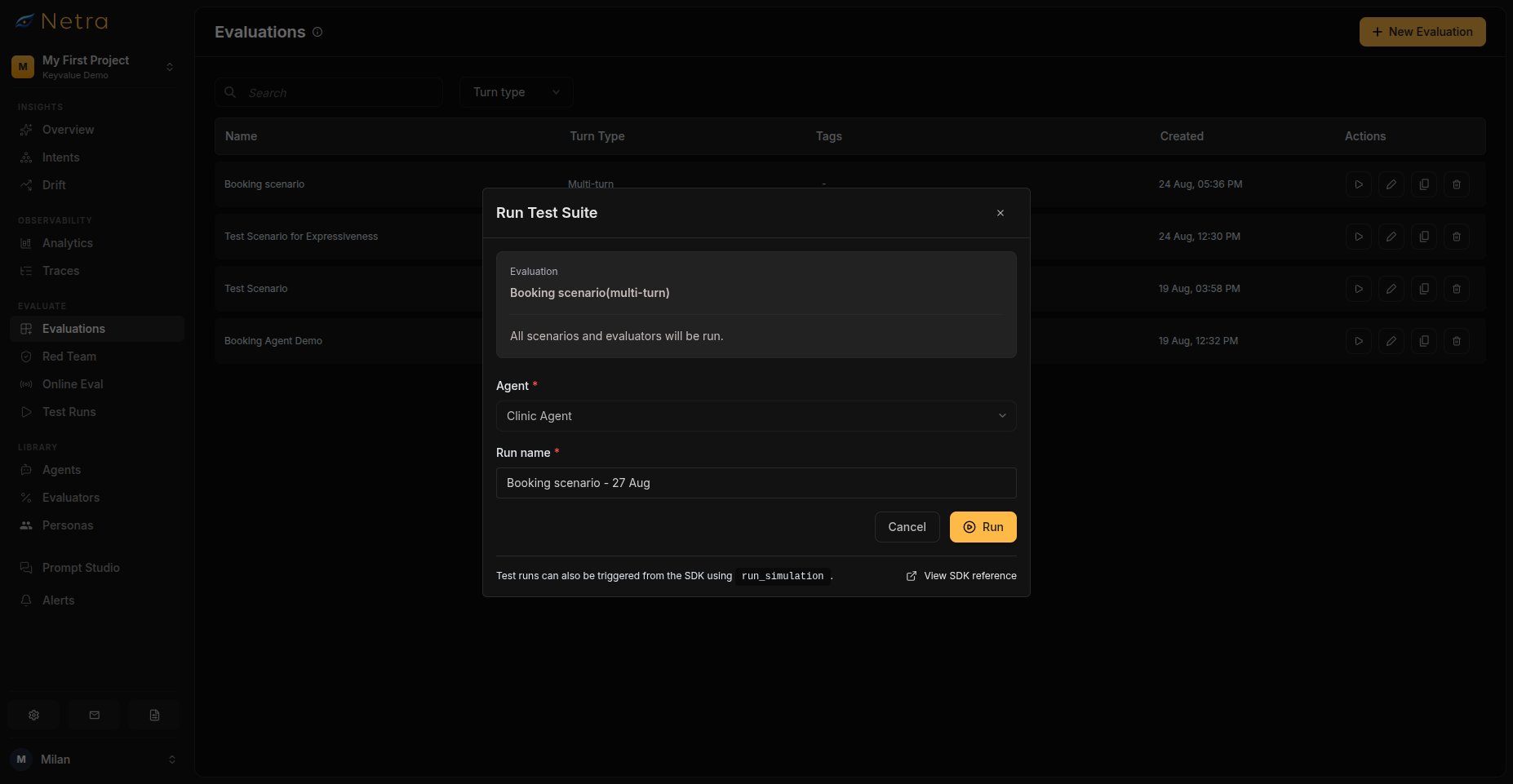
Navigate to **Simulations → Evaluations** and open the simulation you want to run.
In the simulation detail page toolbar, click the **Run** button.
The Run modal appears with the following fields:
| Field | Required | Description |
| ------------ | -------- | -------------------------------------------------------- |
| **Agent** | Yes | Select a configured agent from the dropdown |
| **Run Name** | Yes | Auto-generated as `{Simulation Name} - {Date}`, editable |
The modal also displays read-only context: simulation name, scenario count, and evaluator count.
Click **Run** to start the simulation. On success, you are redirected to the [Test Run](/Simulations/TestRuns) detail page to monitor progress.
## Testing in the Playground
Before triggering a full simulation, validate your agent connection in the playground:
1. Open your agent from the dashboard
2. Click **Playground** in the top right corner
3. Send test messages and verify responses appear correctly
4. Check that the response mapping extracts the right fields
The playground helps you catch configuration issues — wrong endpoint, incorrect response mapping, or authentication failures — before running a full simulation.
## Triggering a Simulation Run
This is the primary workflow for running an entire [Simulation](/Simulations/text-simulations/Simulations) against a configured agent from the UI.
### Prerequisites
Before triggering a run, ensure you have:
* At least one [Agent](#configuring-an-agent) configured in the current project
* A [Simulation](/Simulations/text-simulations/Simulations) with multi-turn scenarios
* [Evaluators](/Evaluators/text-evaluators) attached to the simulation for scoring
### Starting a Run
Navigate to **Simulations → Evaluations** and open the simulation you want to run.
In the simulation detail page toolbar, click the **Run** button.
The Run modal appears with the following fields:
| Field | Required | Description |
| ------------ | -------- | -------------------------------------------------------- |
| **Agent** | Yes | Select a configured agent from the dropdown |
| **Run Name** | Yes | Auto-generated as `{Simulation Name} - {Date}`, editable |
The modal also displays read-only context: simulation name, scenario count, and evaluator count.
Click **Run** to start the simulation. On success, you are redirected to the [Test Run](/Simulations/TestRuns) detail page to monitor progress.
 ## Monitoring Results
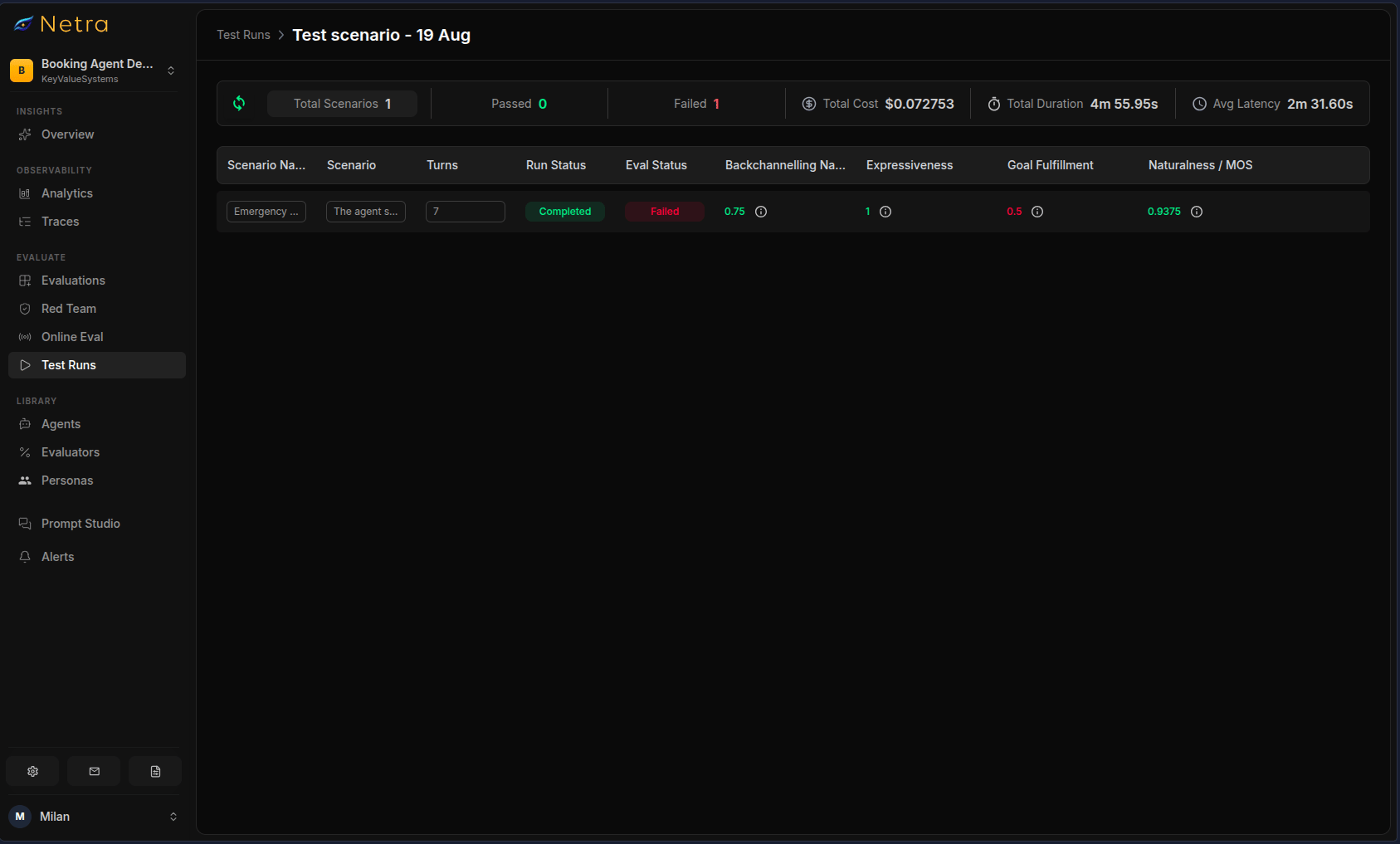
After triggering a run, you land on the [Test Run](/Simulations/TestRuns) detail page. The page updates as scenarios complete.
### Status Summary
The summary card at the top shows aggregate metrics:
| Metric | Description |
| ------------------- | ---------------------------------------------------- |
| **Passed / Failed** | Number of scenarios that passed or failed evaluation |
| **Not Available** | Scenarios where evaluation could not complete |
| **Total Cost** | Aggregate cost across all scenarios |
| **Average Latency** | Mean response time from your agent |
| **Duration** | Total wall-clock time for the run |
Use the refresh button to update the summary while the run is in progress.
### Run Statuses
| Status | Meaning |
| ------------- | -------------------------------------------------------------------------- |
| **Running** | Scenarios are still being processed and evaluated |
| **Completed** | All scenarios have finished and evaluations are scored |
| **Failed** | All scenarios failed — check agent configuration and endpoint availability |
| **Cancelled** | The run was manually stopped |
### Per-Item Results
Each scenario in the results table shows:
| Column | Description |
| ------------------- | -------------------------------------------------- |
| **Input** | The original scenario goal and user instructions |
| **Expected Output** | The ground truth from the simulation (if provided) |
| **Agent Output** | The agent's full conversation transcript |
| **Run Status** | Whether the scenario succeeded or failed |
| **Eval Status** | Whether the scenario passed or failed evaluations |
| **Trace** | Link to the execution trace for debugging |
Click any row to view detailed evaluation results, the full conversation transcript, or the complete execution trace.
## Monitoring Results
After triggering a run, you land on the [Test Run](/Simulations/TestRuns) detail page. The page updates as scenarios complete.
### Status Summary
The summary card at the top shows aggregate metrics:
| Metric | Description |
| ------------------- | ---------------------------------------------------- |
| **Passed / Failed** | Number of scenarios that passed or failed evaluation |
| **Not Available** | Scenarios where evaluation could not complete |
| **Total Cost** | Aggregate cost across all scenarios |
| **Average Latency** | Mean response time from your agent |
| **Duration** | Total wall-clock time for the run |
Use the refresh button to update the summary while the run is in progress.
### Run Statuses
| Status | Meaning |
| ------------- | -------------------------------------------------------------------------- |
| **Running** | Scenarios are still being processed and evaluated |
| **Completed** | All scenarios have finished and evaluations are scored |
| **Failed** | All scenarios failed — check agent configuration and endpoint availability |
| **Cancelled** | The run was manually stopped |
### Per-Item Results
Each scenario in the results table shows:
| Column | Description |
| ------------------- | -------------------------------------------------- |
| **Input** | The original scenario goal and user instructions |
| **Expected Output** | The ground truth from the simulation (if provided) |
| **Agent Output** | The agent's full conversation transcript |
| **Run Status** | Whether the scenario succeeded or failed |
| **Eval Status** | Whether the scenario passed or failed evaluations |
| **Trace** | Link to the execution trace for debugging |
Click any row to view detailed evaluation results, the full conversation transcript, or the complete execution trace.
 ## Related
* [Simulation Overview](/Simulations/Simulation-overview) — Understand the full simulation framework
* [Evaluations](/Simulations/text-simulations/Simulations) — Create text simulation scenarios for your agents
* [Evaluators](/Evaluators/text-evaluators) — Configure text scoring logic
* [Test Runs](/Simulations/TestRuns) — View transcripts and per-scenario results
* [Quick Start: Simulation](/quick-start/QuickStart_Simulation) — Get your first simulation running in minutes
## Related
* [Simulation Overview](/Simulations/Simulation-overview) — Understand the full simulation framework
* [Evaluations](/Simulations/text-simulations/Simulations) — Create text simulation scenarios for your agents
* [Evaluators](/Evaluators/text-evaluators) — Configure text scoring logic
* [Test Runs](/Simulations/TestRuns) — View transcripts and per-scenario results
* [Quick Start: Simulation](/quick-start/QuickStart_Simulation) — Get your first simulation running in minutes