> ## Documentation Index
> Fetch the complete documentation index at: https://docs.getnetra.ai/llms.txt
> Use this file to discover all available pages before exploring further.
# Simulations
> Create multi-turn simulation scenarios in Netra to test AI agent behavior. Define conversation goals and expected dialogue paths for simulation runs.
Simulations define the scenarios you want to test—multi-turn conversations with specific goals, user personas, and success criteria. Unlike single-turn evaluations, simulations create dynamic, goal-oriented conversations that reflect real-world user interactions.
## Why Simulations Matter
Simulations transform simple Q\&A testing into realistic conversation testing:
| Benefit | Description |
| ---------------------------- | ----------------------------------------------------------------------------------- |
| **Goal-Oriented Testing** | Test whether your agent achieves specific objectives, not just individual responses |
| **Persona-Based Scenarios** | Simulate different user types—frustrated, confused, friendly, or neutral |
| **Multi-Turn Conversations** | Test how your agent handles back-and-forth dialogue (1-50 turns) |
| **Context Simulation** | Provide user data and context for realistic scenario execution |
## Simulation Dashboard
Navigate to **Evaluate → Evaluations** from the left navigation panel. Filter by **Multi** turn type to see simulations.
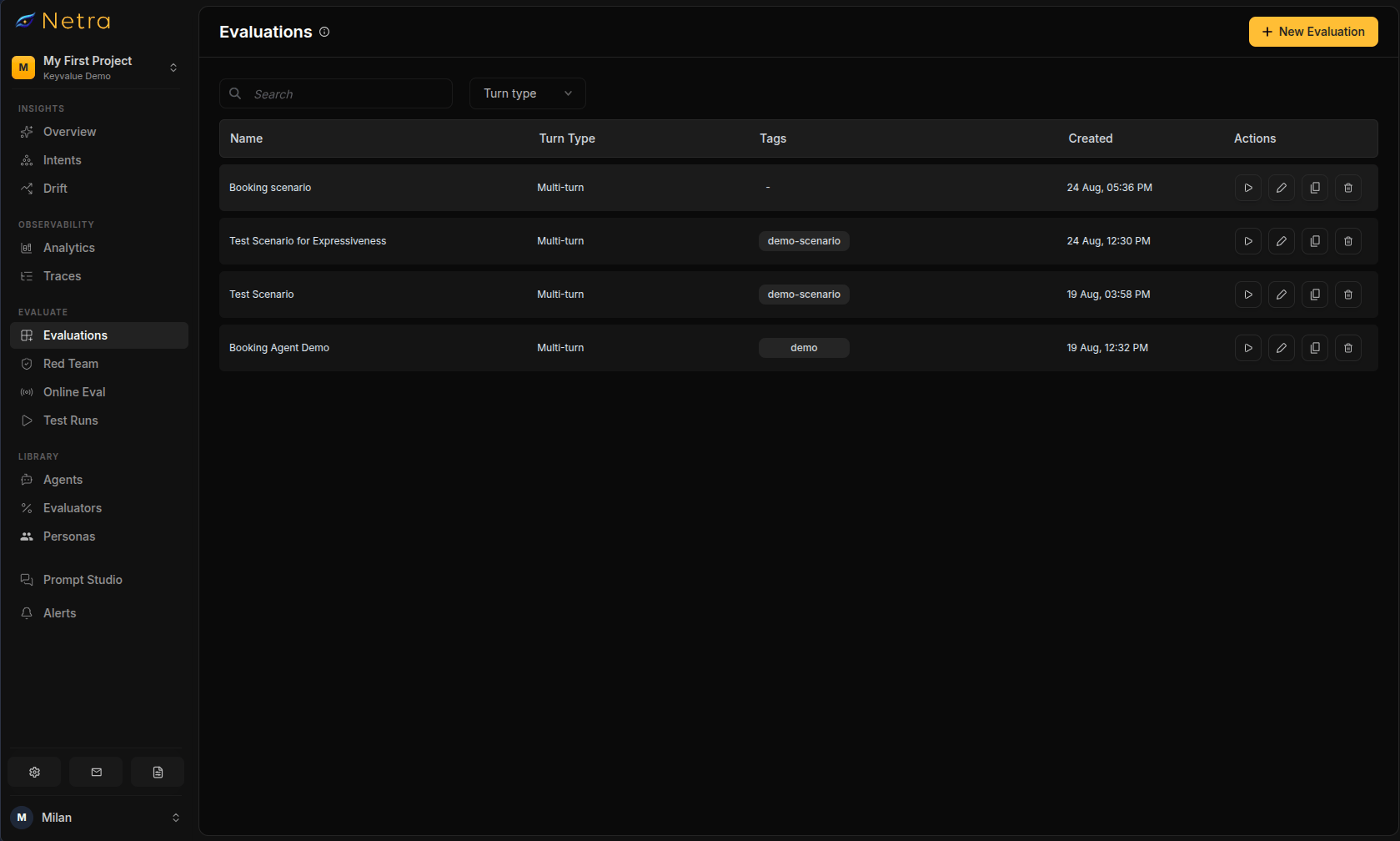 Each card displays the following fields:
| Column | Description |
| ------------------- | ---------------------------------------------- |
| **Simulation Name** | Unique identifier for the simulation suite |
| **Turn Type** | MULTI for simulations |
| **Tags** | Metadata labels for filtering and organization |
| **Created At** | Timestamp for version tracking |
| **Actions** | Quick access to edit or delete simulations |
## Creating a Multi-Turn Simulation
Click **New Evaluation** in the top right corner of the Evaluations page, then select **Multi Turn Simulation**.
Build simulation scenarios from scratch, one scenario at a time
Each card displays the following fields:
| Column | Description |
| ------------------- | ---------------------------------------------- |
| **Simulation Name** | Unique identifier for the simulation suite |
| **Turn Type** | MULTI for simulations |
| **Tags** | Metadata labels for filtering and organization |
| **Created At** | Timestamp for version tracking |
| **Actions** | Quick access to edit or delete simulations |
## Creating a Multi-Turn Simulation
Click **New Evaluation** in the top right corner of the Evaluations page, then select **Multi Turn Simulation**.
Build simulation scenarios from scratch, one scenario at a time
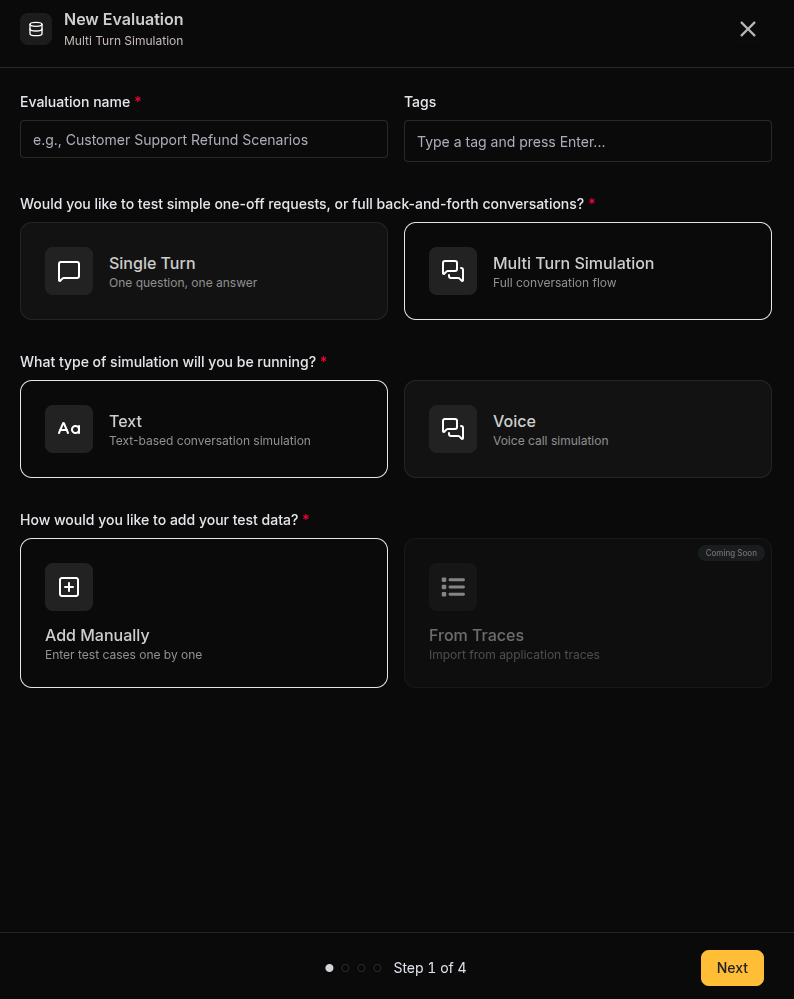 | Field | Description |
| ------------------- | -------------------------------------------------------------------------------------- |
| **Evaluation name** | A descriptive identifier for your simulation suite (e.g., "Customer Refund Scenarios") |
| **Tags** | Labels for filtering (e.g., "customer-support", "refunds", "production") |
| **Turn Type** | Select **Multi Turn Simulation** for full conversation flow |
| **Simulation Type** | Select **Text** for text-based conversation simulation |
| **Creation Method** | Choose **Add Manually** to enter test cases one by one |
To simulate phone or voice calls instead, choose the **Voice** simulation type. See [Voice Simulations](/Simulations/voice-simulations/Simulations).
| Field | Description |
| ------------------- | -------------------------------------------------------------------------------------- |
| **Evaluation name** | A descriptive identifier for your simulation suite (e.g., "Customer Refund Scenarios") |
| **Tags** | Labels for filtering (e.g., "customer-support", "refunds", "production") |
| **Turn Type** | Select **Multi Turn Simulation** for full conversation flow |
| **Simulation Type** | Select **Text** for text-based conversation simulation |
| **Creation Method** | Choose **Add Manually** to enter test cases one by one |
To simulate phone or voice calls instead, choose the **Voice** simulation type. See [Voice Simulations](/Simulations/voice-simulations/Simulations).
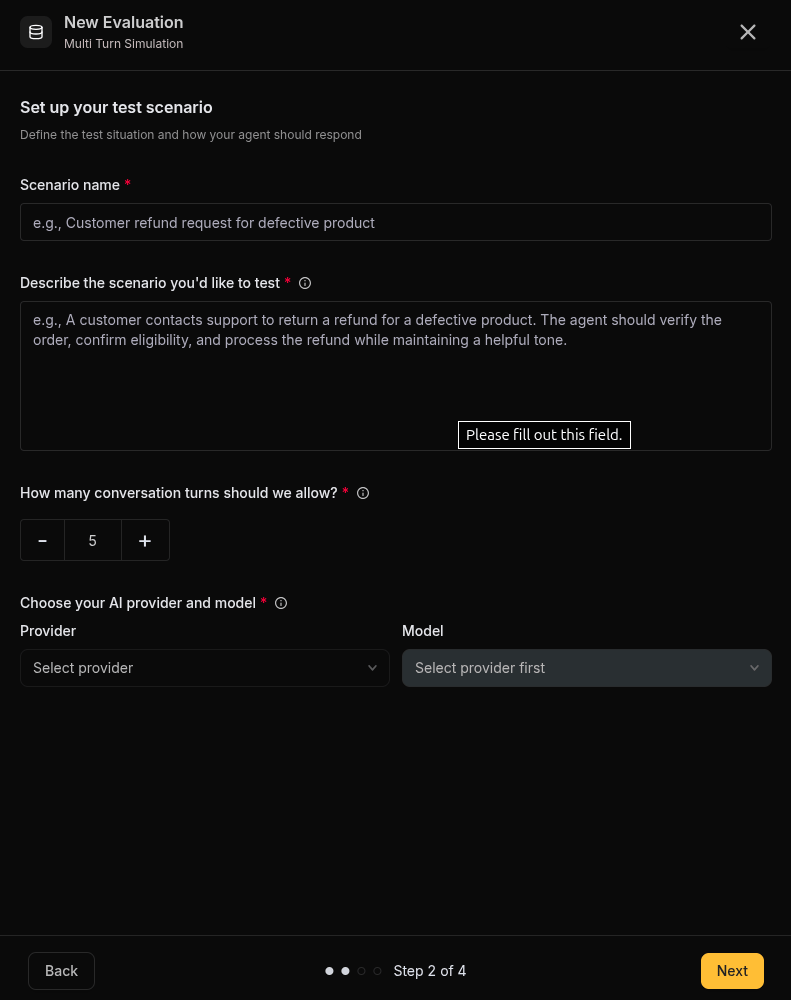 **Scenario name** — A short label for the scenario (e.g., "Customer refund request for defective product").
**Describe the scenario you'd like to test** — Describe what the simulated user is trying to achieve. This becomes the goal that drives the conversation.
```
A customer contacts support to return a refund for a defective product.
The agent should verify the order, confirm eligibility, and process the
refund while maintaining a helpful tone.
```
**How many conversation turns should we allow?** — Set the maximum number of conversation turns (1-50):
* **Lower (1-10)**: Quick interactions and single-question support
* **Medium (11-25)**: Standard support conversations
* **Higher (26-50)**: Complex, multi-step problem resolution
The simulation stops when the goal is achieved, the max turns limit is reached, or the scenario is abandoned.
**Choose your AI provider and model** — Select the provider and model that will play the simulated user (e.g., OpenAI / GPT-4o).
Use consistent, capable models for realistic user simulation.
**Scenario name** — A short label for the scenario (e.g., "Customer refund request for defective product").
**Describe the scenario you'd like to test** — Describe what the simulated user is trying to achieve. This becomes the goal that drives the conversation.
```
A customer contacts support to return a refund for a defective product.
The agent should verify the order, confirm eligibility, and process the
refund while maintaining a helpful tone.
```
**How many conversation turns should we allow?** — Set the maximum number of conversation turns (1-50):
* **Lower (1-10)**: Quick interactions and single-question support
* **Medium (11-25)**: Standard support conversations
* **Higher (26-50)**: Complex, multi-step problem resolution
The simulation stops when the goal is achieved, the max turns limit is reached, or the scenario is abandoned.
**Choose your AI provider and model** — Select the provider and model that will play the simulated user (e.g., OpenAI / GPT-4o).
Use consistent, capable models for realistic user simulation.
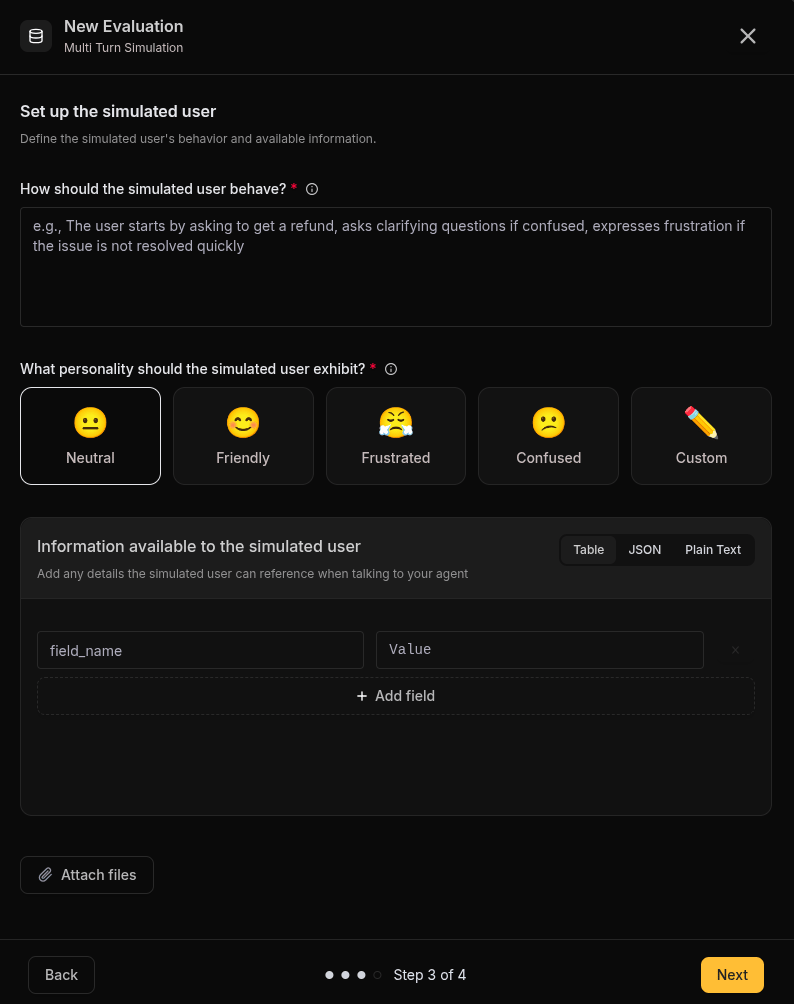 **How should the simulated user behave?** — Describe how the simulated user should behave during the conversation.
```
The user starts by asking to get a refund, asks clarifying questions if
confused, expresses frustration if the issue is not resolved quickly.
```
**What personality should the simulated user exhibit?** — Choose how the simulated user behaves emotionally:
| Persona | Icon | Description |
| -------------- | ---- | --------------------------------------------------- |
| **Neutral** | 😐 | Straightforward and factual, sticks to the point |
| **Friendly** | 😊 | Polite and cooperative, patient with the agent |
| **Frustrated** | 😤 | Impatient, wants quick resolution, may be curt |
| **Confused** | 😕 | Needs extra clarification, asks follow-up questions |
| **Custom** | ✏️ | Define your own persona behavior in free text |
**Information available to the simulated user** — Provide the context data the simulated user can reference during the conversation. Enter it as a **Table**, as **JSON**, or as **Plain Text**.
**Example (Table)**:
| Key | Value |
| ----------------- | ------------------------- |
| order\_number | ORD-123456 |
| purchase\_date | 2024-01-15 |
| product\_name | Wireless Headphones |
| order\_total | \$129.99 |
| shipping\_address | 123 Main St, New York, NY |
**Example (JSON)**:
```json theme={null}
{
"order_number": "ORD-123456",
"purchase_date": "2024-01-15",
"product_name": "Wireless Headphones",
"order_total": "$129.99",
"shipping_address": "123 Main St, New York, NY"
}
```
**File Attachments** — Attach up to five files per scenario for the simulated user to reference. Supported formats are PDF, DOCX, PNG, JPG/JPEG, and CSV, with a maximum size of 5 MB per file. Each attachment requires a short description.
**JSON Validation**: When using JSON format, ensure there are no duplicate
keys. The system validates JSON structure before allowing you to proceed.
**How should the simulated user behave?** — Describe how the simulated user should behave during the conversation.
```
The user starts by asking to get a refund, asks clarifying questions if
confused, expresses frustration if the issue is not resolved quickly.
```
**What personality should the simulated user exhibit?** — Choose how the simulated user behaves emotionally:
| Persona | Icon | Description |
| -------------- | ---- | --------------------------------------------------- |
| **Neutral** | 😐 | Straightforward and factual, sticks to the point |
| **Friendly** | 😊 | Polite and cooperative, patient with the agent |
| **Frustrated** | 😤 | Impatient, wants quick resolution, may be curt |
| **Confused** | 😕 | Needs extra clarification, asks follow-up questions |
| **Custom** | ✏️ | Define your own persona behavior in free text |
**Information available to the simulated user** — Provide the context data the simulated user can reference during the conversation. Enter it as a **Table**, as **JSON**, or as **Plain Text**.
**Example (Table)**:
| Key | Value |
| ----------------- | ------------------------- |
| order\_number | ORD-123456 |
| purchase\_date | 2024-01-15 |
| product\_name | Wireless Headphones |
| order\_total | \$129.99 |
| shipping\_address | 123 Main St, New York, NY |
**Example (JSON)**:
```json theme={null}
{
"order_number": "ORD-123456",
"purchase_date": "2024-01-15",
"product_name": "Wireless Headphones",
"order_total": "$129.99",
"shipping_address": "123 Main St, New York, NY"
}
```
**File Attachments** — Attach up to five files per scenario for the simulated user to reference. Supported formats are PDF, DOCX, PNG, JPG/JPEG, and CSV, with a maximum size of 5 MB per file. Each attachment requires a short description.
**JSON Validation**: When using JSON format, ensure there are no duplicate
keys. The system validates JSON structure before allowing you to proceed.
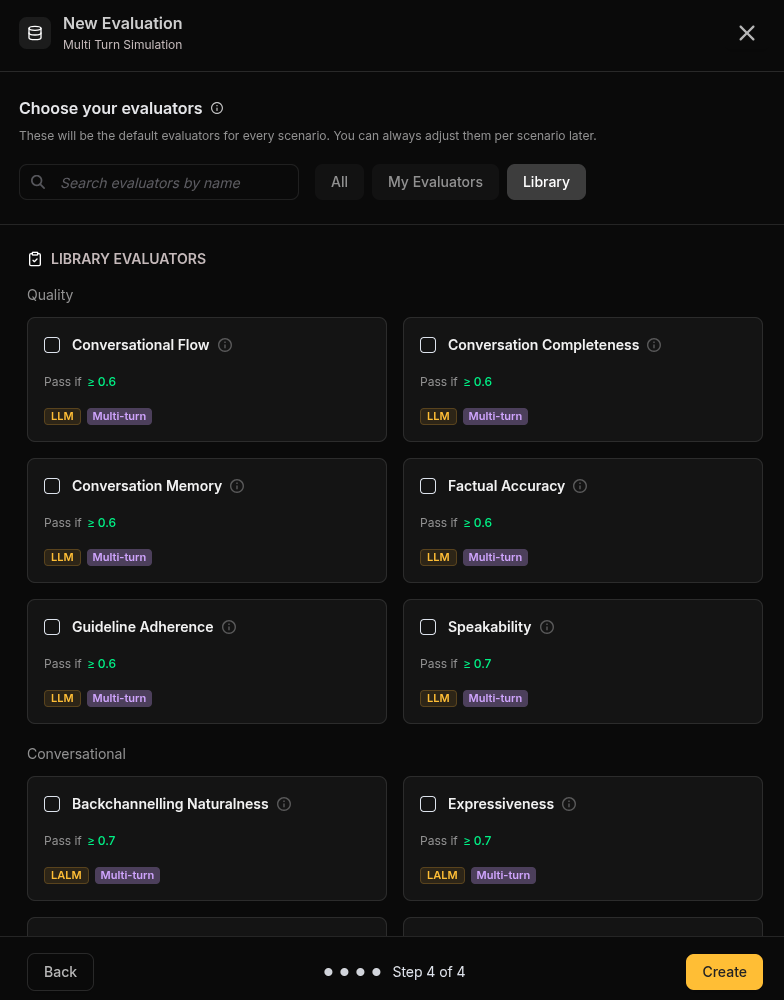 Select [evaluators](/Evaluators/text-evaluators) from Netra's library of session-level evaluators. These will be the default evaluators for every scenario—you can always adjust them per scenario later.
**Quality Evaluators**:
* **Conversational Flow** — Evaluates the natural flow of conversation
* **Conversation Completeness** — Checks if the conversation reaches a complete resolution
* **Conversation Memory** — Tests if the agent remembers context across turns
* **Factual Accuracy** — Verifies the agent communicates correct information
* **Guideline Adherence** — Checks if the agent follows specified guidelines
* **Speakability** — Evaluates how natural the agent's responses sound
**Conversational Evaluators**:
* **Backchannelling Naturalness** — Tests natural backchanneling responses
* **Expressiveness** — Evaluates emotional expressiveness in responses
Select [evaluators](/Evaluators/text-evaluators) from Netra's library of session-level evaluators. These will be the default evaluators for every scenario—you can always adjust them per scenario later.
**Quality Evaluators**:
* **Conversational Flow** — Evaluates the natural flow of conversation
* **Conversation Completeness** — Checks if the conversation reaches a complete resolution
* **Conversation Memory** — Tests if the agent remembers context across turns
* **Factual Accuracy** — Verifies the agent communicates correct information
* **Guideline Adherence** — Checks if the agent follows specified guidelines
* **Speakability** — Evaluates how natural the agent's responses sound
**Conversational Evaluators**:
* **Backchannelling Naturalness** — Tests natural backchanneling responses
* **Expressiveness** — Evaluates emotional expressiveness in responses
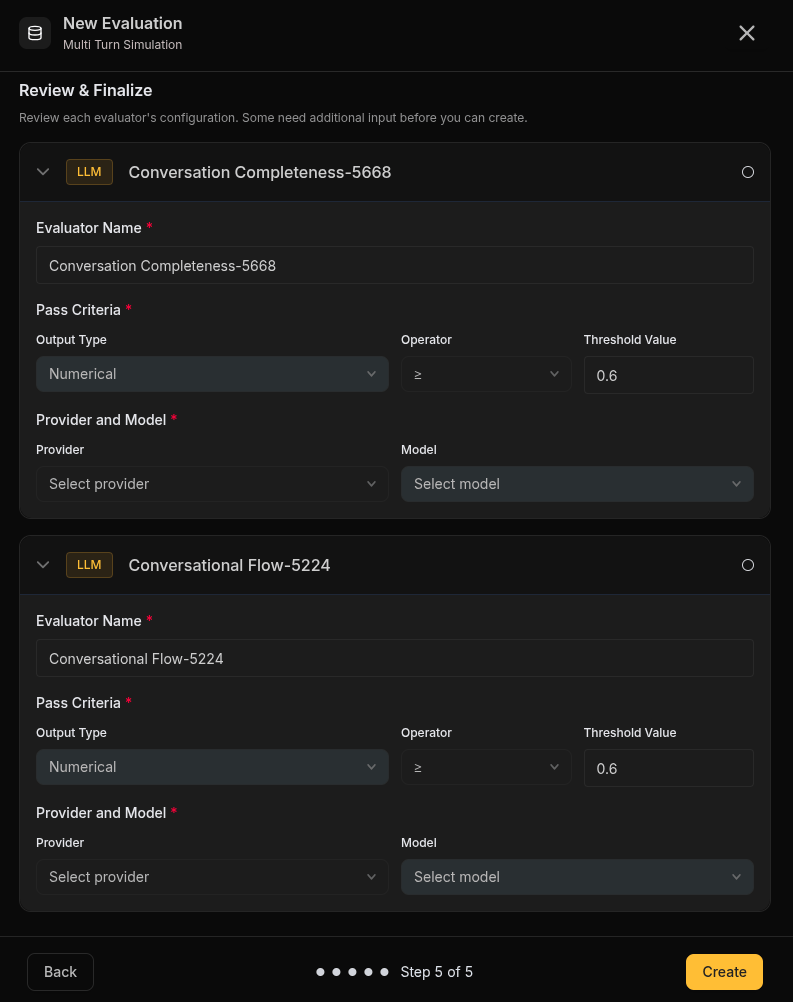 Review each evaluator's configuration. Some need additional input before you can create.
When you select evaluators from the library, Netra instantiates them under **My Evaluators** so you can tailor them:
* **Evaluator Name** — Match your use case (e.g., "Refund Goal Fulfillment" instead of "Goal Fulfillment")
* **Pass Criteria** — Configure the output type (Numerical), operator (≥), and threshold value
* **Provider and Model** — Choose the model that runs each LLM-as-Judge evaluation
Some evaluators have configurable variables that require additional input:
* **Guideline Adherence**: your agent's instructions and constraints
* **Factual Accuracy**: the reference facts your agent must communicate correctly
Review all configurations, then click **Create** to finalize. Your simulation is now ready to run.
## Running a Simulation
Once your simulation is configured, you can run simulations from the dashboard or the SDK.
### From the Dashboard
Open your simulation, go to the **Test Runs** tab, and click **Run Test Suite**.
Pick a registered [agent](/Evaluations/text-evaluations/agents) to converse with the simulated users, give the run a name, and start it. Netra runs every scenario and evaluates each conversation.
Monitor progress and results in [Test Runs](/Simulations/TestRuns).
### From the SDK
Use the SDK's simulation methods with your Simulation ID to trigger simulations from your own code. See the SDK reference for [Python](/sdk-reference/simulation/python) and [TypeScript](/sdk-reference/simulation/typescript).
## Managing a Simulation
Open any simulation to manage it:
| Tab | Description |
| ------------- | ------------------------------------------------------------------------------------------------------------------- |
| **Details** | Browse scenarios as cards showing goal, persona, behavior, and turn limits. Add more scenarios at any time. |
| **Analytics** | Evaluation analytics for this simulation—overall health, average score over time, and per-evaluator pass/fail rates |
| **Test Runs** | Runs triggered from this simulation, with the **Run Test Suite** action |
You can also clone scenarios or the entire simulation to create variants.
## Best Practices
### Crafting Effective Scenarios
* **Be specific**: "Get a refund for a damaged product" is better than "Ask about returns"
* **Include context**: Provide enough detail for realistic simulation (order details, timeline, issue description)
* **Include edge cases**: Create scenarios that challenge your agent's boundaries
### Choosing User Personas
* **Neutral**: Best for baseline performance testing
* **Friendly**: Tests whether your agent maintains professionalism even when not challenged
* **Frustrated**: Critical for customer support agents—tests patience and de-escalation
* **Confused**: Tests clarity and explanation quality
* **Custom**: Use for industry-specific personas (technical users, non-native speakers, etc.)
### Defining User Data
* **Provide realistic data**: Use representative order numbers, dates, and values
* **Include edge cases**: Test with missing fields, unusual values, or conflicting data
* **Keep it relevant**: Only include data that matters for the scenario
* **Use consistent formats**: Standardize date formats, currency, and naming
### Verifying Facts
To check that your agent communicates critical information correctly:
* **Attach the Factual Accuracy evaluator** and provide the must-communicate facts as its **Reference Facts** variable
* **Focus on critical facts**: What MUST the agent get right?
* **Be precise**: "5-7 business days" is better than "about a week"
## Related
* [Simulation Overview](/Simulations/Simulation-overview) - Understand the full simulation framework
* [Evaluators](/Evaluators/text-evaluators) - Configure scoring logic for simulations
* [Test Runs](/Simulations/TestRuns) - View simulation results and conversation transcripts
* [Traces](/Observability/Traces/overview) - Debug simulation turns with execution traces
Review each evaluator's configuration. Some need additional input before you can create.
When you select evaluators from the library, Netra instantiates them under **My Evaluators** so you can tailor them:
* **Evaluator Name** — Match your use case (e.g., "Refund Goal Fulfillment" instead of "Goal Fulfillment")
* **Pass Criteria** — Configure the output type (Numerical), operator (≥), and threshold value
* **Provider and Model** — Choose the model that runs each LLM-as-Judge evaluation
Some evaluators have configurable variables that require additional input:
* **Guideline Adherence**: your agent's instructions and constraints
* **Factual Accuracy**: the reference facts your agent must communicate correctly
Review all configurations, then click **Create** to finalize. Your simulation is now ready to run.
## Running a Simulation
Once your simulation is configured, you can run simulations from the dashboard or the SDK.
### From the Dashboard
Open your simulation, go to the **Test Runs** tab, and click **Run Test Suite**.
Pick a registered [agent](/Evaluations/text-evaluations/agents) to converse with the simulated users, give the run a name, and start it. Netra runs every scenario and evaluates each conversation.
Monitor progress and results in [Test Runs](/Simulations/TestRuns).
### From the SDK
Use the SDK's simulation methods with your Simulation ID to trigger simulations from your own code. See the SDK reference for [Python](/sdk-reference/simulation/python) and [TypeScript](/sdk-reference/simulation/typescript).
## Managing a Simulation
Open any simulation to manage it:
| Tab | Description |
| ------------- | ------------------------------------------------------------------------------------------------------------------- |
| **Details** | Browse scenarios as cards showing goal, persona, behavior, and turn limits. Add more scenarios at any time. |
| **Analytics** | Evaluation analytics for this simulation—overall health, average score over time, and per-evaluator pass/fail rates |
| **Test Runs** | Runs triggered from this simulation, with the **Run Test Suite** action |
You can also clone scenarios or the entire simulation to create variants.
## Best Practices
### Crafting Effective Scenarios
* **Be specific**: "Get a refund for a damaged product" is better than "Ask about returns"
* **Include context**: Provide enough detail for realistic simulation (order details, timeline, issue description)
* **Include edge cases**: Create scenarios that challenge your agent's boundaries
### Choosing User Personas
* **Neutral**: Best for baseline performance testing
* **Friendly**: Tests whether your agent maintains professionalism even when not challenged
* **Frustrated**: Critical for customer support agents—tests patience and de-escalation
* **Confused**: Tests clarity and explanation quality
* **Custom**: Use for industry-specific personas (technical users, non-native speakers, etc.)
### Defining User Data
* **Provide realistic data**: Use representative order numbers, dates, and values
* **Include edge cases**: Test with missing fields, unusual values, or conflicting data
* **Keep it relevant**: Only include data that matters for the scenario
* **Use consistent formats**: Standardize date formats, currency, and naming
### Verifying Facts
To check that your agent communicates critical information correctly:
* **Attach the Factual Accuracy evaluator** and provide the must-communicate facts as its **Reference Facts** variable
* **Focus on critical facts**: What MUST the agent get right?
* **Be precise**: "5-7 business days" is better than "about a week"
## Related
* [Simulation Overview](/Simulations/Simulation-overview) - Understand the full simulation framework
* [Evaluators](/Evaluators/text-evaluators) - Configure scoring logic for simulations
* [Test Runs](/Simulations/TestRuns) - View simulation results and conversation transcripts
* [Traces](/Observability/Traces/overview) - Debug simulation turns with execution traces