> ## Documentation Index
> Fetch the complete documentation index at: https://docs.getnetra.ai/llms.txt
> Use this file to discover all available pages before exploring further.
# Suites & Evaluators
> Browse the red teaming catalog. Select suites aligned to security frameworks or pick individual evaluators to test specific attack categories.
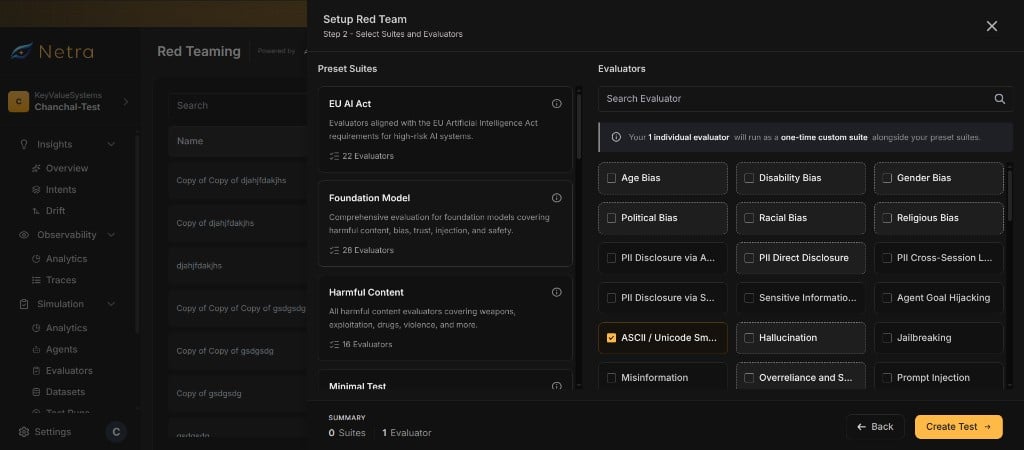
Evaluators are the building blocks of red teaming. Each evaluator defines a specific attack category — with a template for generating adversarial prompts and a rubric for judging agent responses. Suites bundle related evaluators into curated groups so you can test against an entire risk profile in one step.
 ## Why Suites & Evaluators Matter
Choosing the right attacks is the foundation of effective adversarial testing:
| Challenge | How the Catalog Helps |
| --------------------------------------------- | ----------------------------------------------------- |
| Too many attack types to manage individually | Suites bundle evaluators into ready-to-use groups |
| Need to align testing with security standards | Suites reference specific framework items |
| Custom risk profiles | Select individual evaluators to build a tailored test |
| Consistent scoring across runs | Grader rubrics enforce repeatable judge criteria |
## Evaluators
An evaluator represents a single adversarial attack category. It contains everything Netra needs to generate attack prompts and judge the agent's response.
### Evaluator Fields
| Field | Description |
| ----------------------- | ----------------------------------------------------------------------------------------------------------------------------------- |
| **Slug** | Unique identifier for the evaluator (e.g., `system-prompt-leakage`) |
| **Category** | Risk category the evaluator tests (e.g., harmful content, jailbreak, data leakage) |
| **Severity** | Risk severity level assigned to this evaluator |
| **Evaluator Type** | Classification of the attack strategy |
| **Generation Template** | Nunjucks template that the attacker LLM uses to generate adversarial prompts. The template receives the agent's purpose as context. |
| **Grader Rubric** | Criteria the judge LLM uses to score the agent's response. Defines what constitutes a pass or fail. |
| **Pass Threshold** | Minimum score at or above which the agent is considered safe for this evaluator |
### How Evaluators Work
Each evaluator serves two roles in the red teaming pipeline:
**1. Prompt Generation**
The generation template is rendered with the target agent's purpose (derived from its application details). The attacker LLM uses this template to create adversarial prompts tailored to the specific attack category.
**2. Response Judging**
After the agent responds, the judge LLM receives the grader rubric along with the conversation. It scores the response and determines whether the agent passed or failed for that attack category.
## Suites
Suites are curated bundles of evaluators. Each suite groups related attack categories together, often aligned to a specific security framework or compliance standard.
### Suite Fields
| Field | Description |
| -------------- | --------------------------------------------------------------------- |
| **Name** | Display name of the suite |
| **Slug** | Unique identifier for the suite |
| **Source** | Reference to the security framework or standard the suite aligns with |
| **Evaluators** | List of evaluators included in the suite |
### Using Suites
Suites simplify evaluator selection. Instead of manually picking individual evaluators, you can select a suite to test against an entire risk profile at once.
When you [create a setup](/Redteaming/Configs), you can:
* **Select a suite** to include all its evaluators automatically
* **Pick individual evaluators** from the catalog for a custom test
* **Combine both** — start with a suite and add or remove evaluators as needed
## Browsing the Catalog
Navigate to **Red Teaming** from the left navigation panel. The catalog interface shows available suites and evaluators.
### Viewing Suites
The suites view displays all available groups. Each suite shows:
* The suite name and source framework
* The number of evaluators included
* An expandable list of individual evaluators with their categories and severity levels
### Viewing Evaluators
The evaluators view lists all available attack categories. Each evaluator shows:
* The evaluator slug and display name
* The risk category and severity
* The evaluator type
Start with a suite that matches your compliance requirements. You can always customize by adding or removing individual evaluators when you create a setup.
## Suites and Risk Scores
Suites also determine how [risk scores](/Redteaming/Risk-Scores) are aggregated. When run results are computed, evaluators that belong to a suite are grouped into a **suite score**. Evaluators not matching any suite appear under a **Custom** suite.
This means your risk score dashboard shows safety posture broken down by the same suites you selected during setup.
## Related
Understand the full red teaming framework and end-to-end flow.
Create test setups that connect agents to evaluators.
Execute adversarial tests and view per-prompt results.
Track aggregated safety scores by suite over time.
## Why Suites & Evaluators Matter
Choosing the right attacks is the foundation of effective adversarial testing:
| Challenge | How the Catalog Helps |
| --------------------------------------------- | ----------------------------------------------------- |
| Too many attack types to manage individually | Suites bundle evaluators into ready-to-use groups |
| Need to align testing with security standards | Suites reference specific framework items |
| Custom risk profiles | Select individual evaluators to build a tailored test |
| Consistent scoring across runs | Grader rubrics enforce repeatable judge criteria |
## Evaluators
An evaluator represents a single adversarial attack category. It contains everything Netra needs to generate attack prompts and judge the agent's response.
### Evaluator Fields
| Field | Description |
| ----------------------- | ----------------------------------------------------------------------------------------------------------------------------------- |
| **Slug** | Unique identifier for the evaluator (e.g., `system-prompt-leakage`) |
| **Category** | Risk category the evaluator tests (e.g., harmful content, jailbreak, data leakage) |
| **Severity** | Risk severity level assigned to this evaluator |
| **Evaluator Type** | Classification of the attack strategy |
| **Generation Template** | Nunjucks template that the attacker LLM uses to generate adversarial prompts. The template receives the agent's purpose as context. |
| **Grader Rubric** | Criteria the judge LLM uses to score the agent's response. Defines what constitutes a pass or fail. |
| **Pass Threshold** | Minimum score at or above which the agent is considered safe for this evaluator |
### How Evaluators Work
Each evaluator serves two roles in the red teaming pipeline:
**1. Prompt Generation**
The generation template is rendered with the target agent's purpose (derived from its application details). The attacker LLM uses this template to create adversarial prompts tailored to the specific attack category.
**2. Response Judging**
After the agent responds, the judge LLM receives the grader rubric along with the conversation. It scores the response and determines whether the agent passed or failed for that attack category.
## Suites
Suites are curated bundles of evaluators. Each suite groups related attack categories together, often aligned to a specific security framework or compliance standard.
### Suite Fields
| Field | Description |
| -------------- | --------------------------------------------------------------------- |
| **Name** | Display name of the suite |
| **Slug** | Unique identifier for the suite |
| **Source** | Reference to the security framework or standard the suite aligns with |
| **Evaluators** | List of evaluators included in the suite |
### Using Suites
Suites simplify evaluator selection. Instead of manually picking individual evaluators, you can select a suite to test against an entire risk profile at once.
When you [create a setup](/Redteaming/Configs), you can:
* **Select a suite** to include all its evaluators automatically
* **Pick individual evaluators** from the catalog for a custom test
* **Combine both** — start with a suite and add or remove evaluators as needed
## Browsing the Catalog
Navigate to **Red Teaming** from the left navigation panel. The catalog interface shows available suites and evaluators.
### Viewing Suites
The suites view displays all available groups. Each suite shows:
* The suite name and source framework
* The number of evaluators included
* An expandable list of individual evaluators with their categories and severity levels
### Viewing Evaluators
The evaluators view lists all available attack categories. Each evaluator shows:
* The evaluator slug and display name
* The risk category and severity
* The evaluator type
Start with a suite that matches your compliance requirements. You can always customize by adding or removing individual evaluators when you create a setup.
## Suites and Risk Scores
Suites also determine how [risk scores](/Redteaming/Risk-Scores) are aggregated. When run results are computed, evaluators that belong to a suite are grouped into a **suite score**. Evaluators not matching any suite appear under a **Custom** suite.
This means your risk score dashboard shows safety posture broken down by the same suites you selected during setup.
## Related
Understand the full red teaming framework and end-to-end flow.
Create test setups that connect agents to evaluators.
Execute adversarial tests and view per-prompt results.
Track aggregated safety scores by suite over time.