> ## Documentation Index
> Fetch the complete documentation index at: https://docs.getnetra.ai/llms.txt
> Use this file to discover all available pages before exploring further.
# Setup
> Create a red team setup that connects your agent to evaluators, attacker LLM, and judge LLM. Control turn mode, number of tests, and prompt generation.
A setup is a reusable test configuration for red teaming. It connects a specific agent to a set of [evaluators](/Redteaming/Suites-and-Evaluators), an attacker LLM for generating adversarial prompts, and a judge LLM for scoring responses. You can create multiple setups per agent to test different risk profiles or attack strategies.
## Why Setups Matter
Setups make adversarial testing repeatable and systematic:
| Challenge | How Setups Help |
| -------------------------------------------- | ---------------------------------------------------------------- |
| Need to test the same agent repeatedly | Save evaluators, LLM settings, and turn mode as a reusable setup |
| Different risk profiles for different agents | Create separate setups with different evaluator selections |
| Multi-turn attacks require specific settings | Configure conversation depth and attack strategy per setup |
| Consistent testing across releases | Re-run the same setup after each agent update |
## Setup Fields
| Field | Description | Default |
| ------------------------- | ----------------------------------------------------------------------------------------------------------------- | -------- |
| **Agent** | The remote agent to test. Selected from your registered agents. | Required |
| **Selected Evaluators** | Attack categories to test. Pick from [suites](/Redteaming/Suites-and-Evaluators) or select individual evaluators. | Required |
| **Turn Type** | `single` for one-shot attacks, `multi` for multi-turn conversations. | `single` |
| **No. of Tests** | Number of adversarial prompts generated per evaluator. | 2 |
| **Multi-Turn Count** | Number of conversation turns in multi-turn mode. Ignored in single-turn mode. | 2 |
| **Attacker LLM Provider** | The LLM provider used to generate adversarial prompts. | Required |
| **Attacker LLM Model** | The specific model for adversarial prompt generation. | Required |
| **Judge LLM Provider** | The LLM provider used to score agent responses. | Required |
| **Judge LLM Model** | The specific model for response judging. | Required |
## Creating a Setup
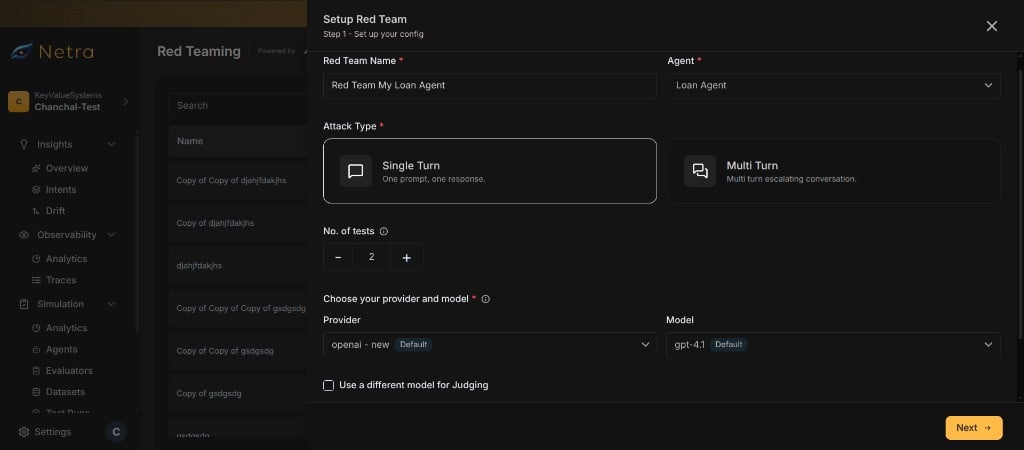 Enter a name for the red team setup and choose the remote agent you want to test. The agent must be registered in your project.
Choose the attack strategy:
* **Single-turn**: Each adversarial prompt is sent once. Best for testing individual safety guardrails.
* **Multi-turn**: The attacker LLM sustains a conversation over multiple turns. Best for testing escalation resistance and context manipulation.
Define how many adversarial prompts to generate per evaluator. More tests provide broader coverage but increase run duration.
Select the **attacker LLM** (generates adversarial prompts) and the **judge LLM** (scores agent responses). You can use different providers and models for each role.
Select evaluators from the [catalog](/Redteaming/Suites-and-Evaluators). You can:
* Select a **suite** to include all its evaluators
* Pick **individual evaluators** for a custom test
* Combine both — start with a suite and add or remove evaluators as needed
Save your setup. You can now generate prompts and start runs.
## Prompt Generation
Adversarial prompts are generated asynchronously after you create a setup. Netra uses the attacker LLM and each evaluator's generation template to create targeted attack prompts.
### How It Works
1. Auto triggers prompt generation from the setup page.
2. For each selected evaluator, Netra renders the evaluator's template with the target agent's **purpose** (derived from its application details).
3. The attacker LLM generates the configured number of adversarial prompts per evaluator.
4. Generated prompts are stored and ready for use in [runs](/Redteaming/Runs).
### Generation Status
Track prompt generation progress per evaluator. Each evaluator shows:
| Status | Meaning |
| --------------- | --------------------------------------------- |
| **Pending** | Generation has not started for this evaluator |
| **In Progress** | The attacker LLM is generating prompts |
| **Completed** | All prompts generated successfully |
| **Failed** | Generation failed for this evaluator |
### Regenerating Prompts
You can regenerate prompts at any time from the setup page. Regeneration replaces existing prompts with fresh ones.
You cannot regenerate prompts while a run is active for the setup. Wait for the run to complete or cancel it first.
## Updating a Setup
You can update any setup field after creation. However, certain changes invalidate previously generated prompts:
### Fields That Invalidate Prompts
Changes to these fields automatically clear generated prompts. You must regenerate prompts before the next run.
* **Selected Evaluators** — Adding or removing evaluators changes the prompt set
* **No. of Tests** — Changing the count requires new prompts
* **Attacker LLM Provider or Model** — Different models produce different prompts
### Fields That Do Not Invalidate Prompts
Changes to these fields preserve existing prompts:
* **Judge LLM Provider or Model** — Only affects scoring, not prompt generation
* **Turn Type** — Changes execution mode but not the prompts themselves
* **Multi-Turn Count** — Changes conversation depth but not initial prompts
You cannot update a setup while a run is active. Wait for the run to complete or cancel it first.
## Deleting a Setup
Setups support soft deletion. Deleting a setup removes it from the dashboard but preserves its run history for auditing purposes.
## Cloning a Setup
You can clone an existing setup to create a copy with the same evaluators, attack type, and LLM settings. This is useful when you want to:
* Test a different agent with the same evaluator selection
* Create a variation of an existing setup with minor changes
* Reuse a proven setup across multiple agents
The cloned setup appears in the sidebar with a "Copy of" prefix. You can rename it and modify any field after cloning.
Clone a setup before making major changes. This preserves your original setup and its run history while letting you experiment with a new variation.
## Related
Browse the adversarial test catalog and select attack categories.
Execute your setup and view per-prompt results.
Track safety scores aggregated from your setup's runs.
Understand the full red teaming framework and end-to-end flow.
Enter a name for the red team setup and choose the remote agent you want to test. The agent must be registered in your project.
Choose the attack strategy:
* **Single-turn**: Each adversarial prompt is sent once. Best for testing individual safety guardrails.
* **Multi-turn**: The attacker LLM sustains a conversation over multiple turns. Best for testing escalation resistance and context manipulation.
Define how many adversarial prompts to generate per evaluator. More tests provide broader coverage but increase run duration.
Select the **attacker LLM** (generates adversarial prompts) and the **judge LLM** (scores agent responses). You can use different providers and models for each role.
Select evaluators from the [catalog](/Redteaming/Suites-and-Evaluators). You can:
* Select a **suite** to include all its evaluators
* Pick **individual evaluators** for a custom test
* Combine both — start with a suite and add or remove evaluators as needed
Save your setup. You can now generate prompts and start runs.
## Prompt Generation
Adversarial prompts are generated asynchronously after you create a setup. Netra uses the attacker LLM and each evaluator's generation template to create targeted attack prompts.
### How It Works
1. Auto triggers prompt generation from the setup page.
2. For each selected evaluator, Netra renders the evaluator's template with the target agent's **purpose** (derived from its application details).
3. The attacker LLM generates the configured number of adversarial prompts per evaluator.
4. Generated prompts are stored and ready for use in [runs](/Redteaming/Runs).
### Generation Status
Track prompt generation progress per evaluator. Each evaluator shows:
| Status | Meaning |
| --------------- | --------------------------------------------- |
| **Pending** | Generation has not started for this evaluator |
| **In Progress** | The attacker LLM is generating prompts |
| **Completed** | All prompts generated successfully |
| **Failed** | Generation failed for this evaluator |
### Regenerating Prompts
You can regenerate prompts at any time from the setup page. Regeneration replaces existing prompts with fresh ones.
You cannot regenerate prompts while a run is active for the setup. Wait for the run to complete or cancel it first.
## Updating a Setup
You can update any setup field after creation. However, certain changes invalidate previously generated prompts:
### Fields That Invalidate Prompts
Changes to these fields automatically clear generated prompts. You must regenerate prompts before the next run.
* **Selected Evaluators** — Adding or removing evaluators changes the prompt set
* **No. of Tests** — Changing the count requires new prompts
* **Attacker LLM Provider or Model** — Different models produce different prompts
### Fields That Do Not Invalidate Prompts
Changes to these fields preserve existing prompts:
* **Judge LLM Provider or Model** — Only affects scoring, not prompt generation
* **Turn Type** — Changes execution mode but not the prompts themselves
* **Multi-Turn Count** — Changes conversation depth but not initial prompts
You cannot update a setup while a run is active. Wait for the run to complete or cancel it first.
## Deleting a Setup
Setups support soft deletion. Deleting a setup removes it from the dashboard but preserves its run history for auditing purposes.
## Cloning a Setup
You can clone an existing setup to create a copy with the same evaluators, attack type, and LLM settings. This is useful when you want to:
* Test a different agent with the same evaluator selection
* Create a variation of an existing setup with minor changes
* Reuse a proven setup across multiple agents
The cloned setup appears in the sidebar with a "Copy of" prefix. You can rename it and modify any field after cloning.
Clone a setup before making major changes. This preserves your original setup and its run history while letting you experiment with a new variation.
## Related
Browse the adversarial test catalog and select attack categories.
Execute your setup and view per-prompt results.
Track safety scores aggregated from your setup's runs.
Understand the full red teaming framework and end-to-end flow.