> ## Documentation Index
> Fetch the complete documentation index at: https://docs.getnetra.ai/llms.txt
> Use this file to discover all available pages before exploring further.
# Text Evaluators
> Create LLM-as-Judge and code evaluators in Netra to assess AI output quality. Use library evaluators or define custom scoring criteria for your use case.
Evaluators are the scoring logic that determines whether your AI system meets quality standards. They transform subjective assessments into measurable metrics—from semantic correctness and tool execution accuracy to safety guardrails and custom business logic. Use them with [evaluations](/Evaluations/text-evaluations/Datasets) to build automated quality pipelines.
## Why Evaluators Matter
Without systematic scoring, you can't measure improvement or catch regressions:
| Challenge | How Evaluators Help |
| ------------------ | ------------------------------------------------------------------------ |
| Subjective quality | LLM as Judge provides consistent, scalable assessment |
| Format validation | Code Evaluators enforce JSON schemas, regex patterns, and business rules |
| Safety compliance | Guardrail evaluators detect toxic, harmful, or off-topic content |
| Tool execution | Agentic evaluators verify correct function calling sequences |
## Evaluator Types
Netra offers several approaches to scoring, each suited to different use cases:
Best for subjective quality, semantic correctness, and nuanced criteria. Uses AI models to evaluate AI outputs.
Best for deterministic checks—JSON validation, regex matching, calculations, and custom business logic in JavaScript or Python.
Library evaluators for latency, cost, token usage, tool-call matching, semantic similarity, regex, and JSON comparison—configured without writing prompts or code.
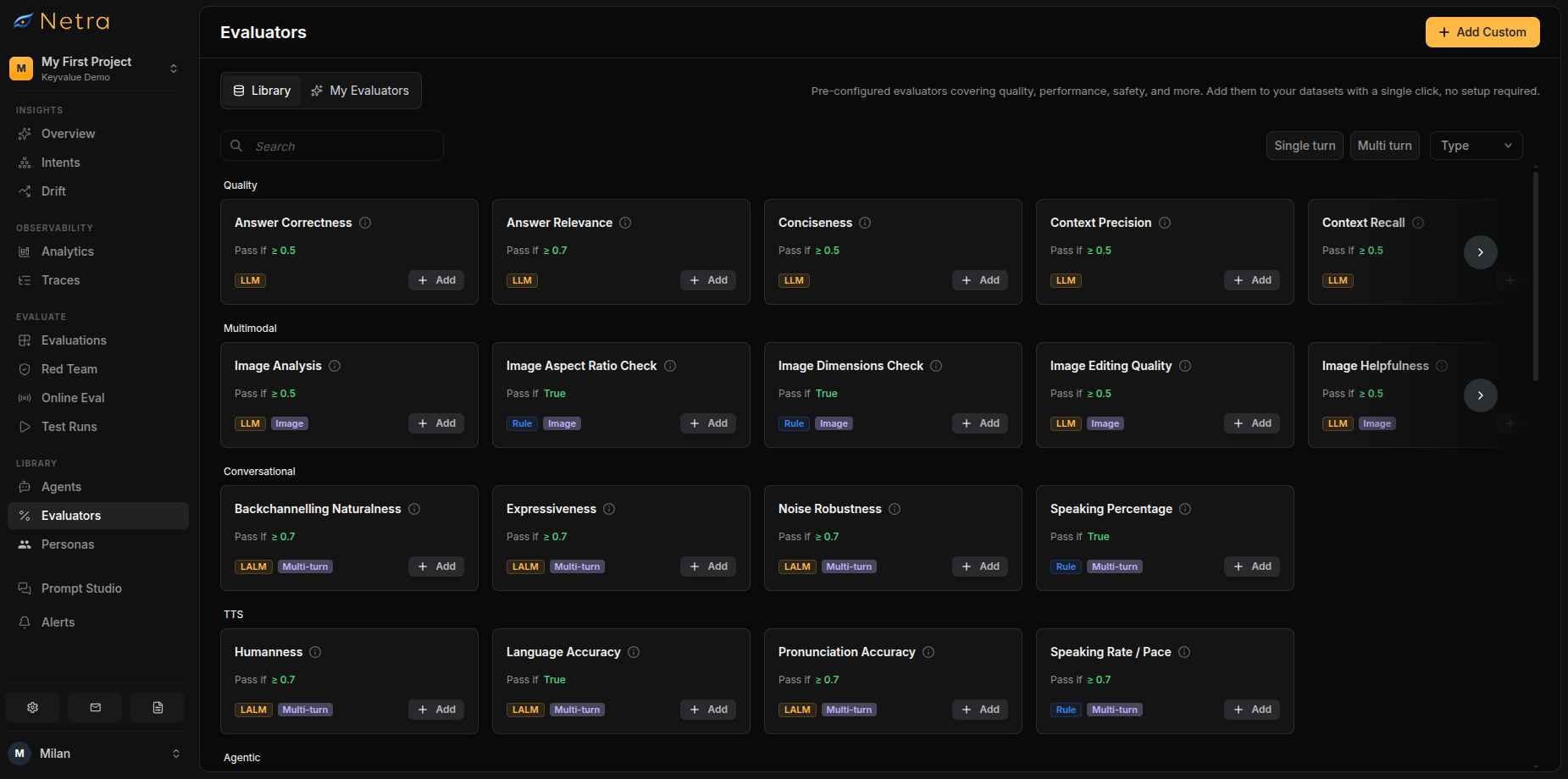
## Evaluators Dashboard
Navigate to **Library → Evaluators** from the left navigation panel. The interface has two tabs:
| Tab | Description |
| ----------------- | ------------------------------------------------------------------------------------------------------- |
| **Library** | Netra's preconfigured evaluators organized by category |
| **My Evaluators** | Your saved custom configurations for reuse across [evaluations](/Evaluations/text-evaluations/Datasets) |
 ## Creating Custom Evaluators
Click **Add Custom** in the top right corner to open the creation wizard.
You can also customize any pre-built evaluator from the [Library](#library) by clicking the **Add** button on its card. This pre-fills the prompt, pass criteria, and variables so you can tailor it and save it as your own.
The wizard has two steps:
1. **Choose the type** — LLM as Judge or Code Evaluator
2. **Choose the turn scope** — Single turn or Image. Multi-turn scope is reserved for simulation evaluators.
### LLM as Judge Configuration
Use LLM as Judge when you need to evaluate subjective criteria like answer quality, relevance, or helpfulness.
## Creating Custom Evaluators
Click **Add Custom** in the top right corner to open the creation wizard.
You can also customize any pre-built evaluator from the [Library](#library) by clicking the **Add** button on its card. This pre-fills the prompt, pass criteria, and variables so you can tailor it and save it as your own.
The wizard has two steps:
1. **Choose the type** — LLM as Judge or Code Evaluator
2. **Choose the turn scope** — Single turn or Image. Multi-turn scope is reserved for simulation evaluators.
### LLM as Judge Configuration
Use LLM as Judge when you need to evaluate subjective criteria like answer quality, relevance, or helpfulness.
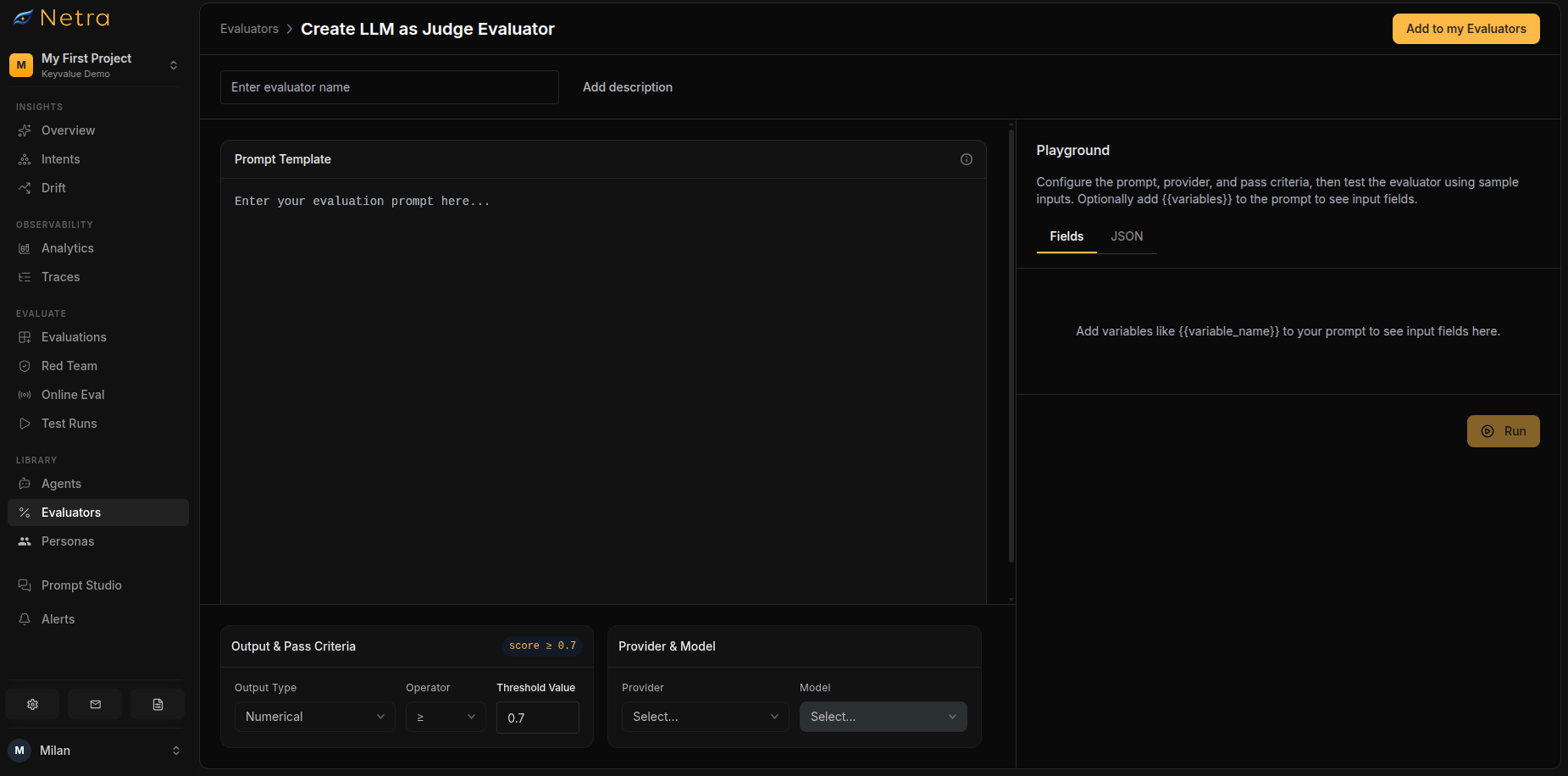 Provide a descriptive name (e.g., "Answer Correctness - Customer Support") and an optional description.
* Write your evaluation prompt using `{{variable_name}}` placeholders
* Every placeholder is automatically detected and becomes an input variable for this evaluator
* Variables map to [evaluation](/Evaluations/text-evaluations/Datasets) fields, agent responses, or trace metadata at runtime
**Example prompt:**
```
Compare the following response to the expected answer.
Expected: {{expected_output}}
Actual: {{agent_response}}
Rate the correctness from 0-10.
```
Choose the provider and model that will run the evaluation (e.g., OpenAI / GPT-4o). You can add providers from Settings if yours is not listed.
| Output Type | Configuration |
| ------------- | ---------------------------------------------------------------------------------------- |
| **Numerical** | Set a comparator (`>=`, `<=`, `=`, `>`, `<`) and threshold. The default threshold is 0.7 |
| **Boolean** | Simple pass/fail evaluation |
* Enter sample values for each variable using the field inputs, or paste raw JSON
* Run the evaluator against a real model in real-time
* Refine your prompt until results are consistent
Scores from 1-5 judge scales are normalized to a 0-1 range automatically.
### Code Evaluator Configuration
Use Code Evaluators for deterministic checks that don't require AI judgment.
Provide a descriptive name (e.g., "JSON Schema Validator").
Use the code editor to write JavaScript or Python. A `handler` function is required, receiving the evaluation item's input, the agent's output, and the expected output:
**JavaScript example:**
```javascript theme={null}
function handler(input, output, expectedOutput) {
try {
const parsed = JSON.parse(output);
return parsed.hasOwnProperty('name') && parsed.hasOwnProperty('email');
} catch {
return false;
}
}
```
**Python example:**
```python theme={null}
import json
def handler(input, output, expectedOutput):
try:
parsed = json.loads(output)
return "name" in parsed and "email" in parsed
except:
return False
```
| Output Type | Configuration |
| ------------- | --------------------------------------------------- |
| **Numerical** | Set threshold and operator (e.g., `>= 0.8` to pass) |
| **Boolean** | Return `true`/`false` directly from your code |
* Input sample data
* Execute your code in real-time
* Debug and refine until it handles edge cases correctly
### Configuring Rule-Based Library Evaluators
Some library categories are neither prompts nor code—they are configured through dedicated forms:
| Evaluator | What You Configure |
| -------------------------------- | ---------------------------------------------------------------------------------------------------------------------------------------------------------------------------------- |
| **Regex Evaluator** | A pattern and optional flags; output must match to pass |
| **JSON Evaluator** | Expected keys and values; optionally ignore specific keys during comparison |
| **Tool Correctness** | A match mode—`exact` (same calls, same order), `partial` (at least one expected call present), or `sequence` (expected calls in order, extras allowed)—plus the expected tool list |
| **Latency / Cost / Token Usage** | Maximum allowed latency, cost, or token threshold |
| **Semantic Similarity** | An embedding-based similarity threshold between actual and expected text |
Once created, your evaluator appears in **My Evaluators** and becomes available when [creating evaluations](/Evaluations/text-evaluations/Datasets).
## Library
The Library contains pre-built evaluators across 12 categories, ready to use or customize.
| Category | Description | Representative Evaluators |
| ------------------- | ------------------------------------------- | ------------------------------------------------------------------------------------ |
| **Quality** | Check RAG systems and overall agent quality | Answer Correctness, Answer Relevance, Faithfulness, Context Precision, Hallucination |
| **Agentic** | Goal achievement and information gathering | Goal Accuracy, Goal Fulfillment, Information Elicitation |
| **Guardrails** | Content safety and topic discipline | Toxicity, Bias, Topic Adherence |
| **Performance** | Latency, cost, and token thresholds | Latency, Cost, Token Usage |
| **Semantic** | Meaning-level comparisons | Semantic Similarity, SQL Semantic Equivalence |
| **Tool Use** | Tool-call validation against expected calls | Tool Correctness (exact, partial, or sequence matching) |
| **JSON Evaluator** | Expected keys and values in JSON output | JSON Evaluator |
| **Regex Evaluator** | Pattern matching and format compliance | Regex Evaluator |
### Customizing Pre-built Evaluators
Start with a library evaluator and tailor it to your needs:
Find an evaluator that matches your use case.
Opens the configuration window with pre-filled settings.
* Modify the prompt template
* Adjust variables and mappings
* Change pass/fail thresholds
Validate your changes with sample data.
Click **Create** to save to **My Evaluators**.
## Using Evaluators in Evaluations
Once created, evaluators become available when building [evaluations](/Evaluations/text-evaluations/Datasets):
1. Create or edit an evaluation
2. In the evaluator selection step, choose from **Library** or **My Evaluators**
3. Map variables to connect evaluator inputs to your data
4. Run evaluations and view results in [Test Runs](/Evaluations/TestRuns)
## Best Practices
### Choosing the Right Evaluator Type
| Use Case | Recommended Type |
| ------------------------------------- | --------------------------------- |
| "Is this answer correct?" | LLM as Judge |
| "Is the JSON valid?" | Code Evaluator or JSON Evaluator |
| "Is the response helpful?" | LLM as Judge |
| "Does it match this regex?" | Code Evaluator or Regex Evaluator |
| "Is content safe for users?" | LLM as Judge (Guardrails) |
| "Did the agent call the right tools?" | Tool Correctness |
| "Is it fast and cheap enough?" | Latency, Cost, Token Usage |
### Writing Effective LLM Prompts
* **Be specific**: Define exactly what "correct" or "good" means
* **Provide examples**: Include sample inputs and expected scores
* **Set clear scales**: "Rate 1-10" is better than "rate quality"
* **Test edge cases**: Validate with ambiguous or tricky inputs
### Testing Before Deployment
Always use the Playground before adding evaluators to production evaluations:
* Test with representative samples from your actual data
* Include edge cases and potential failure scenarios
* Verify pass/fail thresholds produce expected results
## Using Text Evaluators in Voice Scenarios
Text evaluators are not limited to text-only outputs. When a voice interaction completes, Netra produces a transcript of the conversation. You can attach text evaluators to the same evaluation to evaluate the conversation content — giving you coverage of both what was said and how it sounded.
| Use Case | Text Evaluator to Apply |
| --------------------------------- | ------------------------------------ |
| Did the agent answer correctly? | Answer Correctness, Factual Accuracy |
| Was the conversation on-topic? | Topic Adherence (Guardrails) |
| Was the response safe? | Toxicity, Bias (Guardrails) |
| Did the agent complete its goal? | Goal Fulfillment (Agentic) |
| Was the response well-structured? | Coherence (Auto Evaluation) |
When configuring a voice simulation evaluation, you can select both [voice evaluators](/Evaluators/voice-evaluators) (for audio quality) and text evaluators (for transcript quality) on the same evaluation. This gives you end-to-end evaluation of the interaction.
## Related
* [Evaluators Overview](/Evaluators/overview) - Understand the full evaluator framework
* [Voice Evaluators](/Evaluators/voice-evaluators) - TTS, STT, and conversational evaluators
* [Image Evaluators](/Evaluators/image-evaluators) - Multimodal and rule-based image evaluators
* [Evaluation Overview](/Evaluations/Evaluation-overview) - Evaluations, test runs, and the evaluation framework
* [Evaluations](/Evaluations/text-evaluations/Datasets) - Create test cases that use your evaluators
* [Test Runs](/Evaluations/TestRuns) - View evaluation results and scores
* [Quick Start: Evaluation](/quick-start/QuickStart_Evals) - Get started with evaluations
Provide a descriptive name (e.g., "Answer Correctness - Customer Support") and an optional description.
* Write your evaluation prompt using `{{variable_name}}` placeholders
* Every placeholder is automatically detected and becomes an input variable for this evaluator
* Variables map to [evaluation](/Evaluations/text-evaluations/Datasets) fields, agent responses, or trace metadata at runtime
**Example prompt:**
```
Compare the following response to the expected answer.
Expected: {{expected_output}}
Actual: {{agent_response}}
Rate the correctness from 0-10.
```
Choose the provider and model that will run the evaluation (e.g., OpenAI / GPT-4o). You can add providers from Settings if yours is not listed.
| Output Type | Configuration |
| ------------- | ---------------------------------------------------------------------------------------- |
| **Numerical** | Set a comparator (`>=`, `<=`, `=`, `>`, `<`) and threshold. The default threshold is 0.7 |
| **Boolean** | Simple pass/fail evaluation |
* Enter sample values for each variable using the field inputs, or paste raw JSON
* Run the evaluator against a real model in real-time
* Refine your prompt until results are consistent
Scores from 1-5 judge scales are normalized to a 0-1 range automatically.
### Code Evaluator Configuration
Use Code Evaluators for deterministic checks that don't require AI judgment.
Provide a descriptive name (e.g., "JSON Schema Validator").
Use the code editor to write JavaScript or Python. A `handler` function is required, receiving the evaluation item's input, the agent's output, and the expected output:
**JavaScript example:**
```javascript theme={null}
function handler(input, output, expectedOutput) {
try {
const parsed = JSON.parse(output);
return parsed.hasOwnProperty('name') && parsed.hasOwnProperty('email');
} catch {
return false;
}
}
```
**Python example:**
```python theme={null}
import json
def handler(input, output, expectedOutput):
try:
parsed = json.loads(output)
return "name" in parsed and "email" in parsed
except:
return False
```
| Output Type | Configuration |
| ------------- | --------------------------------------------------- |
| **Numerical** | Set threshold and operator (e.g., `>= 0.8` to pass) |
| **Boolean** | Return `true`/`false` directly from your code |
* Input sample data
* Execute your code in real-time
* Debug and refine until it handles edge cases correctly
### Configuring Rule-Based Library Evaluators
Some library categories are neither prompts nor code—they are configured through dedicated forms:
| Evaluator | What You Configure |
| -------------------------------- | ---------------------------------------------------------------------------------------------------------------------------------------------------------------------------------- |
| **Regex Evaluator** | A pattern and optional flags; output must match to pass |
| **JSON Evaluator** | Expected keys and values; optionally ignore specific keys during comparison |
| **Tool Correctness** | A match mode—`exact` (same calls, same order), `partial` (at least one expected call present), or `sequence` (expected calls in order, extras allowed)—plus the expected tool list |
| **Latency / Cost / Token Usage** | Maximum allowed latency, cost, or token threshold |
| **Semantic Similarity** | An embedding-based similarity threshold between actual and expected text |
Once created, your evaluator appears in **My Evaluators** and becomes available when [creating evaluations](/Evaluations/text-evaluations/Datasets).
## Library
The Library contains pre-built evaluators across 12 categories, ready to use or customize.
| Category | Description | Representative Evaluators |
| ------------------- | ------------------------------------------- | ------------------------------------------------------------------------------------ |
| **Quality** | Check RAG systems and overall agent quality | Answer Correctness, Answer Relevance, Faithfulness, Context Precision, Hallucination |
| **Agentic** | Goal achievement and information gathering | Goal Accuracy, Goal Fulfillment, Information Elicitation |
| **Guardrails** | Content safety and topic discipline | Toxicity, Bias, Topic Adherence |
| **Performance** | Latency, cost, and token thresholds | Latency, Cost, Token Usage |
| **Semantic** | Meaning-level comparisons | Semantic Similarity, SQL Semantic Equivalence |
| **Tool Use** | Tool-call validation against expected calls | Tool Correctness (exact, partial, or sequence matching) |
| **JSON Evaluator** | Expected keys and values in JSON output | JSON Evaluator |
| **Regex Evaluator** | Pattern matching and format compliance | Regex Evaluator |
### Customizing Pre-built Evaluators
Start with a library evaluator and tailor it to your needs:
Find an evaluator that matches your use case.
Opens the configuration window with pre-filled settings.
* Modify the prompt template
* Adjust variables and mappings
* Change pass/fail thresholds
Validate your changes with sample data.
Click **Create** to save to **My Evaluators**.
## Using Evaluators in Evaluations
Once created, evaluators become available when building [evaluations](/Evaluations/text-evaluations/Datasets):
1. Create or edit an evaluation
2. In the evaluator selection step, choose from **Library** or **My Evaluators**
3. Map variables to connect evaluator inputs to your data
4. Run evaluations and view results in [Test Runs](/Evaluations/TestRuns)
## Best Practices
### Choosing the Right Evaluator Type
| Use Case | Recommended Type |
| ------------------------------------- | --------------------------------- |
| "Is this answer correct?" | LLM as Judge |
| "Is the JSON valid?" | Code Evaluator or JSON Evaluator |
| "Is the response helpful?" | LLM as Judge |
| "Does it match this regex?" | Code Evaluator or Regex Evaluator |
| "Is content safe for users?" | LLM as Judge (Guardrails) |
| "Did the agent call the right tools?" | Tool Correctness |
| "Is it fast and cheap enough?" | Latency, Cost, Token Usage |
### Writing Effective LLM Prompts
* **Be specific**: Define exactly what "correct" or "good" means
* **Provide examples**: Include sample inputs and expected scores
* **Set clear scales**: "Rate 1-10" is better than "rate quality"
* **Test edge cases**: Validate with ambiguous or tricky inputs
### Testing Before Deployment
Always use the Playground before adding evaluators to production evaluations:
* Test with representative samples from your actual data
* Include edge cases and potential failure scenarios
* Verify pass/fail thresholds produce expected results
## Using Text Evaluators in Voice Scenarios
Text evaluators are not limited to text-only outputs. When a voice interaction completes, Netra produces a transcript of the conversation. You can attach text evaluators to the same evaluation to evaluate the conversation content — giving you coverage of both what was said and how it sounded.
| Use Case | Text Evaluator to Apply |
| --------------------------------- | ------------------------------------ |
| Did the agent answer correctly? | Answer Correctness, Factual Accuracy |
| Was the conversation on-topic? | Topic Adherence (Guardrails) |
| Was the response safe? | Toxicity, Bias (Guardrails) |
| Did the agent complete its goal? | Goal Fulfillment (Agentic) |
| Was the response well-structured? | Coherence (Auto Evaluation) |
When configuring a voice simulation evaluation, you can select both [voice evaluators](/Evaluators/voice-evaluators) (for audio quality) and text evaluators (for transcript quality) on the same evaluation. This gives you end-to-end evaluation of the interaction.
## Related
* [Evaluators Overview](/Evaluators/overview) - Understand the full evaluator framework
* [Voice Evaluators](/Evaluators/voice-evaluators) - TTS, STT, and conversational evaluators
* [Image Evaluators](/Evaluators/image-evaluators) - Multimodal and rule-based image evaluators
* [Evaluation Overview](/Evaluations/Evaluation-overview) - Evaluations, test runs, and the evaluation framework
* [Evaluations](/Evaluations/text-evaluations/Datasets) - Create test cases that use your evaluators
* [Test Runs](/Evaluations/TestRuns) - View evaluation results and scores
* [Quick Start: Evaluation](/quick-start/QuickStart_Evals) - Get started with evaluations