> ## Documentation Index
> Fetch the complete documentation index at: https://docs.getnetra.ai/llms.txt
> Use this file to discover all available pages before exploring further.
# Evaluations
> Build and manage evaluations in Netra. Create structured test cases with inputs, expected outputs, and metadata to benchmark your AI system.
Evaluations are the foundation of your evaluation pipeline. They define what you're testing—the inputs, expected outputs, and metadata that [Evaluators](/Evaluators/text-evaluators) use to score your AI system's performance. Create them manually or import them from a CSV for comprehensive coverage.
## Why Evaluations Matter
Evaluations transform ad-hoc testing into systematic quality assurance:
| Benefit | Description |
| -------------------------- | -------------------------------------------------------------------------- |
| **Reproducibility** | Run the same tests across model updates, prompt changes, and code releases |
| **Regression Detection** | Compare results over time to catch quality degradation early |
| **Objective Benchmarking** | Measure performance against defined criteria, not gut feeling |
| **Flexible Inputs** | Support text prompts and image inputs with per-item metadata |
## Evaluation Dashboard
Navigate to **Evaluate → Evaluations** from the left navigation panel to access your evaluations.
The Evaluations page is shared by single-turn evaluations and multi-turn simulations. Use the **Turn type** filter to distinguish between them.
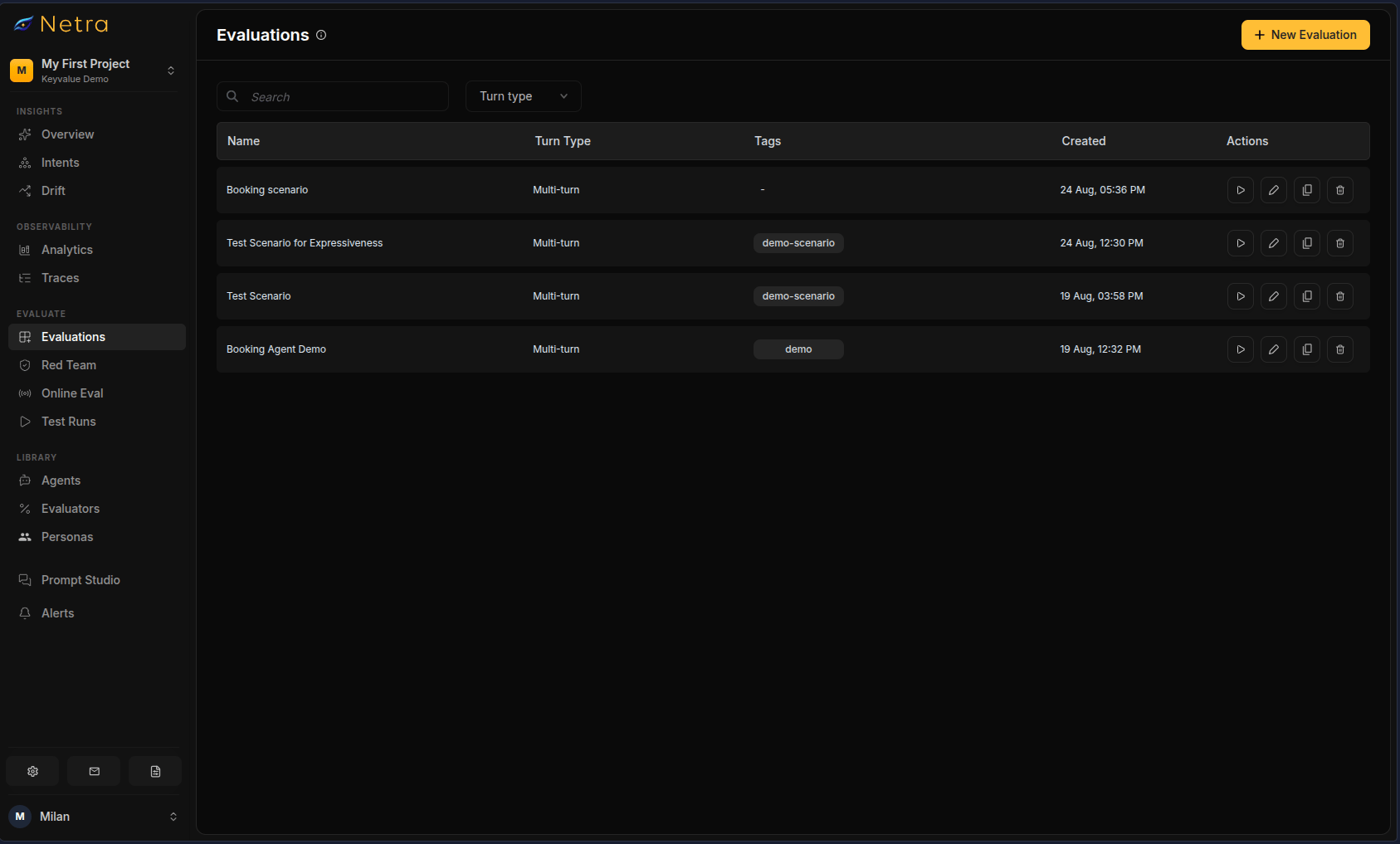 | Column | Description |
| ------------------- | ---------------------------------------------- |
| **Evaluation Name** | Unique identifier for the test suite |
| **Tags** | Metadata labels for filtering and organization |
| **Created At** | Timestamp for version tracking |
| **Actions** | Quick access to edit or delete evaluations |
## Creating an Evaluation
Click **New Evaluation** in the top right corner of the Evaluations page.
Build test suites from scratch, one test case at a time
Import a spreadsheet of test cases in bulk
Generate test cases using AI based on your description
Multi-turn simulation scenarios are created separately. See [Simulation Evaluations](/Simulations/text-simulations/Simulations).
### Configure Basics
Both creation methods start with the same basics:
| Field | Description |
| ------------------- | --------------------------------------------------------------------- |
| **Name** | A descriptive identifier for your test suite |
| **Tags** | Labels for filtering (e.g., "production", "edge-cases", "v2-prompts") |
| **Turn Type** | **Single Turn** for request/response pairs |
| **Data Type** | For single turn: choose **Text** or **Image** inputs |
| **Creation Method** | **Add manually** or **Upload CSV** |
### Creating Items Manually
Click the **Create Evaluation** button and configure the basics above.
For each test case, provide:
| Field | Required | Description |
| ------------------- | -------- | -------------------------------------------------------------------------- |
| **Input** | Yes | The prompt or query sent to your AI system |
| **Expected Output** | No | The reference answer used by [evaluators](/Evaluators/text-evaluators) |
| **Metadata** | No | Additional context such as expected tools, thresholds, or reference images |
Click **Next** and select [evaluators](/Evaluators/text-evaluators) from the library or your saved configurations.
Configure variable mappings to connect evaluator inputs to your data:
| Source | Use Case |
| ------------------- | ------------------------------------------------------------- |
| **Test Case field** | Use values defined in your test case (input, expected output) |
| **Agent Response** | Use the actual LLM output at evaluation time |
| **Execution Data** | Use metadata from logged traces (latency, tokens, cost) |
| **Value** | Provide a fixed literal value |
Click **Create Evaluation** to complete the process.
### Uploading a CSV
For bulk creation, prepare a CSV with columns for input, expected output, and optional metadata.
```csv theme={null}
input,expected_output,metadata
"What is Netra?","An observability platform","{""category"":""product""}"
```
Choose **Upload CSV** as the creation method and select your file. A sample template is available for download.
Assign each CSV column to a target field—**input**, **expected\_output**, **metadata**—or skip it.
Row-level errors are flagged before import. Fix any issues and re-upload if needed.
Continue through evaluator selection and variable mapping as with manual creation.
## Managing an Evaluation
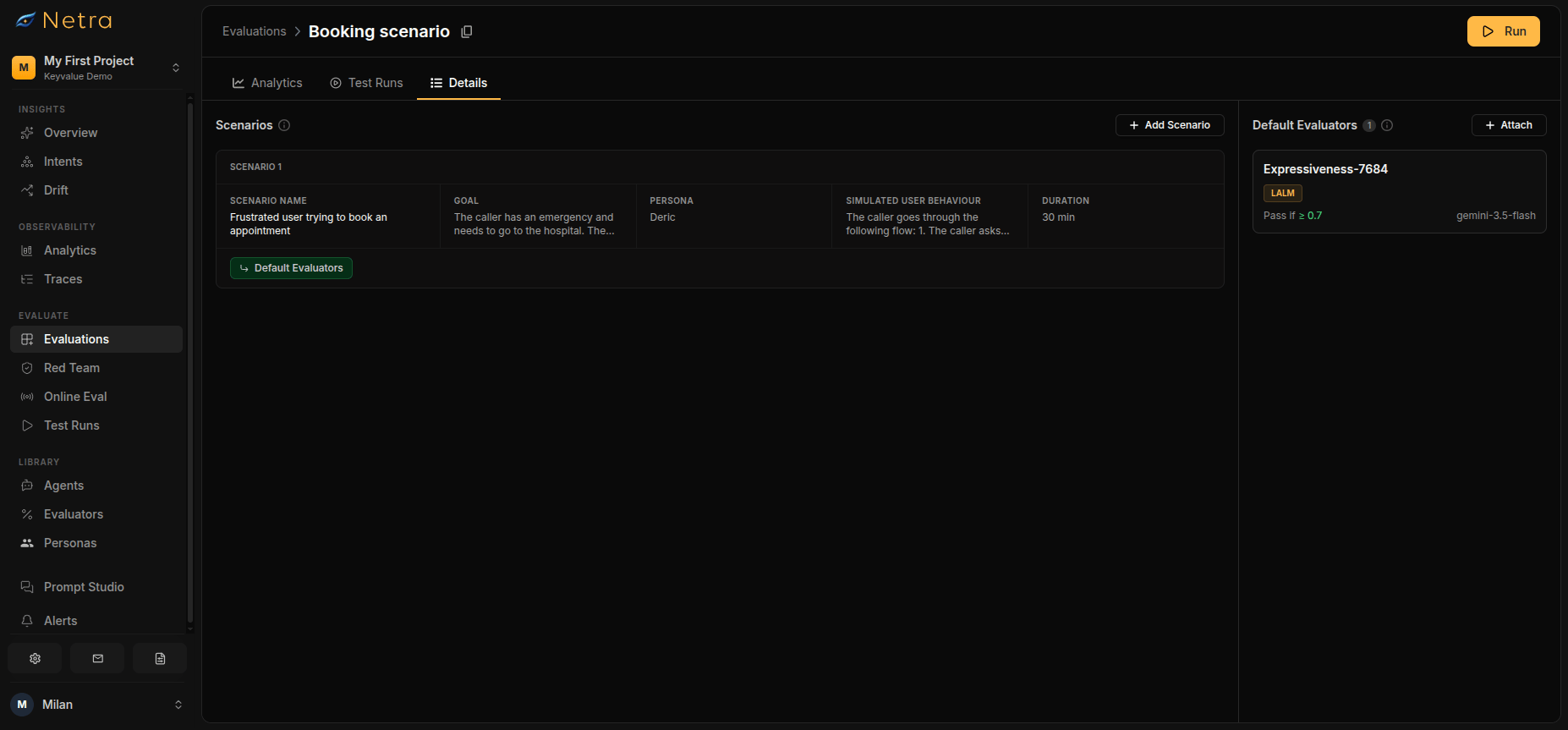
Open any evaluation to manage it. The detail page has three tabs:
| Tab | Description |
| ------------- | -------------------------------------------------------------------------------------------------------- |
| **Details** | Browse and edit test cases; add new items individually |
| **Analytics** | Embedded evaluation analytics—overall health, average score over time, and per-evaluator pass/fail rates |
| **Test Runs** | Runs triggered from this evaluation, with a **Run Test Suite** action |
From the detail page you can also:
* **Clone** the evaluation or individual test cases to create variants
* **Bulk edit** items across the evaluation
* **Manage default evaluators** — add evaluators that apply to all items, or override them for specific items
| Column | Description |
| ------------------- | ---------------------------------------------- |
| **Evaluation Name** | Unique identifier for the test suite |
| **Tags** | Metadata labels for filtering and organization |
| **Created At** | Timestamp for version tracking |
| **Actions** | Quick access to edit or delete evaluations |
## Creating an Evaluation
Click **New Evaluation** in the top right corner of the Evaluations page.
Build test suites from scratch, one test case at a time
Import a spreadsheet of test cases in bulk
Generate test cases using AI based on your description
Multi-turn simulation scenarios are created separately. See [Simulation Evaluations](/Simulations/text-simulations/Simulations).
### Configure Basics
Both creation methods start with the same basics:
| Field | Description |
| ------------------- | --------------------------------------------------------------------- |
| **Name** | A descriptive identifier for your test suite |
| **Tags** | Labels for filtering (e.g., "production", "edge-cases", "v2-prompts") |
| **Turn Type** | **Single Turn** for request/response pairs |
| **Data Type** | For single turn: choose **Text** or **Image** inputs |
| **Creation Method** | **Add manually** or **Upload CSV** |
### Creating Items Manually
Click the **Create Evaluation** button and configure the basics above.
For each test case, provide:
| Field | Required | Description |
| ------------------- | -------- | -------------------------------------------------------------------------- |
| **Input** | Yes | The prompt or query sent to your AI system |
| **Expected Output** | No | The reference answer used by [evaluators](/Evaluators/text-evaluators) |
| **Metadata** | No | Additional context such as expected tools, thresholds, or reference images |
Click **Next** and select [evaluators](/Evaluators/text-evaluators) from the library or your saved configurations.
Configure variable mappings to connect evaluator inputs to your data:
| Source | Use Case |
| ------------------- | ------------------------------------------------------------- |
| **Test Case field** | Use values defined in your test case (input, expected output) |
| **Agent Response** | Use the actual LLM output at evaluation time |
| **Execution Data** | Use metadata from logged traces (latency, tokens, cost) |
| **Value** | Provide a fixed literal value |
Click **Create Evaluation** to complete the process.
### Uploading a CSV
For bulk creation, prepare a CSV with columns for input, expected output, and optional metadata.
```csv theme={null}
input,expected_output,metadata
"What is Netra?","An observability platform","{""category"":""product""}"
```
Choose **Upload CSV** as the creation method and select your file. A sample template is available for download.
Assign each CSV column to a target field—**input**, **expected\_output**, **metadata**—or skip it.
Row-level errors are flagged before import. Fix any issues and re-upload if needed.
Continue through evaluator selection and variable mapping as with manual creation.
## Managing an Evaluation
Open any evaluation to manage it. The detail page has three tabs:
| Tab | Description |
| ------------- | -------------------------------------------------------------------------------------------------------- |
| **Details** | Browse and edit test cases; add new items individually |
| **Analytics** | Embedded evaluation analytics—overall health, average score over time, and per-evaluator pass/fail rates |
| **Test Runs** | Runs triggered from this evaluation, with a **Run Test Suite** action |
From the detail page you can also:
* **Clone** the evaluation or individual test cases to create variants
* **Bulk edit** items across the evaluation
* **Manage default evaluators** — add evaluators that apply to all items, or override them for specific items
 ## Running an Evaluation
Once your evaluation is configured with evaluators, trigger a test run via the SDK.
Open your evaluation and copy the **Dataset ID** displayed at the top of the page.
## Running an Evaluation
Once your evaluation is configured with evaluators, trigger a test run via the SDK.
Open your evaluation and copy the **Dataset ID** displayed at the top of the page.
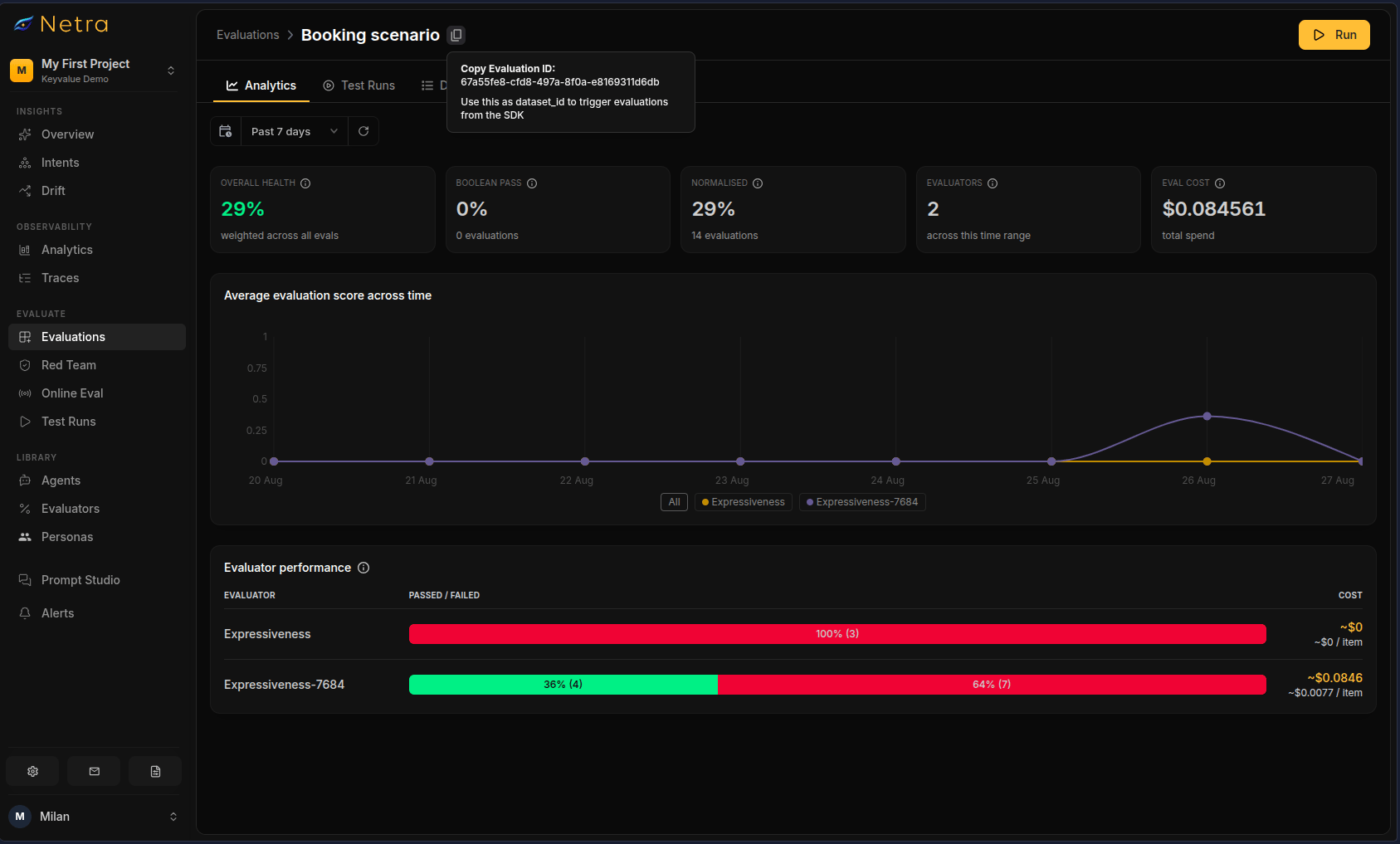 Use the Dataset ID to fetch the evaluation and run a test suite. The task function receives the `input` field from each evaluation item and should return the generated output as a string.
```python Python theme={null}
from netra import Netra
Netra.init(app_name="my-app")
def my_task(input_data):
# Your AI logic — takes the input from each evaluation item
# and returns the generated output as a string
return response
dataset = Netra.evaluation.get_dataset(dataset_id="your-dataset-id")
result = Netra.evaluation.run_test_suite(
name="My Evaluation",
data=dataset,
task=my_task,
)
```
```typescript TypeScript theme={null}
import { Netra } from "netra-sdk";
await Netra.init({ appName: "my-app" });
async function myTask(inputData: string): Promise {
// Your AI logic — takes the input from each evaluation item
// and returns the generated output as a string
return response;
}
const dataset = await Netra.evaluation.getDataset("your-dataset-id");
const result = await Netra.evaluation.runTestSuite(
"My Evaluation",
dataset,
myTask,
);
```
The output is compared against `expectedOutput` by the evaluators attached to the evaluation. See the SDK reference for [Python](/sdk-reference/evaluation/python) and [TypeScript](/sdk-reference/evaluation/typescript) for the full API.
Monitor progress and results in [Test Runs](/Evaluations/TestRuns).
## Best Practices
### Organizing Evaluations
* **Use descriptive names**: "Customer Support - Refund Requests" is better than "Evaluation 1"
* **Tag consistently**: Create a tagging convention (e.g., by feature, model version, or test type)
* **Version your evaluations**: Include version numbers in tags when testing prompt iterations
### Building Effective Test Cases
* **Cover edge cases**: Include unusual inputs, long prompts, and potential failure scenarios
* **Balance quantity and quality**: A smaller evaluation of high-quality test cases beats a large evaluation of weak ones
* **Include negative tests**: Add cases where the expected behavior is to refuse or ask for clarification
### Maintaining Evaluations
* **Update regularly**: Add new test cases as you discover new patterns
* **Remove outdated cases**: Delete test cases that no longer reflect current requirements
* **Review failed cases**: Investigate failures to determine if the AI is wrong or the expected output needs updating
* **Clone before major changes**: Duplicate an evaluation when testing significant prompt or model revisions
## Related
* [Evaluation Overview](/Evaluations/Evaluation-overview) - Understand the full evaluation framework
* [Evaluators](/Evaluators/text-evaluators) - Configure scoring logic for your evaluations
* [Test Runs](/Evaluations/TestRuns) - Analyze evaluation results
* [Simulation Evaluations](/Simulations/text-simulations/Simulations) - Create multi-turn scenarios for simulations
Use the Dataset ID to fetch the evaluation and run a test suite. The task function receives the `input` field from each evaluation item and should return the generated output as a string.
```python Python theme={null}
from netra import Netra
Netra.init(app_name="my-app")
def my_task(input_data):
# Your AI logic — takes the input from each evaluation item
# and returns the generated output as a string
return response
dataset = Netra.evaluation.get_dataset(dataset_id="your-dataset-id")
result = Netra.evaluation.run_test_suite(
name="My Evaluation",
data=dataset,
task=my_task,
)
```
```typescript TypeScript theme={null}
import { Netra } from "netra-sdk";
await Netra.init({ appName: "my-app" });
async function myTask(inputData: string): Promise {
// Your AI logic — takes the input from each evaluation item
// and returns the generated output as a string
return response;
}
const dataset = await Netra.evaluation.getDataset("your-dataset-id");
const result = await Netra.evaluation.runTestSuite(
"My Evaluation",
dataset,
myTask,
);
```
The output is compared against `expectedOutput` by the evaluators attached to the evaluation. See the SDK reference for [Python](/sdk-reference/evaluation/python) and [TypeScript](/sdk-reference/evaluation/typescript) for the full API.
Monitor progress and results in [Test Runs](/Evaluations/TestRuns).
## Best Practices
### Organizing Evaluations
* **Use descriptive names**: "Customer Support - Refund Requests" is better than "Evaluation 1"
* **Tag consistently**: Create a tagging convention (e.g., by feature, model version, or test type)
* **Version your evaluations**: Include version numbers in tags when testing prompt iterations
### Building Effective Test Cases
* **Cover edge cases**: Include unusual inputs, long prompts, and potential failure scenarios
* **Balance quantity and quality**: A smaller evaluation of high-quality test cases beats a large evaluation of weak ones
* **Include negative tests**: Add cases where the expected behavior is to refuse or ask for clarification
### Maintaining Evaluations
* **Update regularly**: Add new test cases as you discover new patterns
* **Remove outdated cases**: Delete test cases that no longer reflect current requirements
* **Review failed cases**: Investigate failures to determine if the AI is wrong or the expected output needs updating
* **Clone before major changes**: Duplicate an evaluation when testing significant prompt or model revisions
## Related
* [Evaluation Overview](/Evaluations/Evaluation-overview) - Understand the full evaluation framework
* [Evaluators](/Evaluators/text-evaluators) - Configure scoring logic for your evaluations
* [Test Runs](/Evaluations/TestRuns) - Analyze evaluation results
* [Simulation Evaluations](/Simulations/text-simulations/Simulations) - Create multi-turn scenarios for simulations