> ## Documentation Index
> Fetch the complete documentation index at: https://docs.getnetra.ai/llms.txt
> Use this file to discover all available pages before exploring further.
# Test Runs
> View and analyze Netra evaluation test run results. Track scores per evaluator, compare runs over time, and identify quality regressions in your AI.
Test Runs are the execution results of your [Datasets](/Evaluation/Datasets) through the evaluation pipeline. Each run provides a point-in-time snapshot of your AI system's performance—showing exactly which test cases passed, which failed, and why. Use them to track quality over time, catch regressions, and debug issues.
## Why Test Runs Matter
Test Runs transform raw evaluation data into actionable insights:
| Capability | Benefit |
| ----------------------- | ------------------------------------------------------------------------------------- |
| **Historical Tracking** | Compare results across releases to detect regressions |
| **Deep Diagnostics** | See expected vs. actual output for every test case |
| **Trace Integration** | Jump directly to execution [traces](/Observability/Traces/overview) to debug failures |
| **Aggregated Metrics** | Monitor cost, latency, and pass rates at a glance |
## Triggering a Test Run
Test runs are triggered via the SDK. You provide a [dataset](/Evaluation/Datasets), a task function that processes each input, and a name for the run.
```python Python theme={null}
from netra import Netra
Netra.init(app_name="my-app")
def my_task(input_data):
# Your AI logic — takes the input from each dataset item
# and returns the generated output as a string
return response
dataset = Netra.evaluation.get_dataset(dataset_id="your-dataset-id")
result = Netra.evaluation.run_test_suite(
name="My Evaluation",
data=dataset,
task=my_task,
)
```
```typescript TypeScript theme={null}
import { Netra } from "netra-sdk";
await Netra.init({ appName: "my-app" });
async function myTask(inputData: string): Promise {
// Your AI logic — takes the input from each dataset item
// and returns the generated output as a string
return response;
}
const dataset = await Netra.evaluation.getDataset("your-dataset-id");
const result = await Netra.evaluation.runTestSuite(
"My Evaluation",
dataset,
myTask,
);
```
The task function receives the `input` field from each dataset item. The output is compared against `expectedOutput` by the evaluators attached to the dataset. See the SDK reference for [Python](/sdk-reference/evaluation/python) and [TypeScript](/sdk-reference/evaluation/typescript) for the full API.
## Test Runs Dashboard
Navigate to **Evaluation → Test Runs** from the left navigation panel.
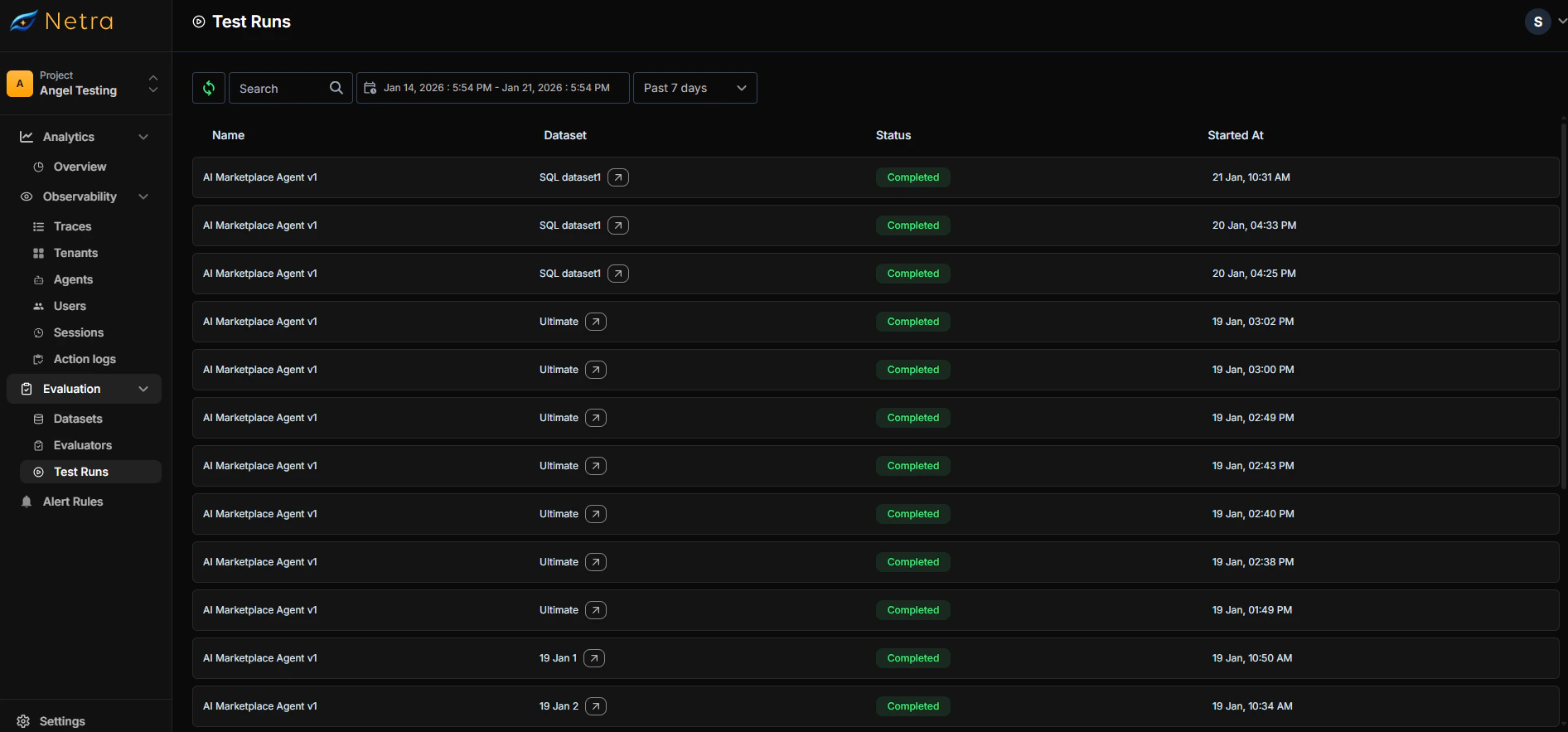 | Column | Description |
| -------------- | ------------------------------------------------------------ |
| **Agent Name** | The agent or application that was evaluated |
| **Dataset** | The [dataset](/Evaluation/Datasets) used for this evaluation |
| **Status** | Current state: Completed, In Progress, or Failed |
| **Started At** | Timestamp when the evaluation began |
### Filtering and Search
* **Date Range**: Filter runs by time period to compare performance over time
* **Search**: Find specific test runs by agent or dataset name
* **Sort**: Order by date, status, or dataset to find what you need quickly
## Viewing Test Run Details
Click on any test run to access detailed results and diagnostics.
### Summary Metrics
The top of the detail view shows aggregated performance data:
| Metric | Description |
| ------------------- | ------------------------------------------------- |
| **Total Cost** | Aggregate token/API cost for all test cases |
| **Total Duration** | End-to-end time for the evaluation run |
| **Average Latency** | Mean response time across test cases |
| **Pass/Fail Rate** | Percentage and count of passing vs. failing cases |
### Per-Test-Case Results
Each test case displays:
| Field | Description |
| -------------------- | -------------------------------------------------------------------------------- |
| **Input** | The prompt or query sent to your AI system |
| **Expected Output** | The reference answer defined in your [dataset](/Evaluation/Datasets) |
| **Task Output** | The actual response generated by your AI |
| **Run Status** | Shows running status (Running or Completed) |
| **Eval Status** | Pass or Fail based on [evaluator](/Evaluation/Evaluators) criteria |
| **Evaluator Scores** | Individual scores from each configured evaluator |
| **View Trace** | Link to the full execution [trace](/Observability/Traces/overview) for debugging |
Click **View Trace** on any failed test case to see the complete execution
timeline, including LLM calls, tool invocations, and latency breakdowns.
## Managing Datasets from Test Runs
Test Run details provide direct access to the underlying dataset configuration.
### Items Tab
View and manage test cases in the dataset:
| Field | Description |
| ---------------- | ------------------------------------------------------ |
| **Input/Output** | The test case prompt and expected response |
| **Metadata** | Additional context attached to the item |
| **Source** | Where the test case originated (manual, trace, import) |
| **Tags** | Labels for filtering and organization |
| **Created At** | When the test case was added |
### Evaluators Tab
View and modify [evaluators](/Evaluation/Evaluators) attached to the dataset:
* See all active evaluators and their configurations
* Edit variable mappings
* Adjust pass/fail thresholds
## Adding to Existing Datasets
Enhance your datasets directly from the Test Run view:
### Add New Test Cases
Opens the test case creation form.
* Enter the input prompt - Define the expected output - Add optional metadata
and tags
The new item is added to the [dataset](/Evaluation/Datasets) and included in future runs.
### Add New Evaluators
Opens the evaluator selection modal.
Choose from the [Library](/Evaluation/Evaluators#library), **My Evaluators**,
or create a new one.
Map evaluator variables to dataset fields, agent responses, or trace data.
The evaluator is added and will score all test cases in future runs.
## Analyzing Results
### Identifying Patterns
When reviewing test runs, look for:
* **Consistent failures**: Same test cases failing across multiple runs may indicate a systematic issue
* **New failures**: Test cases that previously passed but now fail signal a regression
* **Score trends**: Declining evaluator scores over time suggest gradual quality degradation
### Debugging Failures
For each failed test case:
1. Compare **Expected Output** vs **Task Output** to understand the discrepancy
2. Check **Evaluator Scores** to see which criteria failed
3. Click **View Trace** to inspect the full execution flow
4. Review LLM inputs, tool calls, and intermediate steps in the [trace view](/Observability/Traces/overview)
### Comparing Across Runs
To track regression or improvement:
1. Run evaluations after each significant change (model update, prompt revision, code release)
2. Compare pass rates and evaluator scores across runs
3. Investigate any test cases that changed from pass to fail
## Use Cases
### CI/CD Integration
Run evaluations as part of your deployment pipeline:
1. Trigger evaluation when code is pushed
2. Block deployment if pass rate drops below threshold
3. Review failed cases before merging
### Model Comparison
Evaluate different models objectively:
1. Run the same [dataset](/Evaluation/Datasets) with different model configurations
2. Compare test runs side-by-side
3. Make data-driven decisions about which model to deploy
### Prompt Iteration
Measure the impact of prompt changes:
1. Create a baseline test run with your current prompt
2. Update your prompt and run again
3. Compare results to validate improvement
## Related
* [Evaluation Overview](/Evaluation/Evaluation-overview) - Understand the full evaluation framework
* [Datasets](/Evaluation/Datasets) - Create and manage test case collections
* [Evaluators](/Evaluation/Evaluators) - Configure scoring logic and criteria
* [Traces](/Observability/Traces/overview) - Debug failed test cases with execution traces
* [Quick Start: Evaluation](/quick-start/QuickStart_Evals) - Get started with evaluations
| Column | Description |
| -------------- | ------------------------------------------------------------ |
| **Agent Name** | The agent or application that was evaluated |
| **Dataset** | The [dataset](/Evaluation/Datasets) used for this evaluation |
| **Status** | Current state: Completed, In Progress, or Failed |
| **Started At** | Timestamp when the evaluation began |
### Filtering and Search
* **Date Range**: Filter runs by time period to compare performance over time
* **Search**: Find specific test runs by agent or dataset name
* **Sort**: Order by date, status, or dataset to find what you need quickly
## Viewing Test Run Details
Click on any test run to access detailed results and diagnostics.
### Summary Metrics
The top of the detail view shows aggregated performance data:
| Metric | Description |
| ------------------- | ------------------------------------------------- |
| **Total Cost** | Aggregate token/API cost for all test cases |
| **Total Duration** | End-to-end time for the evaluation run |
| **Average Latency** | Mean response time across test cases |
| **Pass/Fail Rate** | Percentage and count of passing vs. failing cases |
### Per-Test-Case Results
Each test case displays:
| Field | Description |
| -------------------- | -------------------------------------------------------------------------------- |
| **Input** | The prompt or query sent to your AI system |
| **Expected Output** | The reference answer defined in your [dataset](/Evaluation/Datasets) |
| **Task Output** | The actual response generated by your AI |
| **Run Status** | Shows running status (Running or Completed) |
| **Eval Status** | Pass or Fail based on [evaluator](/Evaluation/Evaluators) criteria |
| **Evaluator Scores** | Individual scores from each configured evaluator |
| **View Trace** | Link to the full execution [trace](/Observability/Traces/overview) for debugging |
Click **View Trace** on any failed test case to see the complete execution
timeline, including LLM calls, tool invocations, and latency breakdowns.
## Managing Datasets from Test Runs
Test Run details provide direct access to the underlying dataset configuration.
### Items Tab
View and manage test cases in the dataset:
| Field | Description |
| ---------------- | ------------------------------------------------------ |
| **Input/Output** | The test case prompt and expected response |
| **Metadata** | Additional context attached to the item |
| **Source** | Where the test case originated (manual, trace, import) |
| **Tags** | Labels for filtering and organization |
| **Created At** | When the test case was added |
### Evaluators Tab
View and modify [evaluators](/Evaluation/Evaluators) attached to the dataset:
* See all active evaluators and their configurations
* Edit variable mappings
* Adjust pass/fail thresholds
## Adding to Existing Datasets
Enhance your datasets directly from the Test Run view:
### Add New Test Cases
Opens the test case creation form.
* Enter the input prompt - Define the expected output - Add optional metadata
and tags
The new item is added to the [dataset](/Evaluation/Datasets) and included in future runs.
### Add New Evaluators
Opens the evaluator selection modal.
Choose from the [Library](/Evaluation/Evaluators#library), **My Evaluators**,
or create a new one.
Map evaluator variables to dataset fields, agent responses, or trace data.
The evaluator is added and will score all test cases in future runs.
## Analyzing Results
### Identifying Patterns
When reviewing test runs, look for:
* **Consistent failures**: Same test cases failing across multiple runs may indicate a systematic issue
* **New failures**: Test cases that previously passed but now fail signal a regression
* **Score trends**: Declining evaluator scores over time suggest gradual quality degradation
### Debugging Failures
For each failed test case:
1. Compare **Expected Output** vs **Task Output** to understand the discrepancy
2. Check **Evaluator Scores** to see which criteria failed
3. Click **View Trace** to inspect the full execution flow
4. Review LLM inputs, tool calls, and intermediate steps in the [trace view](/Observability/Traces/overview)
### Comparing Across Runs
To track regression or improvement:
1. Run evaluations after each significant change (model update, prompt revision, code release)
2. Compare pass rates and evaluator scores across runs
3. Investigate any test cases that changed from pass to fail
## Use Cases
### CI/CD Integration
Run evaluations as part of your deployment pipeline:
1. Trigger evaluation when code is pushed
2. Block deployment if pass rate drops below threshold
3. Review failed cases before merging
### Model Comparison
Evaluate different models objectively:
1. Run the same [dataset](/Evaluation/Datasets) with different model configurations
2. Compare test runs side-by-side
3. Make data-driven decisions about which model to deploy
### Prompt Iteration
Measure the impact of prompt changes:
1. Create a baseline test run with your current prompt
2. Update your prompt and run again
3. Compare results to validate improvement
## Related
* [Evaluation Overview](/Evaluation/Evaluation-overview) - Understand the full evaluation framework
* [Datasets](/Evaluation/Datasets) - Create and manage test case collections
* [Evaluators](/Evaluation/Evaluators) - Configure scoring logic and criteria
* [Traces](/Observability/Traces/overview) - Debug failed test cases with execution traces
* [Quick Start: Evaluation](/quick-start/QuickStart_Evals) - Get started with evaluations