> ## Documentation Index
> Fetch the complete documentation index at: https://docs.getnetra.ai/llms.txt
> Use this file to discover all available pages before exploring further.
# Evaluating RAG Quality
> Evaluate RAG pipeline quality with Netra. Measure retrieval relevance, answer correctness, and faithfulness using LLM-as-Judge and code evaluators.
A working RAG pipeline is only the starting point. Without systematic evaluation, you have no way to know whether your retriever is fetching the right chunks, whether the LLM is faithfully using the retrieved context, or whether the generated answer actually addresses the user's question. These failures are subtle — they don't throw errors, they just produce worse answers.
This cookbook walks you through Netra's evaluation workflow: creating test datasets from your traces, configuring evaluators that score RAG-specific quality dimensions, running test suites, and interpreting results to improve your pipeline.
**Prerequisite:** You need a RAG pipeline with Netra tracing configured and at least one trace visible in your dashboard. If you haven't set this up yet, follow the [Tracing a RAG Pipeline](/Cookbooks/observability/tracing-rag-pipeline) cookbook first.
## What You'll Learn
Turn real RAG interactions into reusable test cases directly from the dashboard
Set up LLM-as-Judge evaluators for retrieval quality, answer correctness, and faithfulness
Execute evaluations via the dashboard or SDK and collect quality metrics
Interpret scores, debug failures using trace integration, and improve your pipeline
***
## Why RAG Pipelines Need Evaluation
RAG systems have multiple failure modes that are invisible without structured evaluation:
| Failure Mode | What Goes Wrong | Why You Can't Spot-Check It |
| ------------------------ | ------------------------------------------------------------------------------ | --------------------------------------------------------------- |
| **Irrelevant retrieval** | The retriever fetches chunks that don't contain the answer | Similarity scores look reasonable, but the content is off-topic |
| **Hallucination** | The LLM generates information not present in the retrieved context | The answer sounds fluent and confident, but fabricates details |
| **Missed intent** | The answer is factually correct but doesn't address the user's actual question | Only noticeable when you compare against a known-good response |
| **Inconsistency** | The same question gets different quality answers depending on retrieved chunks | Requires running the same inputs multiple times to detect |
Netra's evaluation framework addresses this with [Datasets](/Evaluation/Datasets) (test cases with inputs and expected outputs), [Evaluators](/Evaluation/Evaluators) (LLM-as-Judge or code-based scoring for relevance, correctness, and faithfulness), and [Test Runs](/Evaluation/TestRuns) (execution results with pass/fail rates, scores, and linked traces). The workflow is: create test cases, attach evaluators, run, and review. See the [Evaluation Overview](/Evaluation/Evaluation-overview) for a deeper look at the framework.
***
Now, let's walk through the process of evaluating a RAG pipeline:
## Step 1: Create Evaluators
Go to **Evaluation → Evaluators** and add the following three evaluators from the [library](/Evaluation/Evaluators#library):
| Evaluator | What It Measures |
| ---------------------- | -------------------------------------------------------------------------- |
| **Answer Correctness** | Is the generated answer factually correct compared to the expected output? |
| **Context Relevance** | Are the retrieved chunks relevant to the question being asked? |
| **Faithfulness** | Is the answer grounded in the retrieved context, without hallucination? |
You can tune the prompt for each evaluator and test it in the **Playground** to see how it scores before using it in a dataset. See [Evaluators](/Evaluation/Evaluators) for the full reference.
***
## Step 2: Create a Dataset from Traces
Go to **Observability → Traces** and select a trace from the [Tracing a RAG Pipeline](/Cookbooks/observability/tracing-rag-pipeline) cookbook, or any other RAG pipeline trace you have.
Click on the trace, then click **Add to Dataset**. Create a new dataset called "RAG Quality Dataset".
Add the three evaluators you created in Step 1 to the dataset.
For each evaluator, map the prompt variables to their source — **Dataset item** (input, expected output), **Agent response** (actual RAG output), or **Execution data** (trace metadata).
***
## Step 3: Add More Test Cases
Add one more trace with a different question to the same dataset by repeating the **Add to Dataset** flow.
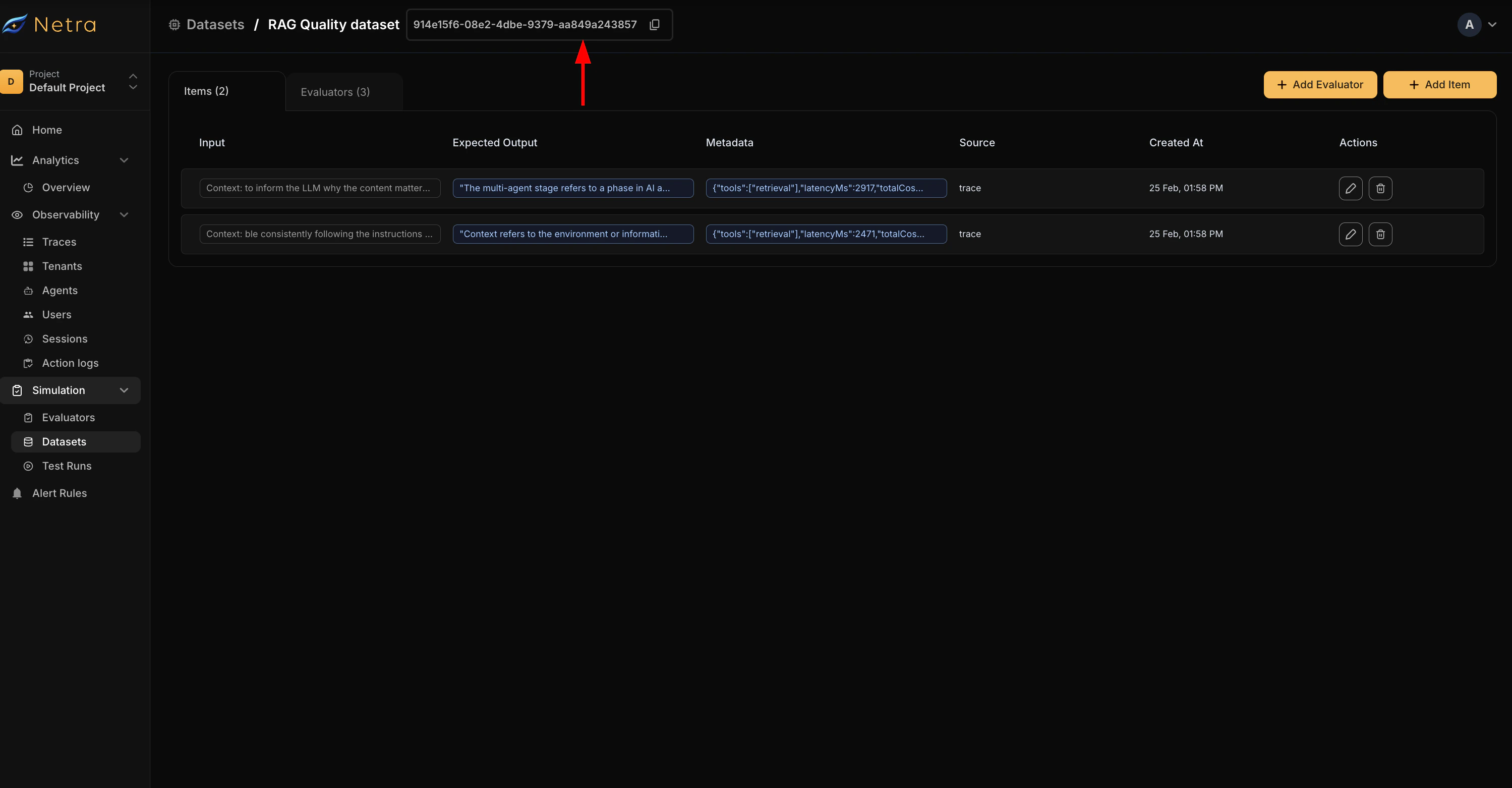
Under **Evaluation → Datasets**, you should now see the "RAG Quality Dataset" with two dataset items and three evaluators under the **Evaluators** tab, as shown in the video above. You can add more evaluators or dataset items manually from this page.
***
## Step 4: Trigger a Test Run
Currently in Netra, test runs are triggered via code. Copy the **Dataset ID** from the dataset page and use the code below.
 ```python Python theme={null}
from netra import Netra
Netra.init(app_name="rag-evaluation")
# Your RAG logic — wrap your pipeline in a function that takes
# an input string and returns the generated answer.
# Tip: if you followed the tracing cookbook, you can call chatbot.chat() here.
def rag_pipeline(input_data):
response = chatbot.chat(input_data)
return response["answer"]
dataset = Netra.evaluation.get_dataset(dataset_id="your-dataset-id")
result = Netra.evaluation.run_test_suite(
name="RAG Quality Evaluation",
data=dataset,
task=rag_pipeline,
)
```
```typescript TypeScript theme={null}
import { Netra } from "netra-sdk";
await Netra.init({ appName: "rag-evaluation" });
// Your RAG logic — wrap your pipeline in a function that takes
// an input string and returns the generated answer.
// Tip: if you followed the tracing cookbook, you can call chatbot.chat() here.
async function ragPipeline(inputData: string): Promise {
const response = await chatbot.chat(inputData);
return response.answer;
}
const dataset = await Netra.evaluation.getDataset("your-dataset-id");
const result = await Netra.evaluation.runTestSuite(
"RAG Quality Evaluation",
dataset,
ragPipeline,
);
```
For more details on the evaluation API, refer to the [SDK documentation](/sdk-reference/evaluation/python).
***
## Step 5: View Results
Go to **Evaluation → Test Runs** to see your test run with its status. Click on the test run to see the result for each evaluator, for each dataset item — whether it passed or failed.
You can also click **View Trace** on any result to debug what went wrong or verify what was correct. See [Test Runs](/Evaluation/TestRuns) for the full reference.
***
## Interpreting Scores and Improving Quality
When evaluator scores are low, use this table to identify the likely cause and fix:
| Low Score In | Likely Cause | How to Fix |
| -------------------- | ---------------------------------- | ------------------------------------------------------------------------------------ |
| **Answer Relevance** | Wrong chunks retrieved | Increase `top_k`, reduce chunk size, add overlap between chunks |
| **Factual Accuracy** | LLM misinterprets context | Improve the system prompt, lower temperature, use a stronger model |
| **Coherence** | Disjointed or repetitive response | Refine the system prompt to request structured answers |
| **Faithfulness** | Model hallucinating beyond context | Add explicit grounding instructions (e.g., "Only answer using the provided context") |
After making changes to your pipeline, re-run the evaluation against the same dataset and compare results across test runs. Netra tracks all runs so you can see whether your changes improved quality.
***
## Continuous Evaluation Strategy
For production RAG systems, run evaluations regularly:
1. **On every deployment** — Run your test suite in CI/CD before releasing changes to retrieval logic or prompts
2. **Weekly benchmarks** — Track quality trends over time to catch gradual degradation
3. **After prompt changes** — Measure the impact of system prompt modifications on all quality dimensions
4. **After parameter tuning** — Validate that changes to chunk size, `top_k`, or overlap actually improve quality
***
## See Also
Set up comprehensive tracing for your RAG pipeline before evaluating
Deep dive into Netra's evaluation framework: datasets, evaluators, and test runs
Evaluate tool selection, escalation, and workflow completion in agents
Compare different pipeline configurations systematically
```python Python theme={null}
from netra import Netra
Netra.init(app_name="rag-evaluation")
# Your RAG logic — wrap your pipeline in a function that takes
# an input string and returns the generated answer.
# Tip: if you followed the tracing cookbook, you can call chatbot.chat() here.
def rag_pipeline(input_data):
response = chatbot.chat(input_data)
return response["answer"]
dataset = Netra.evaluation.get_dataset(dataset_id="your-dataset-id")
result = Netra.evaluation.run_test_suite(
name="RAG Quality Evaluation",
data=dataset,
task=rag_pipeline,
)
```
```typescript TypeScript theme={null}
import { Netra } from "netra-sdk";
await Netra.init({ appName: "rag-evaluation" });
// Your RAG logic — wrap your pipeline in a function that takes
// an input string and returns the generated answer.
// Tip: if you followed the tracing cookbook, you can call chatbot.chat() here.
async function ragPipeline(inputData: string): Promise {
const response = await chatbot.chat(inputData);
return response.answer;
}
const dataset = await Netra.evaluation.getDataset("your-dataset-id");
const result = await Netra.evaluation.runTestSuite(
"RAG Quality Evaluation",
dataset,
ragPipeline,
);
```
For more details on the evaluation API, refer to the [SDK documentation](/sdk-reference/evaluation/python).
***
## Step 5: View Results
Go to **Evaluation → Test Runs** to see your test run with its status. Click on the test run to see the result for each evaluator, for each dataset item — whether it passed or failed.
You can also click **View Trace** on any result to debug what went wrong or verify what was correct. See [Test Runs](/Evaluation/TestRuns) for the full reference.
***
## Interpreting Scores and Improving Quality
When evaluator scores are low, use this table to identify the likely cause and fix:
| Low Score In | Likely Cause | How to Fix |
| -------------------- | ---------------------------------- | ------------------------------------------------------------------------------------ |
| **Answer Relevance** | Wrong chunks retrieved | Increase `top_k`, reduce chunk size, add overlap between chunks |
| **Factual Accuracy** | LLM misinterprets context | Improve the system prompt, lower temperature, use a stronger model |
| **Coherence** | Disjointed or repetitive response | Refine the system prompt to request structured answers |
| **Faithfulness** | Model hallucinating beyond context | Add explicit grounding instructions (e.g., "Only answer using the provided context") |
After making changes to your pipeline, re-run the evaluation against the same dataset and compare results across test runs. Netra tracks all runs so you can see whether your changes improved quality.
***
## Continuous Evaluation Strategy
For production RAG systems, run evaluations regularly:
1. **On every deployment** — Run your test suite in CI/CD before releasing changes to retrieval logic or prompts
2. **Weekly benchmarks** — Track quality trends over time to catch gradual degradation
3. **After prompt changes** — Measure the impact of system prompt modifications on all quality dimensions
4. **After parameter tuning** — Validate that changes to chunk size, `top_k`, or overlap actually improve quality
***
## See Also
Set up comprehensive tracing for your RAG pipeline before evaluating
Deep dive into Netra's evaluation framework: datasets, evaluators, and test runs
Evaluate tool selection, escalation, and workflow completion in agents
Compare different pipeline configurations systematically